
Changing the App Language
The software reads in 36 languages. You can change it while the app is running, and the change takes effect straight away. The choice is saved, so the software opens in that language next time too.
Where the setting is
Go to Settings, then General. The Language & Region group is at the top.
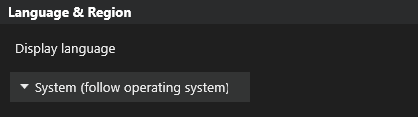
Click Display language and pick from the list.
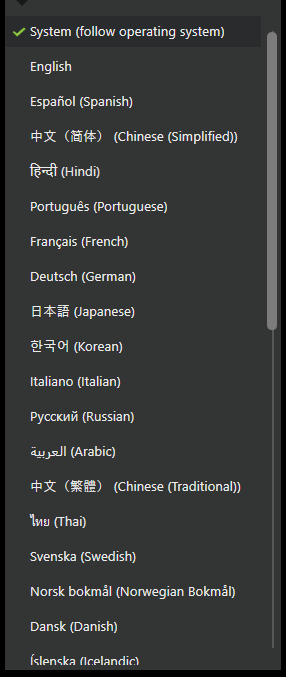
Each language is written in its own script with its English name beside it, so you can find yours whichever one you read.
The System option
System (follow operating system) sits at the top of the list and is the default. The software uses whatever language Windows is set to. If Windows is set to a language the software does not have, it shows English.
Pick a language from the list instead when you want the software to differ from the rest of the computer. Do the same when Windows is set to a language the software does not have and you would rather not read English.
The 36 languages
English, Español, 中文(简体), हिन्दी, Português, Français, Deutsch, 日本語, 한국어, Italiano, Русский, العربية, 中文(繁體), ไทย, Svenska, Norsk bokmål, Dansk, Íslenska, Indonesia, Tiếng Việt, Nederlands, Türkçe, Polski, Suomi, Українська, Română, Ελληνικά, Čeština, Magyar, Български, Hrvatski, Српски, Slovenčina, Lietuvių, Latviešu, Eesti.
What the language setting changes
It changes the words in the software: menus, buttons, settings, and the names of measurements.
It does not change:
- Units. Metric and imperial are a separate setting, in Settings, under General, in the Units group. Choosing Deutsch does not switch you to metric, and choosing English does not switch you to imperial.
- Your own text. Student names, session names, notes and marker names stay exactly as you typed them.
- Recorded data. Nothing about a swing you have already recorded changes.
If a word looks wrong
Tell us which language, which screen, and what the text says.