How to use Swing Catalyst Online
Introduction
This article is an introduction to Swing Catalyst Online and aims to show off the functionality available from the desktop side of Swing Catalyst Online.
Requirements
A valid Swing Catalyst license (What version do I have?)
A Swing Catalyst Online account
Internet connectivity
Table of Contents
This guide is split up into different categories & steps.
Web interface (Swing Catalyst Online)
What is Online
Swing Catalyst Online is the connection point which connects the Swing Catalyst Desktop software with the iOS & Android Apps and can be used for sharing recordings and lessons with other users.
All licenses are connected to a Online account.
Viewed from the Swing Catalyst Desktop software
This is Swing Catalyst Online viewed from the desktop side of things.
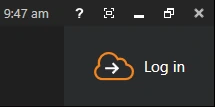
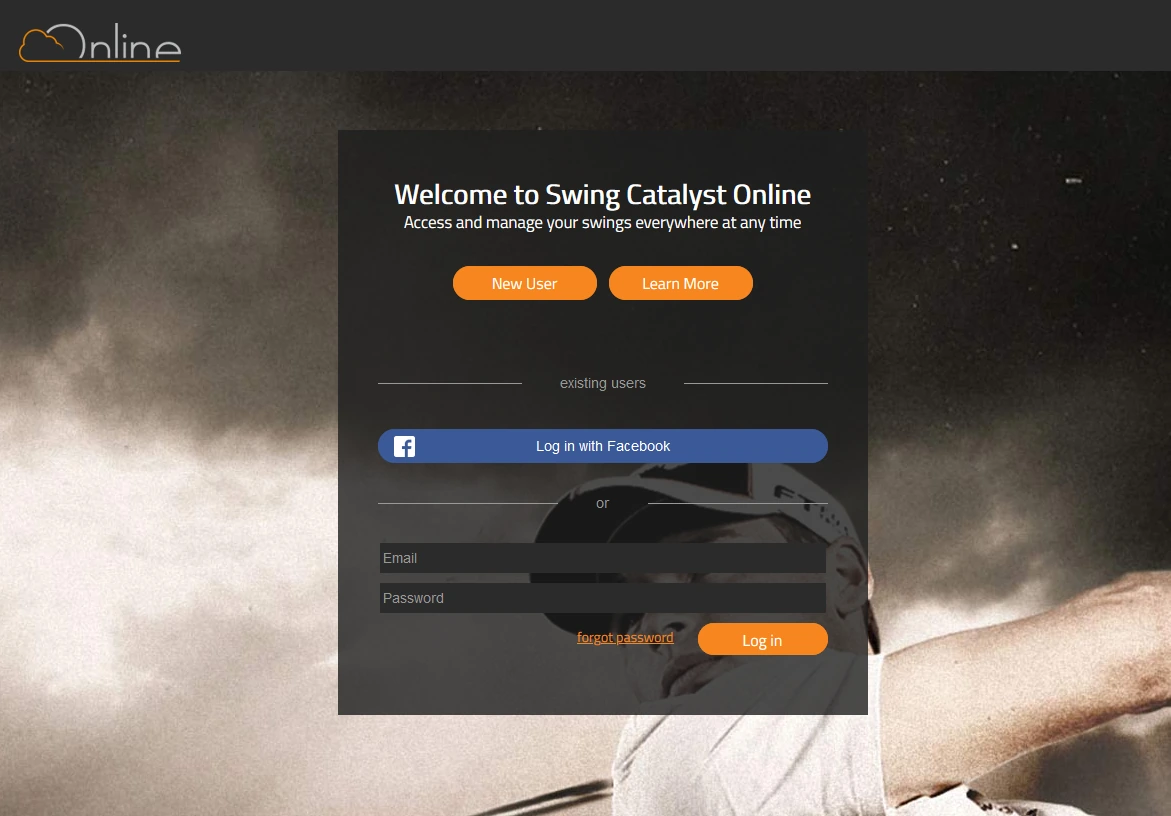
The login button can be found on the top of the software in the right corner.
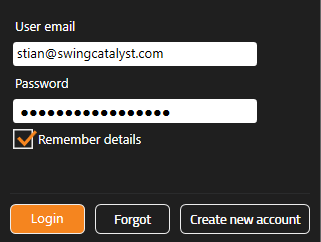
Your Online credentials are used to log in.
One logged in the “Log in” button changes reflecting you are logged in.
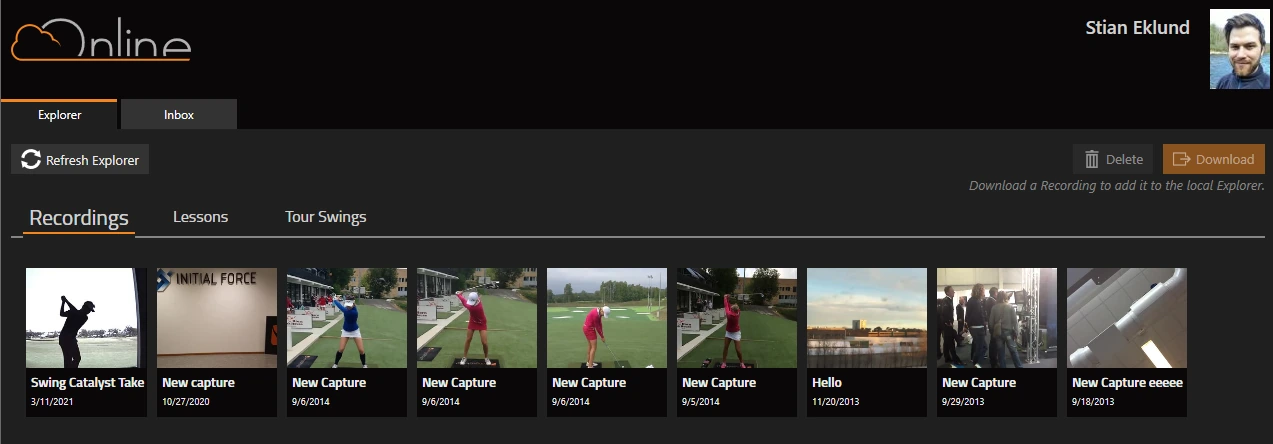
Recordings
The Online explorer is separate from the normal Explorer.
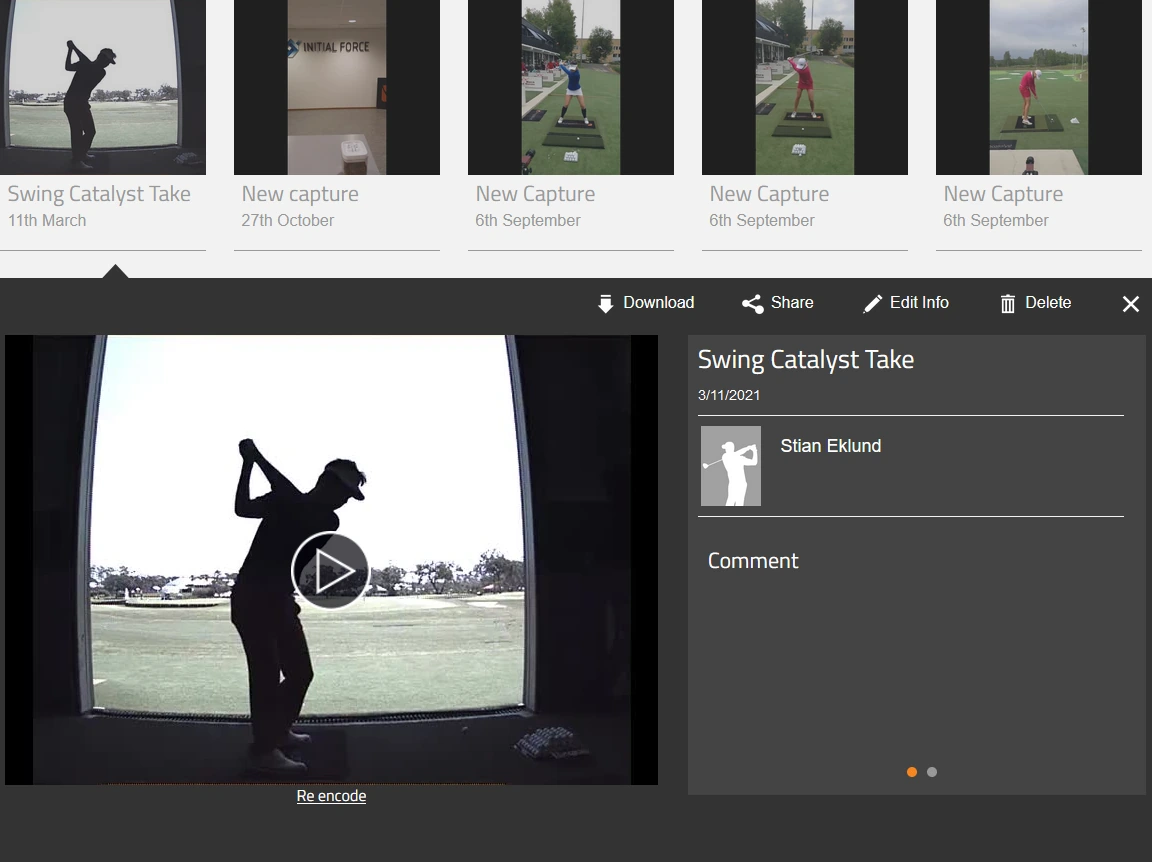
To download recordings from Online to the desktop software, click a recording and then click “Download”. This will begin downloading the recording and it will end up in the normal Explorer.
Lessons
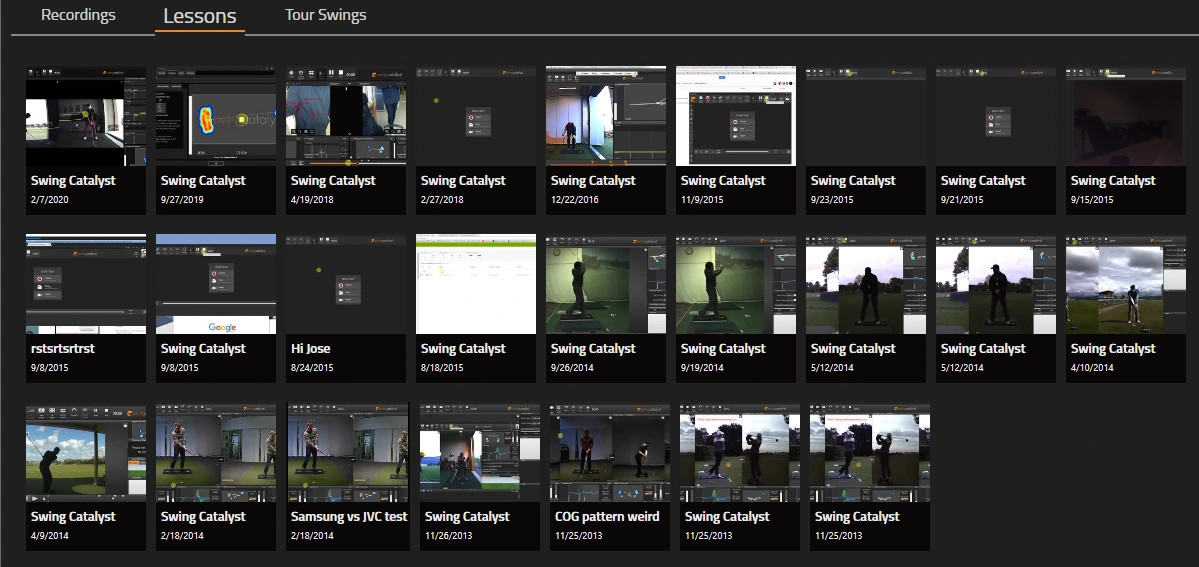
Recorded lessons that are shared to Online or to other Online users can be found here.
Tour Swings
Any purchased tour swings will show up in the “Tour Swings” tab.
Swing Catalyst Online
This is Swing Catalyst Online viewed from a web browser.
Login screen
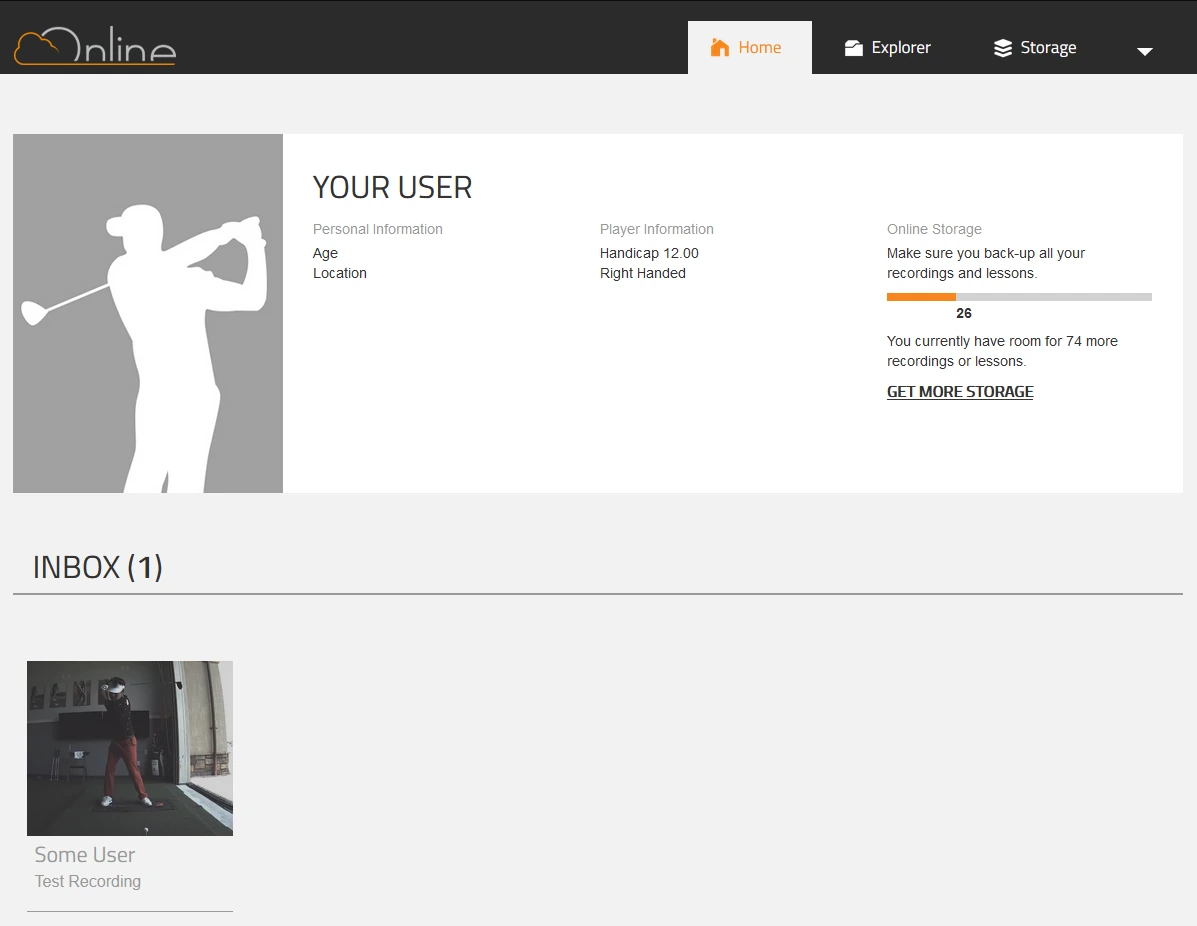
Home screen and Inbox
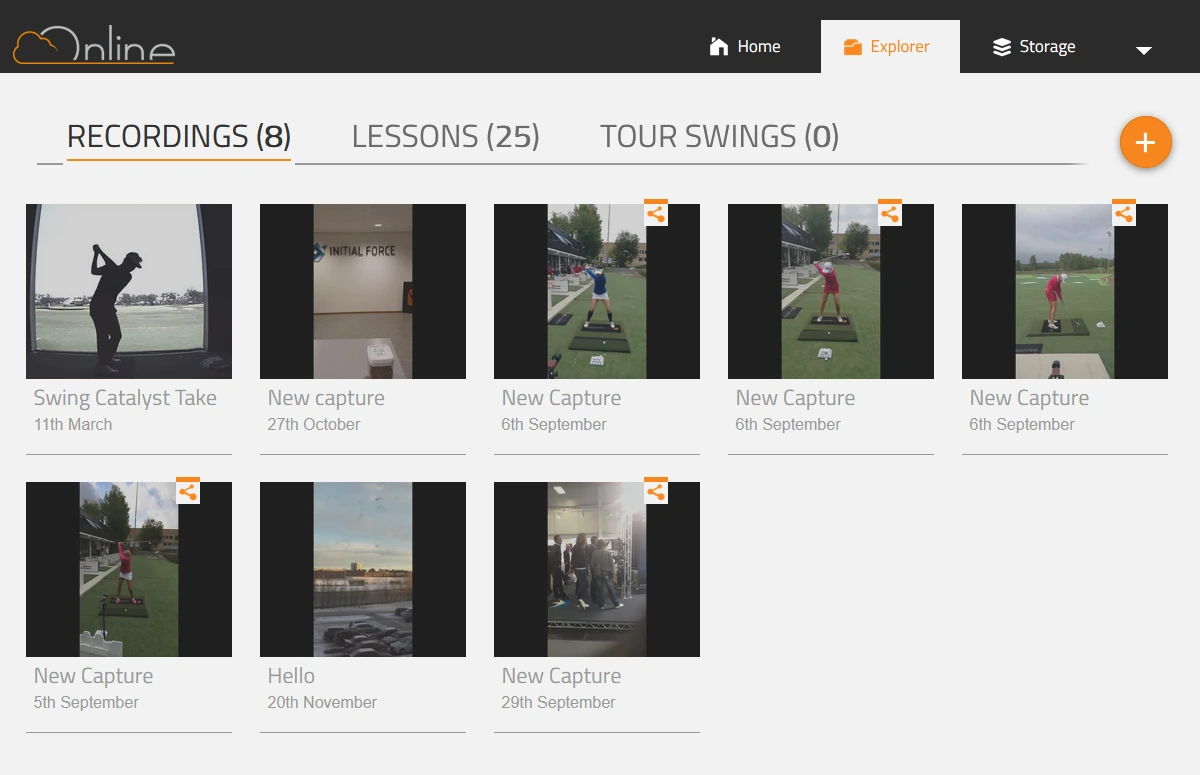
Explorer
All recordings that have been shared with you or uploaded from the desktop software visible here.
Note the “share” icon on those recordings which are shared with you from someone else.
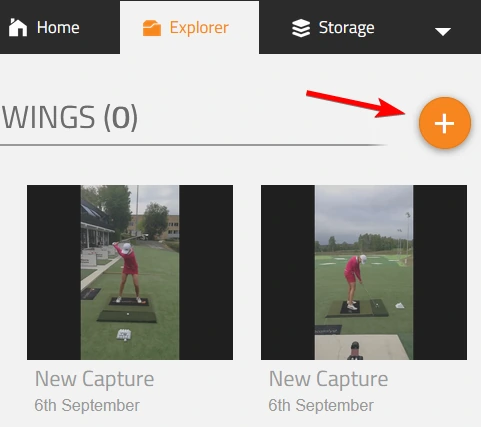
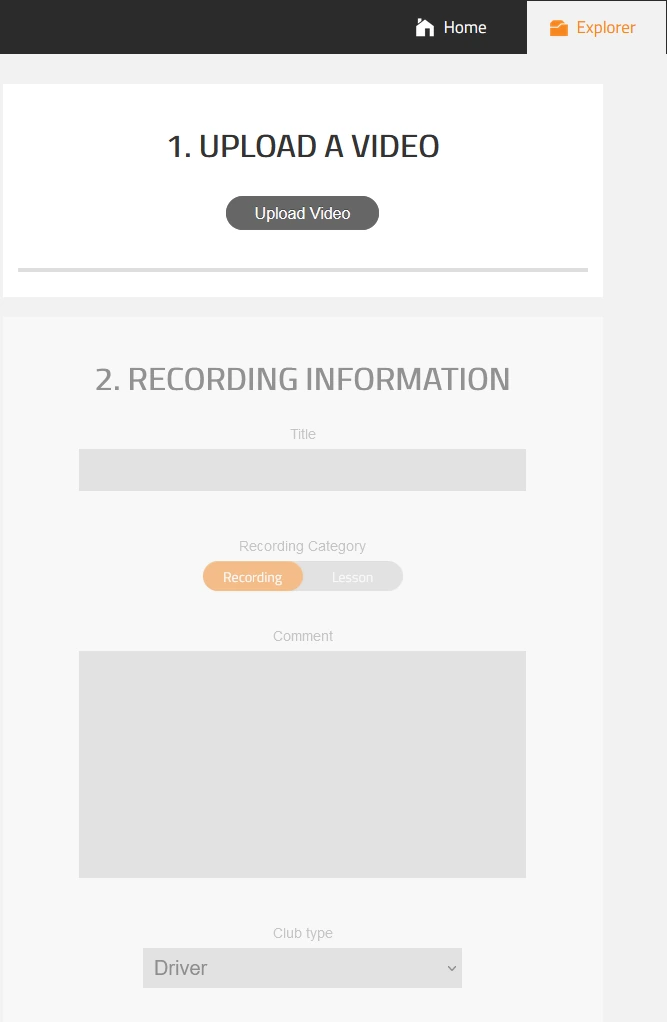
The orange “plus” button is the “Upload a video” button, where you can upload recordings to your account.
Viewing recording details
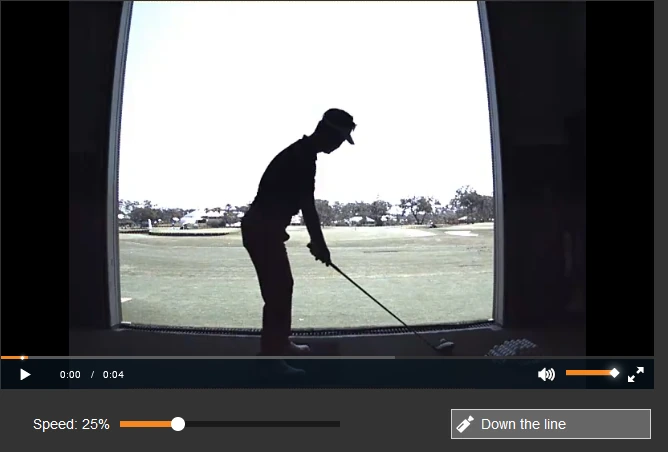
The video player has support for adjustable playback speed.
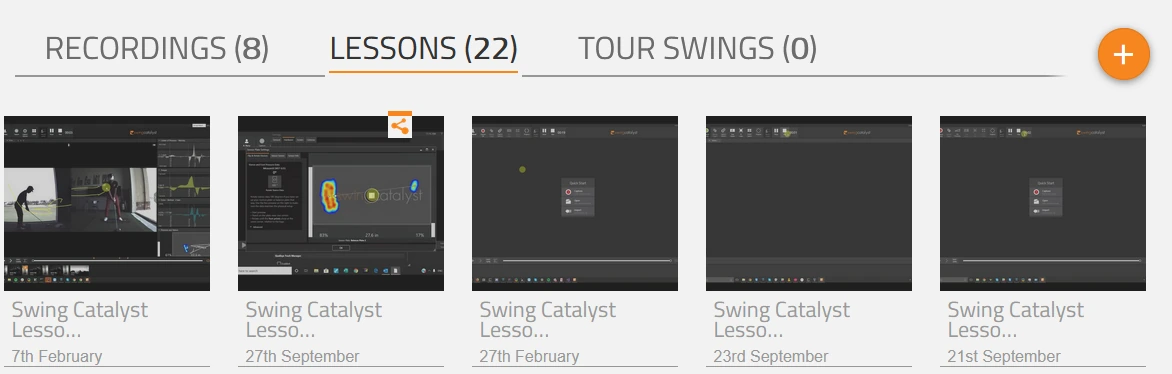
Lessons
The lessons tab has all of the lessons you’ve uploaded to online, or lessons that have been shared to you.
You can share recordings and lessons you have created, i.e. not shared with you.
Uploading a video
Recordings can easily be uploaded to Swing Catalyst by pressing the “+” icon in the Explorer.
Deleting a video
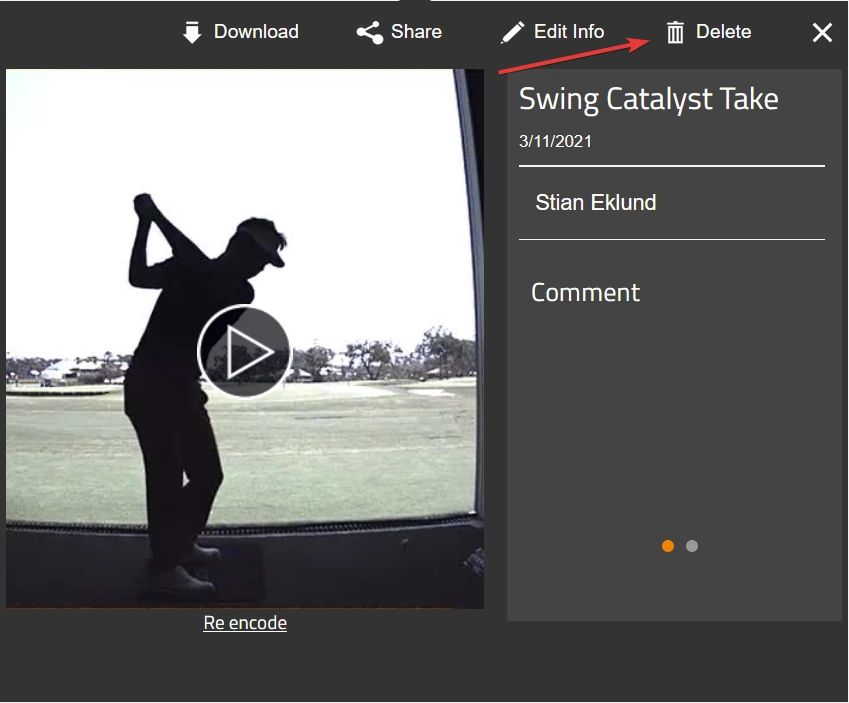
To delete a video, click the Explorer tab and then click one of the videos you wish to delete, then click the “Delete” button. Note: Deleting recordings that are shared with others will also remove the recipients access to the video.
Storage
When uploading a recording or lesson to Online, it uses your storage space. 50 Recordings and lessons (total) are free. You can manage your storage quota on this page.
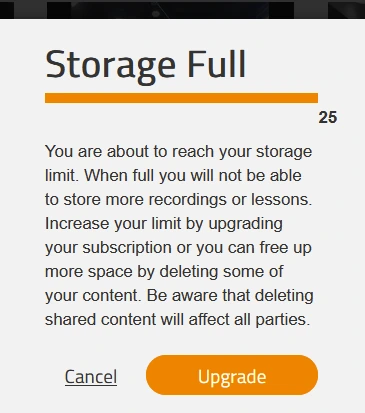
If you are having problems uploading recordings, your storage quota may be full, in that case you will have to either purchase a storage upgrade subscription, or delete existing recordings to make room for new ones.
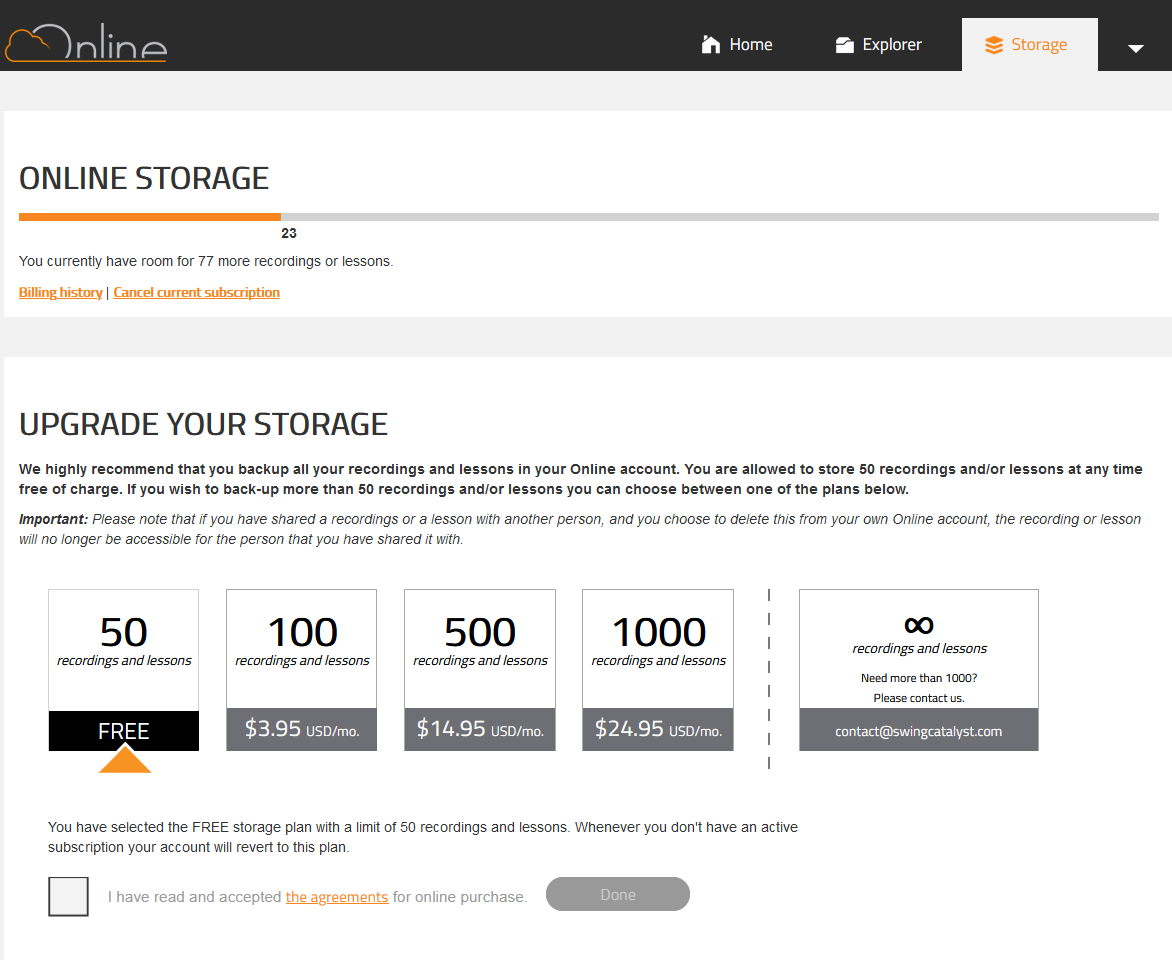
If your storage quota is filled up you will be presented with a warning in the Explorer page.
Editing your profile
Viewing your licenses
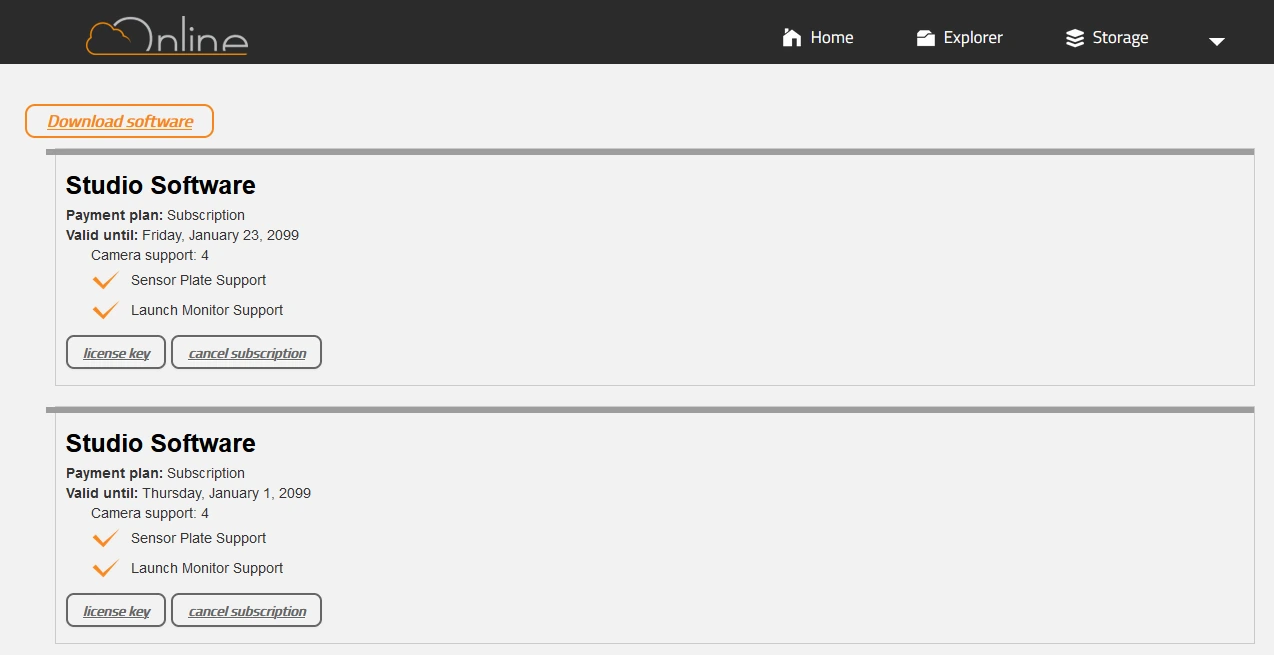
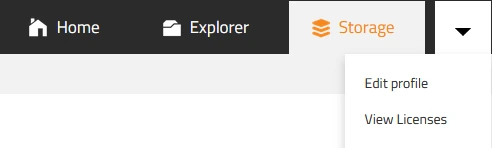
All Swing Catalyst licenses are tied to an Online account. Perhaps you’ve lost your license key? You can log in to Online and view the licenses directly from the “View Licenses” button.
Please note that in order to cancel your license this must be done through our shop.
Please see our article: How to manage your subscriptions.