
How to Import videos from V1
This article describes how to import your existing V1 or V1 Pro library to Swing Catalyst.
Applies To
Swing Catalyst 4.6 and later.
Solution
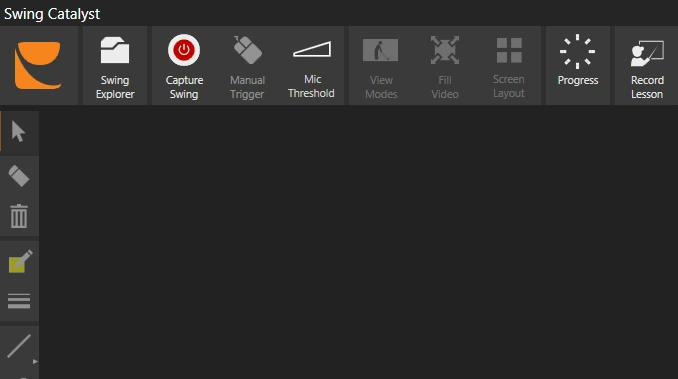
- From the top menu or the quick start menu click Swing Explorer.
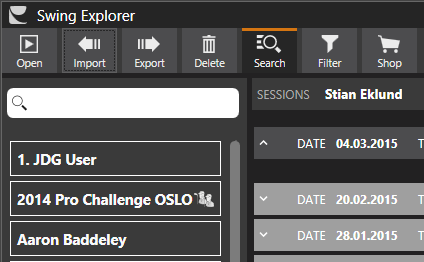
- Press the import menu item at the top of the Swing Explorer window.
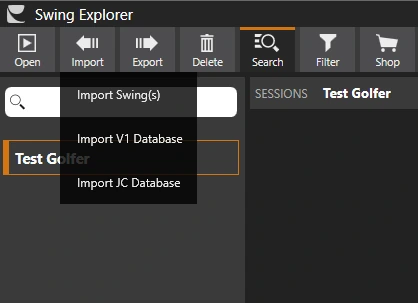
- Select “Import V1 Database”
- Navigate to the folder where your V1 videos are saved. This is normally c:\v1_video. Select the file called v1data.mdb
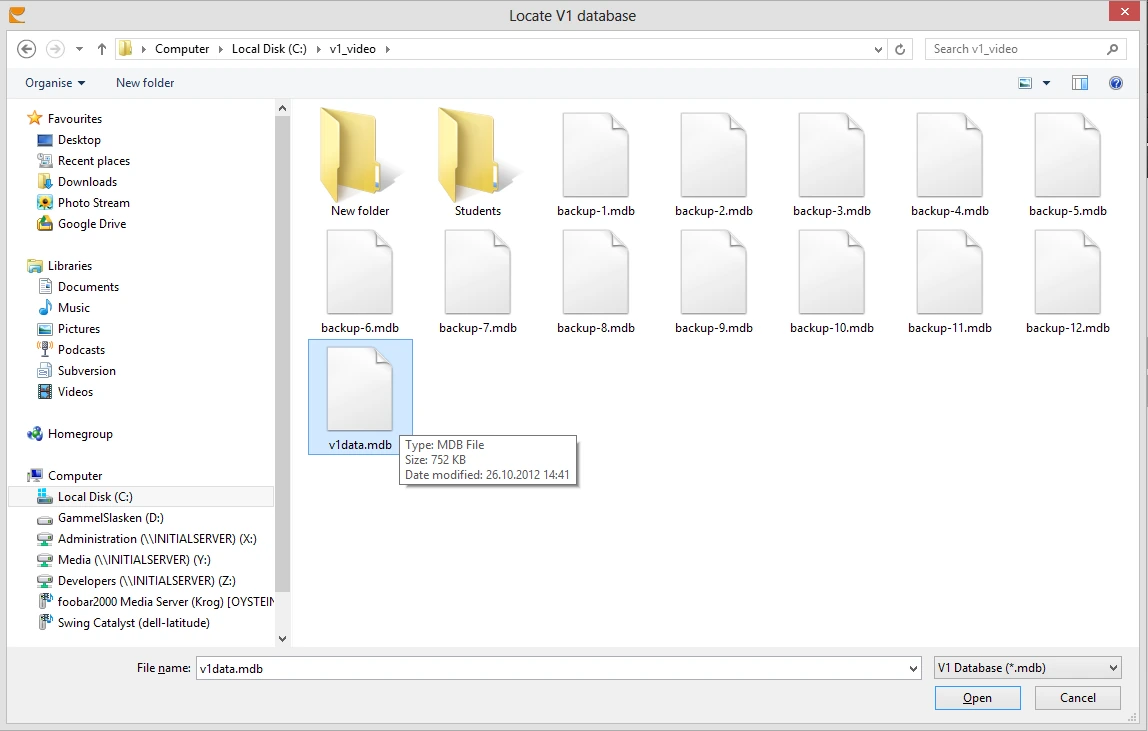
- Press open and the import should begin. Please be patient while importing swings.It may take a while depending on the size of the database.
Having problems importing the database to Swing Catalyst?
Make sure that you have the Microsoft Access Database Engine installed.
If not, download and install the 64-bit database engine, which matches the 64-bit Swing Catalyst, from the Microsoft Access Database Engine 2016 Redistributable page (choose accessdatabaseengine_X64.exe).
After installing, restart your computer, and try importing the database again.
No videos are being imported, import seems to hang?
Videos that have no student in V1 are still imported. Swing Catalyst puts them under a new student named after the instructor, or V1Student if no instructor is recorded.
If your videos still do not appear, please contact support for further assistance.