Export recordings
This article demonstrates how to export recordings from Swing Catalyst / Motion Catalyst.
How to export recordings
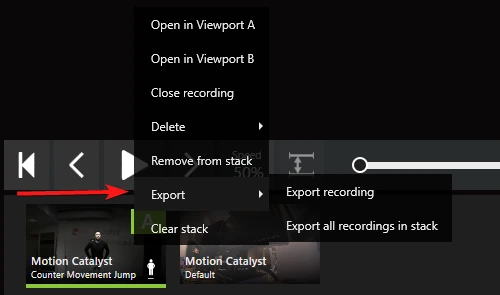
Recordings can be exported in several ways, either from the Stack or from the Explorer itself. Functionally there is no difference between them.
Exporting from the stack
Exporting from the Explorer
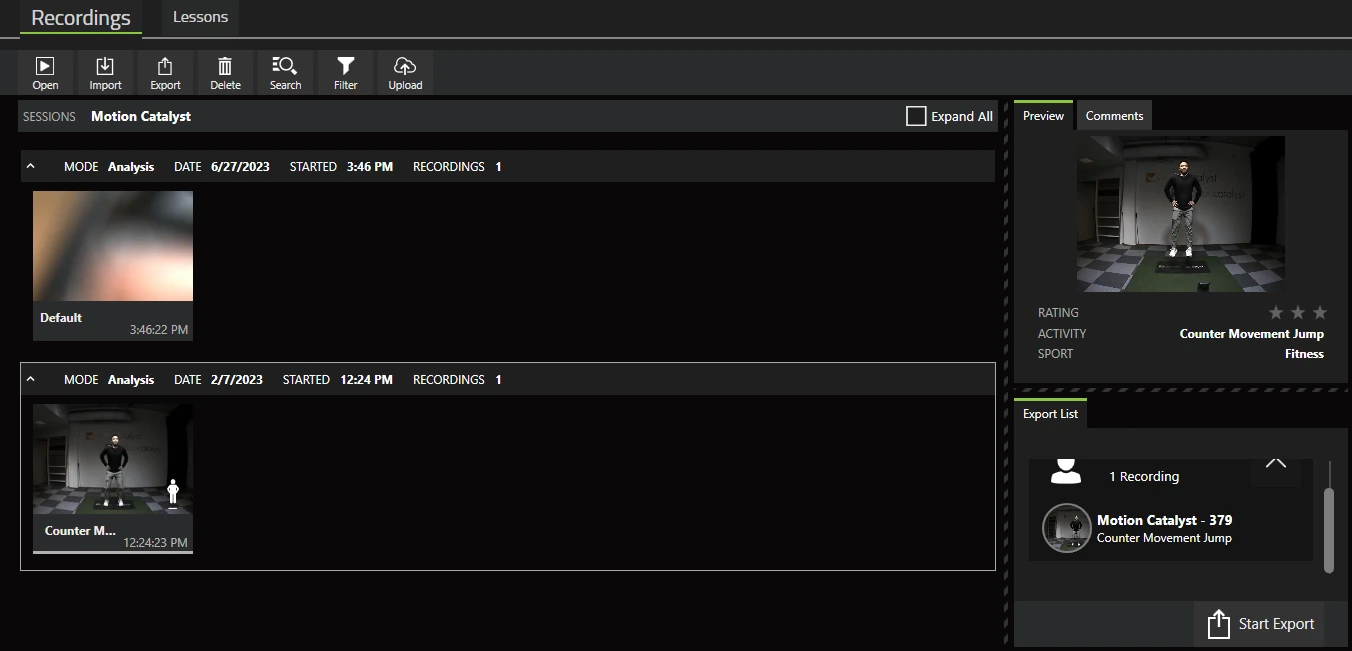
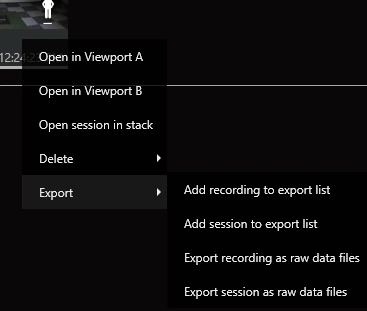
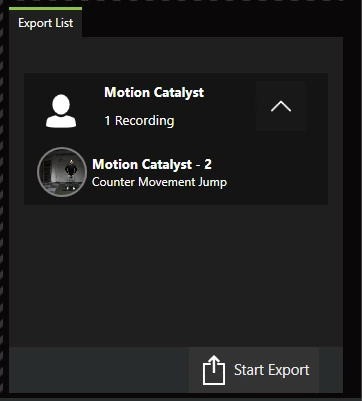
Recordings can be exported from the explorer by dragging a recording to the export list (see below screenshot) or by right clicking the recording and selecting from the available export options.
The Explorer Export list
Export options
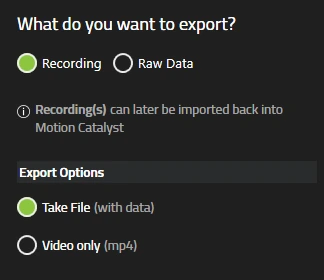
Exporting as a take file (the default option) will allow the recording to be imported by other Swing Catalyst or Motion Catalyst users. All of the data collected with the recording is stored with the take file.
If you wish to export just the video file(s) select “Video only”. Note if you have multiple cameras this will export each angle as a separate video file.
For details on the raw data option please see our raw data article.