How to change the user on a existing recording
This article shows how to change the user of an existing recording.
Available in version: 10.2 and up.
Applicable to: Motion Catalyst & Swing Catalyst.
Note: Articles that have both Motion Catalyst and Swing Catalyst tagged means the article applies to both variants of the software, despite the slight visual difference.
In the event a recording has been made and saved to a different user than you wanted, it’s now possible to change this (from version 10.2 and newer).
Changing the user on a recording
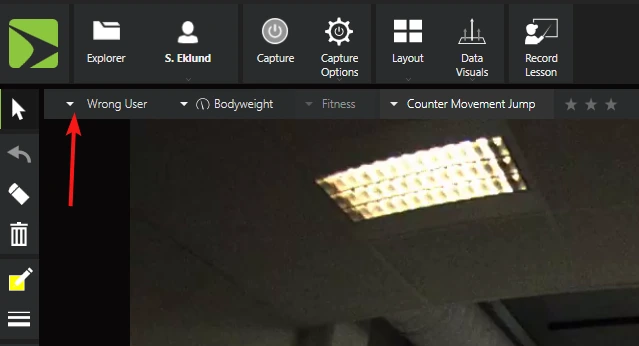
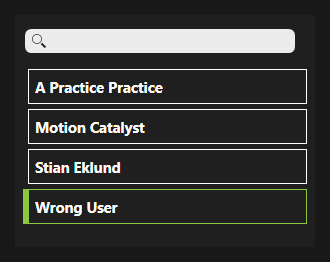
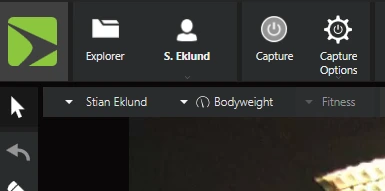
In the screenshots below there is a recording stored under the wrong user called: “Wrong User”, it should be stored under my name, “Stian Eklund”, the screenshots & steps show how to change this.
Open a recording that you wish to change the user on.
Select the user name drop-down underneath the Explorer icon (top left).
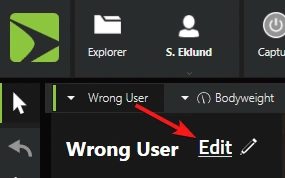
Click Change.
When asked “The take will be moved to another user. Do you agree?”, click Yes.
Select the new user you wish to store the recording under.
Click Save. The recording only moves to the new user when you click Save.
*If the user doesn’t exist you will need to create it first and then repeat steps 2 through 6.