
What are markers?
Introduction
This support article aims to describe what markers are in Swing Catalyst and Motion Catalyst, and what they are used for. There are some differences between Motion Catalyst and Swing Catalyst, but the fundamentals around how the markers function and their features are the same, meaning this article can be used for both software’s.
Example screenshot from Motion Catalyst of a counter movement jump recording
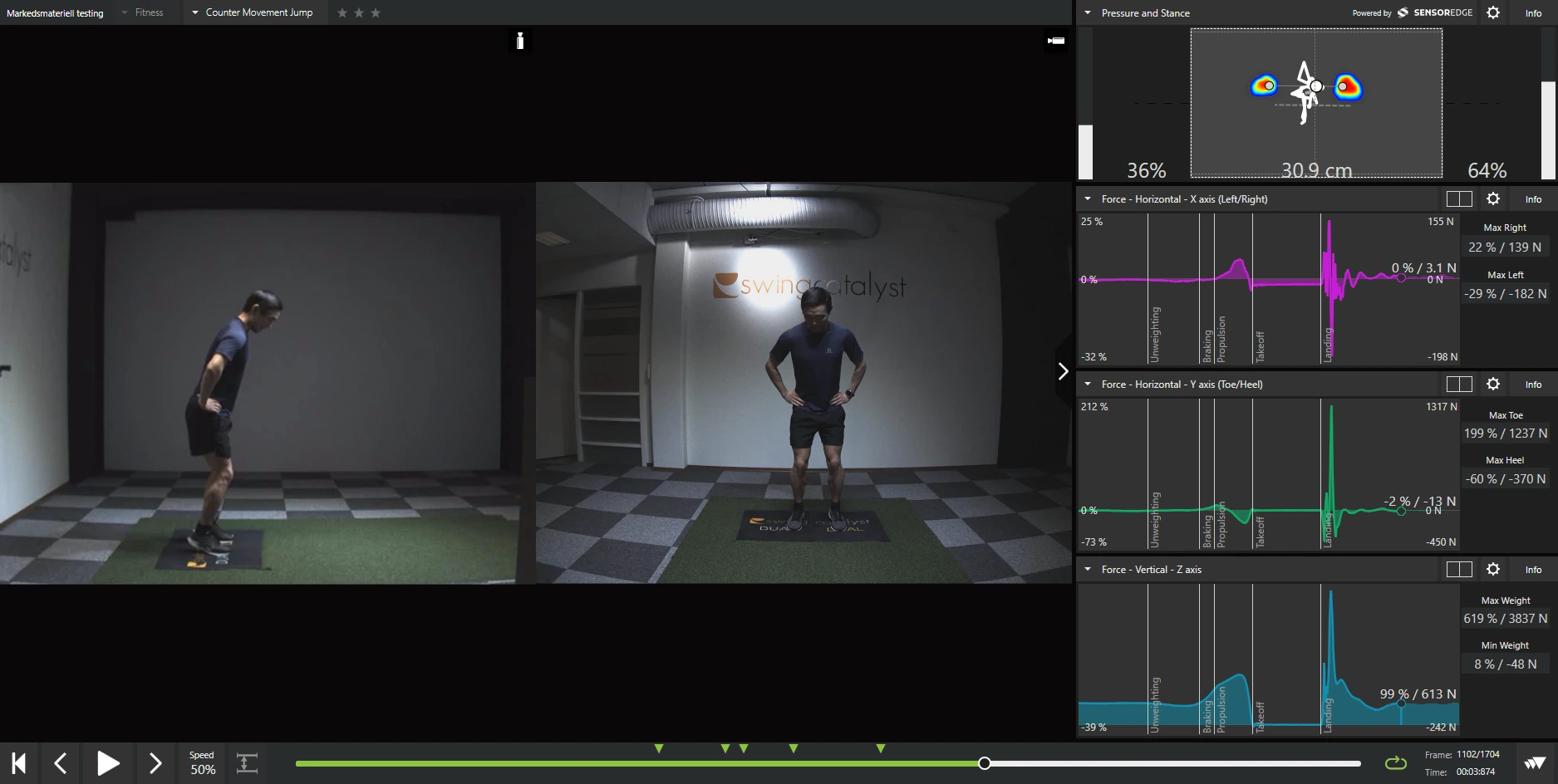
What are markers?
Markers are used to identify key points in a recording. For certain sports & activities, the markers show where specific phases of the activity start, or simply indicate start and end of movement.
For counter movement jump (as pictured), these markers are: unweighting, braking, propulsion, takeoff, and landing.
If we look more closely the screenshots above, we see that there are a number of arrows above the playback timeline. Each arrow is a marker for a key point in the recorded activity.

The number of markers available depends on the activity. Certain activities have more markers than others. For some activities the software finds the marker positions itself. These activities have automatic phase detection in version 26.2. Ski jump detection was also in earlier versions.
| Sport / Activity | Markers detected | Detected from | Notes |
|---|---|---|---|
| Golf swing | Up to 10 (P1 to P10) | Motion capture | Standard. See Golf swing phase detection |
| Ski jump | 3 | Force data | Standard. See Force graph phases |
| Fitness: Counter Movement Jump | 5 | Force data | Needs a license that includes automatic phase detection |
| Fitness: Squat Jump | 3 | Force data | Needs a license that includes automatic phase detection |
| Fitness: Drop Jump | 3, plus Box Exit placed at the start of the force data | Force data | Needs a license that includes automatic phase detection |
| Fitness: Repeated Hops | 2: Start of Hops and End of Hops. After detection the recording has no Start of Steady State marker. To place all three yourself, see The marker menu | Force data | Needs a license that includes automatic phase detection |
| Fitness: Isometric mid-thigh pull | 5 | Force data | Needs a license that includes automatic phase detection |
| Baseball: Pitching | 3, plus Max External Rotation placed shortly before Release | Motion capture | Needs a license that includes automatic phase detection. See Baseball pitching |
On every other activity, and on these activities without the license, the markers start at preset times. You drag them into place yourself.
The marker positions are stored in the database for each recording and in any exported take (recording with data) file.
How do I set markers?
To change or manually set the marker positions:
“Unlock” the markers by pressing the markers button (tooltip Place markers at key moments in the recording).
Once selected you can change the position of the markers by dragging the arrow(s).
When finished, make sure to “lock” the markers again by deselecting the markers button, which exits marker edit mode.
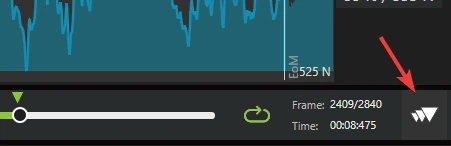
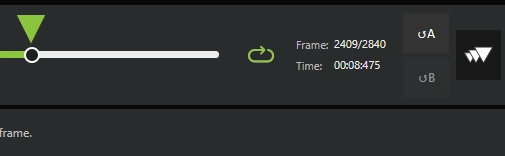
You can also place one of the first nine markers at the current frame: hold Ctrl and press the marker’s number, from 1 to 9.
Gray markers are placeholders. They sit at the activity’s preset times, not at the moments in this recording.

Detected markers and your own markers
This section covers version 26.2 and later. It applies to the activities in the table above that have phase detection.
Where the current markers came from
While the markers are unlocked, a short label on each recording’s row tells you where its markers came from. A line of help text under it changes to match.
| Label | Help text |
|---|---|
| Phases detected | “Phases detected automatically. Drag any marker to correct it.” |
| Edited by you | “You have adjusted the detected markers.” |
| Set manually | “Drag markers to the key moments, or press Ctrl and a number to place one at the current frame.” |
| Placeholder markers | “These markers sit at preset times, not at the moments in this recording. Drag each one into place.” |
| No phases found | “Detection ran and found no phases. Drag markers to the key moments, or press Ctrl and a number to place one at the current frame.” |
When you drag a detected marker, it becomes one you set yourself, and the label changes to Edited by you. Detection does not move it again on its own.
When detection finds nothing usable, a warning appears under the video, except on baseball pitching (see Baseball pitching ). It reads Phases not detected., or Phases not detected. These markers are placeholders. when every marker is still a placeholder. It says why detection failed and what to do. The Edit markers button on the warning unlocks the markers so you can drag each one into place. On force plate recordings the usual fix is to record again: see Force graph phases .
The detect button
Each recording’s row has a detect button. The same action is on the playback bar. Its label tells you what a click will do:
- Detect phases: detection has not been applied to this recording.
- Use detected markers: detection has run, but the markers do not show its result.
- Redo detection: detection has already been applied to this recording, even if you have moved some markers since. A click puts the markers back at the detected positions.
Going back to your own markers never turns the button off. It is unavailable when detection found nothing usable in the recording, and its tooltip then says why. If the recording has markers you placed yourself, you are asked to confirm first. On a force plate recording the dialog is titled Use detected markers:
This recording has markers you positioned yourself. Using the detected markers replaces them. Your markers are kept, and Restore my earlier markers in the marker menu brings them back. Continue?
If the recording still has saved earlier markers (see What “earlier markers” means ), the dialog reads instead:
This recording has markers you moved after the last detection. Using the detected markers replaces them, and they cannot be restored. Restore my earlier markers in the marker menu brings back only the markers from before the first detection. Continue?
On a golf swing the dialog is titled Detect swing phases. With two recordings open side by side, the playback bar button opens a menu with Detect phases A and Detect phases B.
The button is not shown on a recording that has no detector. That includes the activities in the table above when your license does not include automatic phase detection.
What happens when you open a recording
- No markers you placed yourself: The markers move to the detected positions without asking. On a force plate recording this happens without any notice, and the markers it replaces are not saved, so there is nothing to restore. Only golf swings show a notification with Revert when an older recording is updated: see Golf swing phase detection .
- Markers you placed yourself, or markers labeled Set manually: This depends on the Phase detection setting (see below). With the default setting, the detected markers replace your markers and a banner asks what to do. Your markers are saved first, so you can get them back.
The banner
The banner sits under the video and reads:
The detected markers have replaced the markers you positioned yourself. Keep them, or restore your markers.
- Keep detected markers keeps the detected positions and stops offering them for this recording. Your earlier markers stay available under Restore my earlier markers in the marker menu.
- Restore my markers puts this recording’s markers back exactly where they were and stops offering the detected markers for it. You can still use the detect button at any time. It does not turn detection off for the recording: if you later change the setting to Replace my markers with the detected markers, detected markers can replace these markers again, for example when you open the recording. To get your markers back and turn detection off for the recording, use Restore my earlier markers in the marker menu instead.
- Always replace my markers with detected markers is a checkbox beside the buttons. It is saved only when you press Keep detected markers. After that, detected markers are applied without asking on recordings where you have moved markers. Recordings that already have detected markers, and recordings you turned detection off for, are not changed. Ticking it and then pressing Restore my markers changes nothing.
The close button in the corner of the banner leaves the detected markers in place and stops asking about them for this recording. If you have moved or added markers since the banner appeared, Restore my markers asks first, in a dialog titled Restore your markers?, because those changes are discarded.
The Phase detection setting
Open Settings, the General tab, section Phase detection. The setting When you have moved markers yourself: has two options:
| Option | What happens when you open a recording with markers you placed |
|---|---|
| Ask before replacing my markers (default) | The detected markers are applied and the banner asks whether to keep them. |
| Replace my markers with the detected markers | The detected markers are applied without asking. |
Either way, your markers are saved before they are replaced. A recording with no markers you placed yourself always gets the detected markers, whichever option you pick.
The marker menu
Open a recording’s marker menu with the three-dot button at the end of its row (tooltip More marker actions). It has these items:
- Restore my earlier markers puts back the markers the recording had before detection first replaced them, including any you had moved yourself. It only appears while there is something to restore.
- Use the default markers for this activity puts the markers back at the activity’s preset times. Any detected markers and any positions you set yourself are replaced. On a Repeated Hops recording, this brings back all three markers, including Start of Steady State, so you can drag them into place. On a golf swing and on the force plate activities in the table above, it also turns automatic detection off for that recording (see Turning detection off for one recording ).
- Use old 3-point markers is shown instead of the item above on a golf swing. It puts back the three markers golf recordings used before swing phase detection existed.
Each of these asks you to confirm first. Restore my earlier markers asks in a dialog titled Restore earlier markers:
Your markers go back to where they were before phase detection ran, including any you had moved yourself at the time. Anything you have adjusted since then is replaced. This recording also stops detecting phases automatically, but you can choose Use detected markers at any time. Restore your earlier markers?
Turning detection off for one recording
On a golf swing and on the force plate activities in the table above, each of these menu items stops that one recording from picking up detected markers on its own. No banner appears for it either. To turn detection back on for the recording, click the detect button.
What “earlier markers” means
When detection replaces markers you placed yourself, the app first saves the recording’s markers as they were. A click on the detect button also saves them when no set is saved yet, even if they are preset markers. For example, after Use the default markers for this activity, the detect button saves the preset markers as your earlier markers. There is one saved set per recording. Running detection again keeps the saved set and does not save a new one. Restoring your earlier markers, or using the default markers, uses up the saved set, and the next detection that saves markers makes a new one. Markers you moved after the set was saved are not in it and are replaced when you restore.
On a golf swing, detection also saves the earlier set when it replaces markers from an older recording. See Golf swing phase detection .
If you have corrected detected markers, do not click Redo detection unless you are ready to redo those corrections. If the recording already has a saved set, Restore my earlier markers goes back to that set, not to your corrections.
Baseball pitching
Baseball pitching recordings can have three of their four markers detected from motion capture: Max Knee Height, Footstrike and Release. Max External Rotation is not detected. It is placed shortly before Release and labeled “(not detected, preset position)”. No force plate is needed. This needs a license that includes automatic phase detection, and a recording with motion capture data. Detection needs the legs and feet in shot and a visible stride toward the plate.
The detect button, the banner and Restore my earlier markers are not available on baseball pitching recordings. When detection finds nothing usable, no warning appears under the video. Hold the pointer over the markers above the timeline, and a tooltip says why. Markers you placed yourself are kept. Softball pitching has no automatic detection.
Other buttons on the playback bar
The crop button on the playback bar works on any recording with at least two markers spaced far enough apart. It trims the scrubber to the part of the clip between the first and last marker, so you are not scrolling through the walk-up. Its tooltip reads Crop playback to the marked range (first to last marker). Click it again to turn cropping off. When the outer markers do not cover the whole movement, the software adds a margin by itself, and the tooltip reads Crop playback to the marked range, with a margin. The details are in Golf swing phase detection .
The markers are also represented in the data graphs as vertical lines, indicating where in the recording each marker is in time (X axis of the graph):
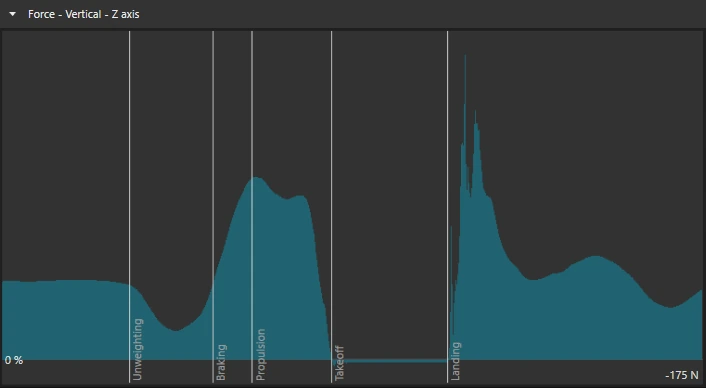
The position of the first and (or) last marker decide how much data is displayed in the databoxes. The duration before the first marker and after the last marker depends on the activity and sport, but changing this manually can be helpful to view certain parts of a recording. This is especially helpful for recordings done under the “free movement” activity, which can be up to 30 seconds in duration.
Note: We are only changing what we are looking at “in time”, none of the stored data is actually changed in any way.
For more details on how to view and manipulate the graphs please see this article .
Why should I set markers?
To allow easy playback synchronization between recordings we recommend setting markers.
For example, say you want to view two recordings side by side of of a counter movement jump performed by two different users where you wish to synchronize the playback on a specific marker.
Click the “Synchronize” button.
Select the marker you wish to synchronize on.
Press play.
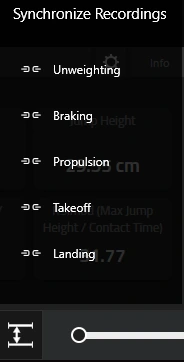
Note: The number of available markers, and their names, vary depending on the sport and activity.
Example synchronizing two golf swings on the impact marker:
This can be done for any sport or activity. For more details on “compare mode” please see the “layouts” section of our user guide .