
Auto Export and Auto Import
Auto export writes each take to a folder of your choosing as soon as you record it. Auto import watches a folder and brings in any take file that appears there.
Both are off until you turn them on. You find them in Settings, under Auto Export/Import.
Auto export
Tick Auto-export take files. Two more settings appear.
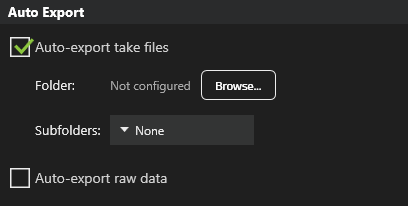
Folder is where the files go. It reads Not configured until you click Browse… and choose one. Nothing is exported until you do.
Subfolders decides whether the software sorts the files as it writes them. There are four choices.
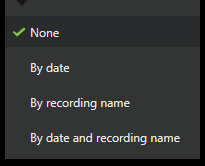
- None puts every file straight into the folder.
- By date makes one folder per day.
- By recording name makes one folder per recording.
- By date and recording name does both.
Pick By date if you record many students a day and want to find a session by when it happened. Pick None if something else is reading the folder and expects the files at a fixed path.
Auto-export raw data is a separate tick with its own folder and subfolder settings. Raw data is the measurements rather than the take. Click Configure… to choose what goes into each export: Raw data (force, pressure, launch monitor data), Key Metrics, Pressure data, and Include video.
Auto import
Tick Auto-import take files.
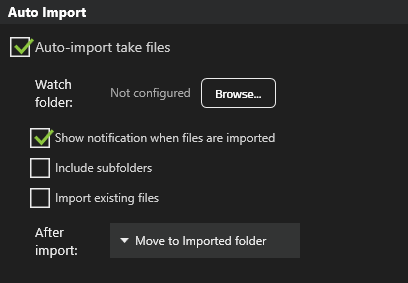
Watch folder is the folder to watch. As with export, nothing happens until you choose one.
Show notification when files are imported tells you on screen each time a file comes in. It is on by default.
Include subfolders also watches every folder inside the watch folder.
Import existing files brings in the files that are already sitting there when you turn this on. Leave it off and only files that arrive from now on are imported.
What happens to a file after it is imported
After import decides what happens to the file next.
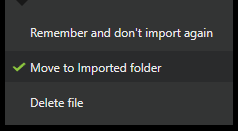
- Move to “Imported” folder moves the file into a folder called Imported created next to the file itself. If the file arrived in a subfolder of your watch folder, the Imported folder is made in that subfolder. This is the default.
- Remember and don’t import again leaves the file where it is. The software remembers the file only until you close it. After you open the software again, that memory is gone. Files that arrive from then on are imported as normal. If Import existing files is ticked, every take file still sitting in the watch folder is imported again, so you get the same take twice. If you rely on this option, leave Import existing files off, or move the files out of the watch folder yourself.
- Delete file deletes the incoming file from disk once the take has been imported successfully.
Delete file removes your spare copy. The recording is safely in the software by then, so this is not the same as losing it, but you no longer have the original file to re-import or hand to anyone else. Keep the file unless something else is already keeping one.
Checking what happened
The History panel on the same settings page lists recent automatic exports and imports. Click View History… to see it. Start there when a file you expected did not arrive, before changing any settings. It keeps the most recent 100 entries and is cleared when you close the software, so check it while the problem is fresh.