
Optional Features: downloading motion capture components
From Swing Catalyst 26.2, the motion capture models and the GPU acceleration files are no longer part of the installer. You download them once, from inside the app, on the Optional Features settings page. This keeps the installer small and lets us update the models without a new app release.
This article explains what the downloads are, where to find the page, and what to do when a download fails.
The four component groups
The Optional Features page has four groups. Each group is a set of files that one feature needs.
| Group | What it does | Approximate size |
|---|---|---|
| Motion Capture | Tracks body movement in your videos. Needed for all motion capture features. | 300 MB |
| Golf Club Tracking | Tracks the golf club and ball in golf videos. | 340 MB |
| Force Plate Tracking | Finds force plates in your videos automatically. | 70 MB |
| GPU Acceleration | Faster processing on computers with an NVIDIA graphics card. Not needed on other computers. | 4.1 GB |
Sizes change between releases. The page always shows the current download size next to each group.
The files are stored under C:\ProgramData\Swing Catalyst\components. The page shows the exact folder next to Components Folder, and Open Folder opens it in Windows Explorer.
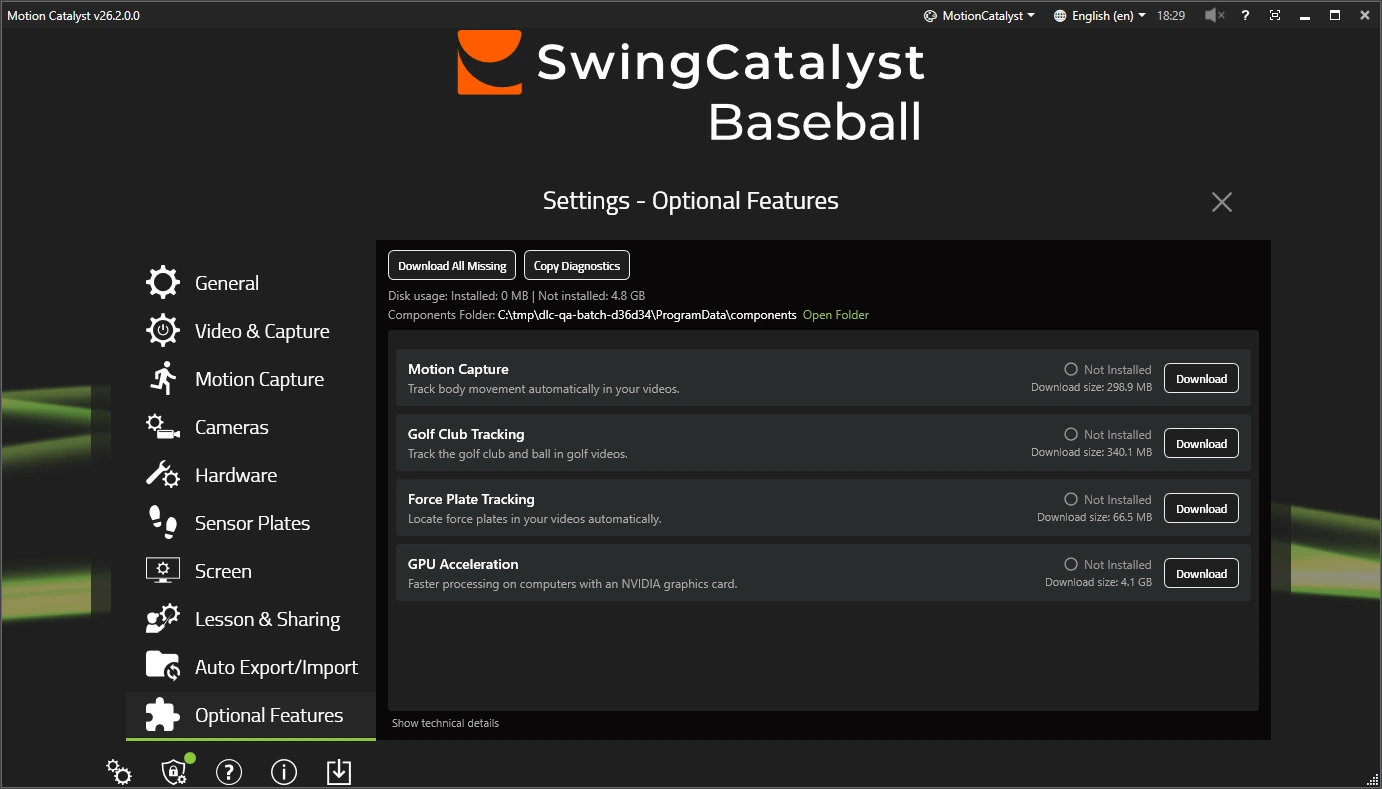
Where to find the page
There are three ways to reach it:
- Settings > Optional Features. This is the main way.
- Help > Open Component Manager. This works from the start screen too, before you open a session.
- From the Motion Capture settings page. If components are missing, a yellow banner at the top says how many are needed. Download all needed downloads them. Manage Components… opens the Optional Features page.
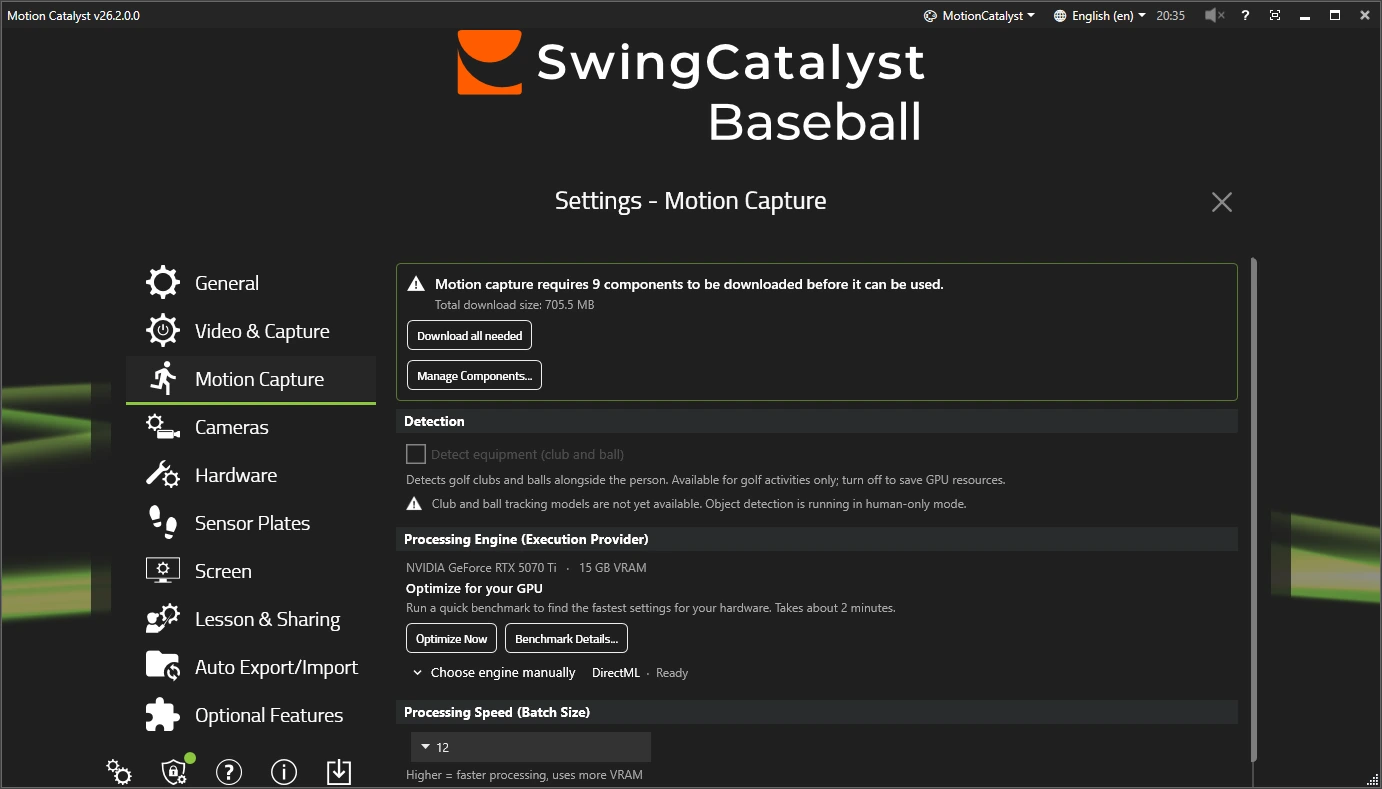
You may also see a prompt when you start a feature that needs components. It says Download required and lists what is missing. Choose Download to start or Not now to skip. If the components cannot be downloaded from the prompt, the first button reads Open Optional Features instead.
How to download
- Open Settings > Optional Features.
- Click Download on a group, or Download All Missing at the top to fetch everything.
- Watch the status on the right of each group. It changes from Not Installed to Downloading… 45% to Installed.
You can keep using the app while files download. Progress also shows in the tasks list at the bottom of the window. When a download finishes, a message says ML models downloaded or Runtime components downloaded.
While a group is downloading you can:
- Pause it and Resume it later. After a resume, the current file starts again from the beginning, so a pause on a large file costs some time.
- Cancel it. Files still downloading stop, and files that already finished stay installed. No partial file is left in the components folder.
If you started the download from a feature that needed it, a message says downloaded. Try the action again when it is done. Then run the feature once more.
Status labels
| Status | Meaning |
|---|---|
| Installed | Every file in the group is present and checked. |
| Not Installed | Nothing from this group is on disk yet. |
| 2 of 4 installed | Some files are present. Click Download to fetch the rest. |
| Needs repair | A file is damaged or incomplete. Click Repair. The app deletes the bad file and downloads it again. |
| Downloading… 45% | A download is running. |
Disk usage at the top of the page shows two numbers. One is the space the installed files take. The other is the space the missing files would take.
Requirements
- Internet access to
api.swingcatalyst.comand to Microsoft Azure storage. If your network blocks downloads, ask your IT department to allow these. - A license that includes motion capture: the page checks your license before it starts. If your license does not cover a group, the download stops with a license message.
- Free disk space. The model groups need space equal to their download size. GPU Acceleration needs more than its download size, because the files are unpacked after download. The app checks this before it starts and tells you how much is needed.
- An NVIDIA graphics card for the GPU Acceleration group. On other computers, motion capture still works. It uses the DirectML engine, which needs no extra download.
When a download fails
The group shows a short message under its status. Fix the cause and click Download again. A failed file is fetched again from the start.
| Message | What to do |
|---|---|
| check your internet connection | The app could not reach the server. Check your connection, VPN and firewall, then retry. |
| server temporarily unavailable | The download server did not answer. Wait a few minutes and retry. |
| Your license does not have access to these models | Your license does not include this feature. Contact support if you think it should. |
| insufficient disk space | Free up the amount shown, then retry. |
| file not found on server | The file is missing on our side. Contact support and include the diagnostics (see below). |
| verification failed | The file was damaged during download. Click Repair or Download to fetch it again. |
| could not be saved to disk | The app could not write to the components folder. Check that antivirus software or folder permissions are not blocking C:\ProgramData\Swing Catalyst\components. |
If the same error keeps coming back, send us the diagnostics.
Diagnostics for support
- Open Settings > Optional Features.
- Click Copy Diagnostics. This copies a diagnostics summary: the app version, the components folder, and each component’s status, size, file path and checksum.
- Paste it into your support email.
Removing the files
To free disk space, close Swing Catalyst and delete the components folder. The next time you open the app, every group shows Not Installed and you can download again.