
Object Detection for the Golf Club and Ball
What Object Detection Does
When equipment detection is on, Swing Catalyst finds the golf club and ball in each video frame and draws them on top of the skeleton. You see:
- Club overlay: five points along the club (club head top, club head bottom, shaft bottom, shaft middle, shaft top) joined by lines. The color runs from yellow at the club head to cyan at the top of the shaft, so you can tell which end is which.
- Ball overlay: one white ball at the detected ball position.
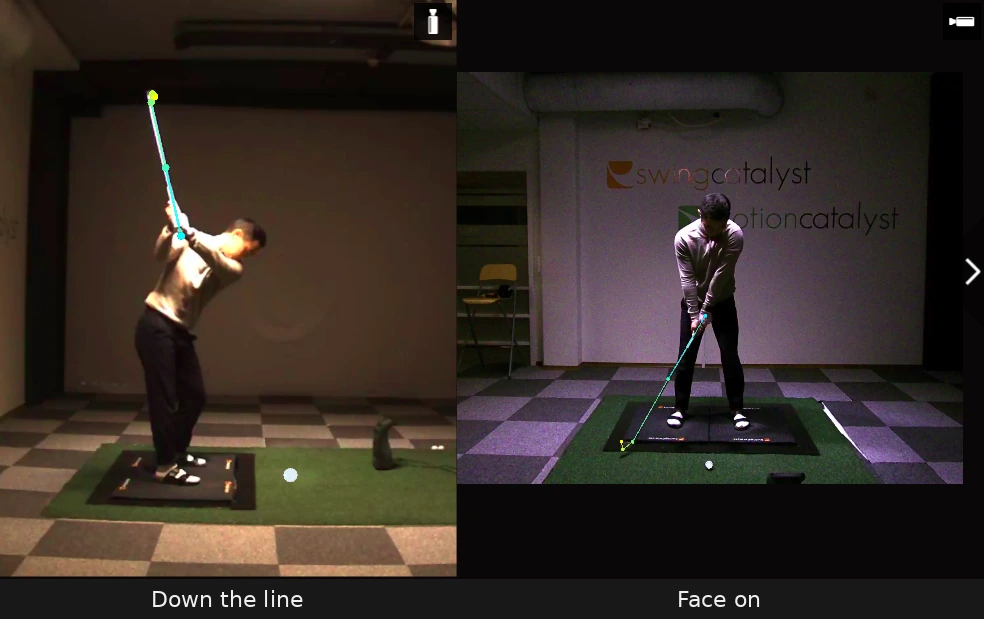
The overlays appear in the live camera view and when you play back a recorded take. A take recorded without equipment detection plays back with the body skeleton only.
Object detection finds a golf club and ball. It is available for golf activities only.
Turning Equipment Detection On or Off
The setting is on the Motion Capture page in Settings (source: the settings page and Strings.resx):
- Open Settings and choose Motion Capture.
- Find the Detection section.
- Tick or clear Detect equipment (club and ball).
The help text under the checkbox reads: “Detects golf clubs and balls alongside the person. Available for golf activities only; turn off to save GPU resources.”
The change applies to the live view straight away. You do not need to restart the software.
The Detection section is only shown when your license includes a golf activity. On a license without golf there is nothing to turn on, so the section is not there.
The checkbox is grayed out while the club and ball model files are not installed. A warning appears under it:
Club and ball tracking models are not yet available. Object detection is running in human-only mode.
Click Download all needed on the same page to fetch the missing files, or Manage Components… to see what is installed. See the Component Installation Guide .
Showing and Hiding the Overlays
The MoCap tools bar on the video view has an Objects button (tooltip: “Show or hide detected objects (club, ball, club head trace)”). It opens three switches (source: the tools bar and Strings.resx):
- Club hides or shows the golf club overlay.
- Ball hides or shows the golf ball overlay.
- Club head trace hides or shows the path the club head has followed.
The Objects button is only shown for golf. The switches take effect at once, without reprocessing. Club and Ball are saved for the whole program: a switch you turn off stays off for the next recording you open and after you restart the software. Club head trace is not saved. The trace is cleared when you open another recording.
Graphics Card Memory
Object detection needs more graphics card memory than body-only motion capture. If the card does not have enough free memory when motion capture starts, equipment detection turns itself off for that session and the body skeleton still works. No message is shown on screen when this happens; the club and ball overlays simply do not appear.
For the graphics cards we recommend, see Recommended computer specifications .
Playback
When you open a take that was recorded with equipment detection on:
- The club and ball overlays are drawn on the video with the body skeleton.
- They stay in step with the video frame when you scrub the timeline.
- A club point or ball the detector was not sure about is hidden for that frame rather than drawn in a wrong place.
- Club and Ball on the MoCap tools bar hide or show each overlay.
A take recorded before you turned equipment detection on shows the body skeleton only. It opens normally and needs no reprocessing to view.
To add club and ball data to a take that already has motion capture data, open it in analysis mode, click the MoCap button in the toolbar, and click Process Objects. That button runs equipment detection on the recorded frames and leaves the body data as it is. It reads Process Objects only on a golf take that has body data but no club and ball data, with the model files installed. On other takes it reads Reprocess Mocap and reruns body detection, and equipment detection too on golf takes, or Process Mocap when the take has no motion capture data at all.
Troubleshooting
No club or ball overlay
- Check that Detect equipment (club and ball) is ticked under Settings > Motion Capture > Detection.
- Check that the take is a golf activity. Equipment detection does not run for other sports.
- Check whether the warning “Club and ball tracking models are not yet available. Object detection is running in human-only mode.” is shown under the checkbox. If it is, click Download all needed, or follow the Component Installation Guide .
- On the MoCap tools bar, open Objects and check that Club and Ball are on.
- Close other programs that use the graphics card, then start the live view or reprocess the take again. Equipment detection turns itself off when the card is short of memory.
The overlay flickers or sits in the wrong place
Make sure the club and ball are well lit and stay visible for most of the swing. A point the detector is not sure about is hidden for that frame, which shows as flicker. If detection is poor on every take, check that your graphics card meets the recommended specifications , and see Motion Capture Settings for the processing engine options.
The warning about model files comes back after an update
An update can change which model files are needed. The warning under the checkbox comes back until you download them. Click Download all needed, or follow the Component Installation Guide .
See also: Motion Capture Guide · Motion Capture Settings · Auto-Framing · System Requirements