
Golf Swing Phase Detection
What Swing Phase Detection Does
On a golf swing recording that has motion capture data, Swing Catalyst analyzes the tracked body pose and places markers at the ten key positions of the swing. You no longer have to drag three markers into place by eye.
Detected markers behave exactly like markers you set yourself. They drive playback navigation, the phase colors on the skeleton, the timing key metrics, and synchronized comparison between two swings. You can still move any of them afterwards.
The ten positions
| # | Position |
|---|---|
| 1 | Start of Take Away |
| 2 | End of Take Away |
| 3 | Halfway Back |
| 4 | Top of Swing |
| 5 | Early Downswing |
| 6 | Pre-Impact |
| 7 | Impact |
| 8 | Release |
| 9 | Finish |
| 10 | End of Swing |
These are often written P1 to P10.
Detected markers appear on the playback timeline, one per position, in swing order:

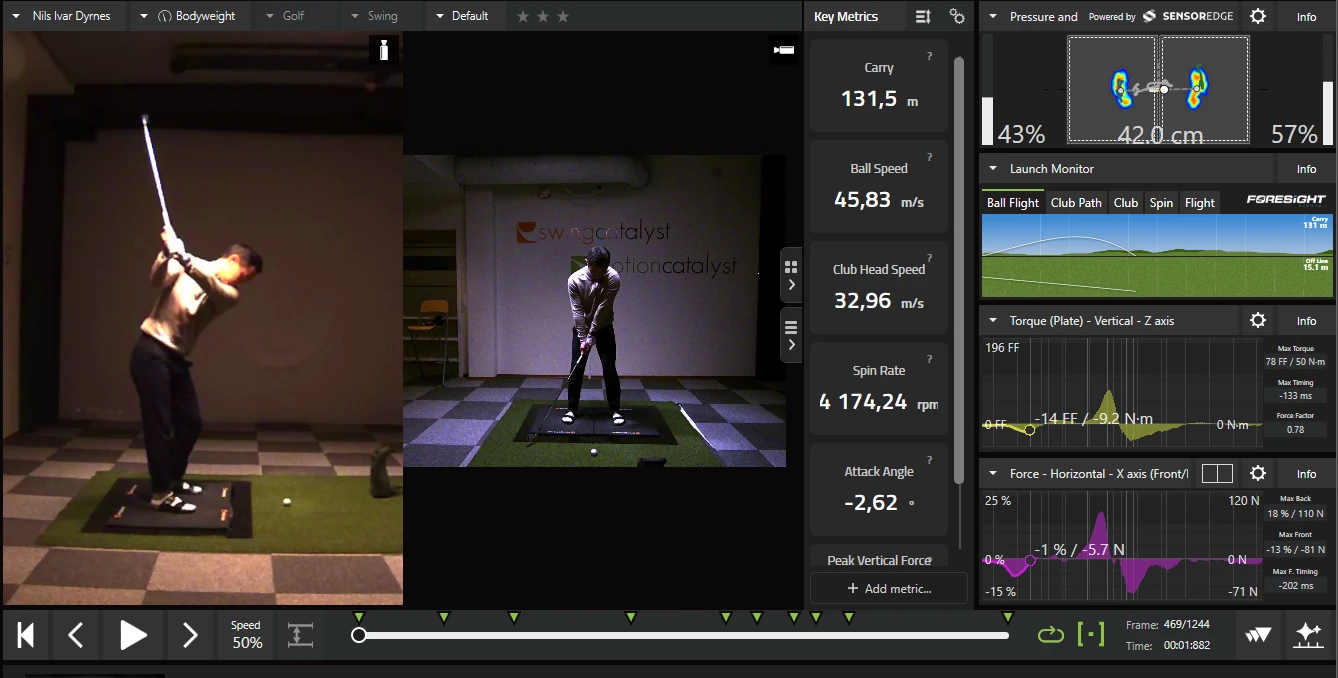
Move between them the way you move between any markers. The frame and time readout beside the timeline tells you where you are.
What a recording needs
- A golf swing recording. Other sports and activities are unaffected and keep their existing markers.
- Motion capture data. Recordings made without motion capture can be reprocessed to add it. See Adding motion capture to existing recordings .
- A camera tagged as a face-on angle. Detection only uses motion capture from a camera whose angle is set to Face on left or Face on right. A face-on clip that was never tagged reads as “not face-on”.
Golf swing phase detection is included as standard. Version 26.2 is the first version with it.
Club tracking is helpful but not required. Without a usable club track, Swing Catalyst falls back to estimating the classic three positions (Start of Take Away, Top of Swing, Impact) from body pose alone. Those three markers are labeled with the suffix (estimated from body pose) so you can tell them apart from a full detection.
Getting all ten positions
The other seven positions need club tracking. Club tracking comes from the motion capture setting Detect equipment (club and ball), which detects golf clubs and balls alongside the person. See Motion capture settings . If the setting is off, the marker bar tells you:
“Detect equipment (club and ball)” is off in motion capture settings. Turn it on so new recordings get all their swing markers. You can still choose “Detect all swing phases” for this recording.
On a recording with only the three estimated positions, the marker bar reads “Only 3 of the 10 swing markers are here, estimated from body movement.” Next to it is a Detect all swing phases button. It analyzes the video again, using club tracking, to place every swing marker.
- If the phase tools are not installed yet, the button reads Download phase tools. Download them, and when the download finishes, choose Detect all swing phases again.
- When it works, the bar reads “All 10 swing markers are now detected.”
- When it fails, your markers are unchanged, and you can try again.
- When it places only some of them, the bar says how many. You can try again, but the video may not show enough detail.
When Markers Get Updated
Recordings whose markers were not set by the current phase detection can have them brought up to it. Opening one applies the detected positions either way. What changes is whether you are then asked about it. That comes down to one question: have you moved any of that recording’s markers yourself?
| The recording you open | What happens |
|---|---|
| No markers you positioned yourself | The detected positions replace the old markers. No banner, no question. A short notification appears with a Revert option. |
| At least one marker you positioned yourself | The detected positions are applied over your markers, and a banner asks what to do about them. The markers the recording had are saved first, so one click puts them back. |
The first time detection is applied to a recording, the markers it had at that moment are saved with the recording as its earlier markers. That set includes any you had moved yourself. It stays with the recording after you close it and after you restart the software. See Going back to earlier markers for what it does and does not cover.
Your markers are not left alone while you decide. The detected positions are applied first so that you judge them on screen rather than from a description.
Opening an old golf swing replaces its markers with the ten detected positions. Revert on the notification, or Restore my earlier markers in the marker menu, puts back the markers the recording had before that first detection.
The notification
When a recording picks up the detected markers on its own, a notification reading Markers moved to the detected positions appears with a Revert button and a Dismiss button. Revert puts the previous markers back.
The very first time this happens, the notification explains itself in full instead. You see this once, not once per recording:
Phases are now detected automatically on this recording. Use Revert to go back, or control this under Settings > General > Phase detection.
Recordings made with the current version get their detected positions as they open, which is not a change to anything, so no notification appears for them.
The offer banner
When you open a recording whose markers you moved yourself, the detected positions are applied so you can see them, and a banner appears at the bottom of the video area asking what to do about them:
The detected markers have replaced the markers you positioned yourself. Keep them, or restore your markers.
The markers the recording had are saved first, so you can put them back while you look or later.
- Keep detected markers keeps the detected positions. Your earlier markers stay available under Restore my earlier markers in the marker menu.
- Restore my markers puts your markers back exactly where they were and stops the banner from asking again for this recording. Detect phases still works if you change your mind later.
- Always replace my markers with detected markers is a checkbox next to Keep detected markers. Tick it before keeping, and the same click sets your preference so you are not asked again on other recordings where you have moved markers. Ticking it and then choosing Restore my markers changes nothing.
If the recording has no club tracking data, the banner adds “Only 3 of the 10 swing markers are here, estimated from body movement.” and a Detect all swing phases button. See Getting all ten positions .
The close button in the corner of the banner hides it without answering it, and so do the Esc key and closing the recording. The detected positions stay in all three cases, and the banner does not come back for that recording. Use Restore my earlier markers in the marker menu if you want your own markers back later.
With two recordings open side by side, both show the detected positions and each recording gets its own banner, so you decide for each one separately.
Choosing whether to be asked
Open Settings → General → Phase detection. There is one setting, When you have moved markers yourself:, with two options.
| Option | What happens when you open a recording whose markers you moved |
|---|---|
| Ask before replacing my markers (default) | The detected positions are applied and the offer banner asks whether to keep them. The markers the recording had are saved as its earlier markers, so you can put them back. |
| Replace my markers with the detected markers | The detected positions are applied without asking. The markers the recording had are saved as its earlier markers either way. |
This setting covers that one case and nothing else. A recording whose markers you never moved always gets the detected markers, whichever option you pick. To keep one particular recording as it is, use one of the marker menu items described in Going back to earlier markers . Restore my markers on the banner only stops the banner from asking again. If you later change the setting to Replace my markers with the detected markers, detected markers can still replace that recording’s markers.
Running Detection Yourself
The detect button sits at the right-hand end of the playback bar, past the frame and time readout. It is outlined here:

Its tooltip tells you what pressing it will do, and changes with the state of the recording:
| Tooltip | What pressing it does |
|---|---|
| Detect swing phases from motion capture | Detects the ten positions from motion capture the recording already has. |
| Detect swing phases (will reprocess motion capture first) | The recording has no motion capture yet, so pose tracking runs first. |
| Re-detect swing phases from motion capture, replacing the currently detected markers | The recording already has detected markers. |
| Detecting swing phases… | Detection is running. |
| Swing phases could not be detected for this recording. | The button is unavailable. See If detection is not available . |
Unlock the marker bar and you get a second way in: each open recording has a row with a button labeled Detect phases. It reads Use detected markers when detection has run but the markers do not show its result, and Redo detection on a recording whose markers show detected positions.
Your own choices about markers never turn the button off. It still works on a recording you chose Restore my markers on, on one whose earlier markers you restored, and on one where you moved every marker by hand. The button is unavailable when detection itself cannot run or finds nothing usable, for example on a recording with no video. See If detection is not available .
If the recording has markers you positioned yourself, you are asked to confirm first, in a dialog titled Detect swing phases:
This recording has markers you positioned yourself. Detecting swing phases replaces them with the detected positions. You can undo this from the marker menu. Continue?
If the recording still has saved earlier markers (see What “earlier markers” means ), the dialog reads instead:
This recording has markers you moved after the last detection. Detecting swing phases replaces them, and they cannot be restored. Restore my earlier markers in the marker menu brings back only the markers from before the first detection. Continue?
When two recordings are open side by side, the button opens a small menu so you can choose Detect phases A or Detect phases B.
If the recording has no motion capture data yet, the button offers to add it first and asks:
This recording has no motion capture data yet. Reprocessing it first will run pose tracking, then swing phases will be detected from the result. Continue?
The reprocess can take several minutes on a long clip.
When it finishes, the detected markers do not appear straight away. Close the recording and open it again, and they are there. Nothing on screen tells you this, and the progress bar can sit at full for a while after the work is done.
When the button is grayed out, hover it. The tooltip always explains why (see If detection is not available ).
Markers You Set Yourself
A marker you dragged or placed yourself gets replaced by detection. Opening the recording applies the detected positions over it and the banner asks what to do; running Detect phases asks you to confirm and then replaces it.
What is saved depends on whether the recording has been detected before:
- First detection on a recording. The markers it has at that moment, including every one you moved yourself, are saved as its earlier markers. Restore my earlier markers puts them back.
- Detection again on a recording that already carries detected markers. The earlier markers from the first detection are kept as they were. Any marker you moved since that first detection is replaced, and it is not added to the saved set. There is no way to get that later position back other than dragging the marker there again.
A recording where you positioned every single marker can still be detected: click Detect phases, confirm, and the detected positions are written over them.
If you have corrected markers on a recording that already has detected markers, do not run Detect phases on it again unless you are ready to redo those corrections. Restore my earlier markers goes back to the state before the first detection, not to your corrections.
After detection you can still drag any marker. A marker you correct stays where you put it when you open or reprocess the recording, until you run Detect phases yourself. Detected markers you have not corrected can be updated when you open the recording. The banner and the saved copy described under When Markers Get Updated apply only the first time detected markers replace markers you placed.
Unlock the marker bar to see where the current markers came from. A short label reads Phases detected, Edited by you, or Set manually, and the line beside it changes to match. On a detected recording it reads:
Phases detected automatically. Drag any marker to correct it.
Going Back to Earlier Markers
If the detected positions are wrong for a particular swing, put the old ones back.
- Unlock the marker bar with the markers button on the playback bar (or Ctrl + B).
- Open that recording’s marker menu with the three-dot button at the end of its row, tooltip More marker actions.
- Choose Restore my earlier markers.
The item only appears while there is something to restore. You can also use the Revert button on the notification, while it is still showing.
Restoring always asks first, in a dialog titled Restore earlier markers:
Your markers go back to where they were before phase detection ran, including any you had moved yourself at the time. Anything you have adjusted since then is replaced. This recording also stops detecting phases automatically, but you can choose Use detected markers at any time. Restore your earlier markers?
So restoring does two things. It puts back the markers the recording had before detection first ran, including any you had moved by hand at that time, and it stops that one recording from picking up detected markers on its own. Markers you moved after that first detection are not part of the saved set and are replaced. The stop is not permanent: clicking Detect phases on it later detects again, and the recording goes back to normal.
Going back to the old three markers
The same menu offers Use old 3-point markers on a golf swing. It discards the current markers and puts back the three the recording used before ten-position detection existed. Because that throws away the detected markers, it asks first, in a dialog titled Use old 3-point markers:
Your markers go back to the three this activity starts with. Any detected swing markers and any positions you set yourself are replaced. This recording also stops detecting phases automatically, but you can run Detect phases yourself at any time. Use the old 3-point markers?
Like restoring, this stops that golf recording from picking up detected markers on its own, and clicking Detect phases starts it again.
Every other activity shows Use the default markers for this activity instead, because the default marker set differs by activity. The confirmation is titled Use the default markers. For activities whose markers are detected from force data, see What are markers? .
Cropping Playback to the Marked Range
Long clips usually contain a lot of setup and walking about. The crop button on the playback bar, next to the loop button, trims playback to the part that matters. It is a simple on and off: click it to crop, click it again for the whole recording.
When cropping is on, the software chooses how tight the window is. You do not pick this.
| What you see | The window you get |
|---|---|
| Tooltip Crop playback to the marked range (first to last marker) | Exactly the first to the last marker. Used when those markers already bound the movement. |
| Tooltip Crop playback to the marked range, with a margin | The same range with room around it. Used when an outermost marker is not the edge of the movement, so a swing marked only as far as Impact still shows its follow-through. |
| Tooltip No cropping - play the full clip | Cropping is off. |
The button’s icon changes with the window as well, so you can tell at a glance without hovering.
The button works on any recording, in any sport, that has at least two markers spaced far enough apart to crop between. Detected golf markers are one source of those markers, not a requirement. Your choice is remembered for the next recording and after restarting the software. Nothing is trimmed from the recording itself: this only changes what you play back and scrub through.
Doing Several Recordings at Once
To bring a whole session up to date, select the recordings in the Explorer, right-click and choose Reprocess motion capture & detect swing phases. The batch runs in the background while you keep working, and can be canceled.
The batch updates the markers as it goes, on the selected golf swings that are eligible. Two kinds of recording are skipped and keep their markers: recordings that already have detected markers, and recordings that have stopped detecting phases automatically (see Going back to earlier markers ). The summary lists them. Recordings whose markers you moved are handled differently: they keep their markers and are counted separately in the summary, and the offer banner puts the choice in front of you the next time you open one. If your setting is Replace my markers with the detected markers, those recordings are updated along with the rest.
You get a summary banner when the batch finishes, so it never ends in silence. It reports what happened to each recording, and offers Revert all when there is something to revert. Expand Show details and one of the rows counts the recordings it left alone, for example “3 kept the markers you positioned yourself; open them to use the detected markers”.
The full flow, including what happens when recordings fail, is in Adding motion capture to existing recordings .
Timing Metrics From the Detected Markers
Three golf timing metrics use the detected markers: Tempo Ratio, Transition Duration and Release Timing. They appear in the Key Metrics databox when the markers are in place. They do not use pressure or force plate data, so they also work on camera-only recordings. The values are calculated purely from where the markers sit, so they are only as good as the marker positions. See Key Metrics .
If Detection Is Not Available
This section covers golf swings. When the detect button is grayed out, hover it, or read the message on the marker bar.
Why the button is unavailable
| Message | What it means |
|---|---|
| Detecting swing phases… | Detection is still running, or a reprocess you asked for is running. The button becomes available again when it finishes. |
| Swing phases could not be detected for this recording. | Detection ran and found nothing usable, and there is no more specific reason to show. The next table lists the specific reasons. |
After a reprocess that you started from this button, the detected markers are not shown until you close the recording and open it again (see the warning under Running detection yourself ).
Having moved the markers yourself does not disable the button, and neither does having detected the recording before. In those cases the button stays available and asks you to confirm, or re-runs detection.
Why detection found nothing
Each message has two lines. The first names the problem and the second says what to do. The table quotes both in full, in US spelling.
| Message | Notes |
|---|---|
| Golf swing markers require motion capture data. Process this recording again with motion capture to detect the swing phases. | See Adding motion capture to existing recordings to add it to this recording. |
| This video needs to be analyzed again to place all the swing markers. Choose “Detect all swing phases”. | Only appears when even the body-only estimate could not run. |
| Golf swing markers require a face-on camera. This take has no motion capture tagged as a face-on angle, so markers were not detected automatically. Tag a face-on camera and process this recording again. | See What a recording needs . |
| Golf swing markers could not be detected reliably. Too few tracked frames met the confidence threshold. Retry with clearer footage. | |
| Golf swing markers require a longer tracked clip. The tracked frames were confidently detected but only covered a brief moment of the swing. Open a take with a longer tracked span. | |
| Golf swing markers could not be detected in this clip. The tracked frames were usable, but the motion did not read as a golf swing. Retry with footage of a full swing. | |
| Phase detection failed for this recording. Something unexpected went wrong while analyzing this take. Retry the analysis. | |
| The camera view and the player’s handedness do not agree. The swing runs the opposite way across this clip from the way the player’s handedness says it should, so the detected markers would be at the wrong times. Check the camera angle and the player’s handedness, then process this recording again. | See Detection used the wrong handedness . |
| Some swing markers could not be placed in time order. The markers that could be ordered are set. | Some markers are set. The message can also name the markers that are missing. |
| Some swing markers are estimated from body movement. The rest could not be placed. | Some markers are set. The message can also give the number of markers placed, the cause and what to do. |
“Take” in these messages means a recording.
Detection used the wrong handedness
If a player’s handedness is not set in their profile, detection assumes right-handed and the button tooltip says so. Set handedness on the student profile and run detection again.
Keyboard Shortcuts
Golf swing recordings now have ten markers, and the number keys reach all of them. 1 to 9 and 0 jump to markers 1 to 10, Page Up and Page Down step between them, and Ctrl + Shift + I and Ctrl + Shift + T synchronize two recordings on Impact and Top of Swing. The full list is in Keyboard shortcuts and Hotkeys
.
See also: What are markers? · Baseball pitching detection · Force graph phases · Motion Capture Guide · Object Detection · Key Metrics