
Saving Favorite Layouts
You can save the way you have arranged the analysis screen and come back to it later. A saved arrangement is called a favorite.
If you coach putting one hour and full swing the next, you may want different things on screen for each. Favorites mean you set each one up once instead of rearranging every time.
What a favorite remembers
The layout: which viewports are on screen, how many cameras are shown, and the order of the cameras.
The content of your data boxes: which numbers and graphs each box is showing.
The Key Metrics set, if you ask for it: the metrics listed in the Key Metrics column are saved only when you tick the extra box while saving. Without it, switching favorites leaves the metrics in the column as they were. Either way, the favorite brings back whether the column is shown or hidden.
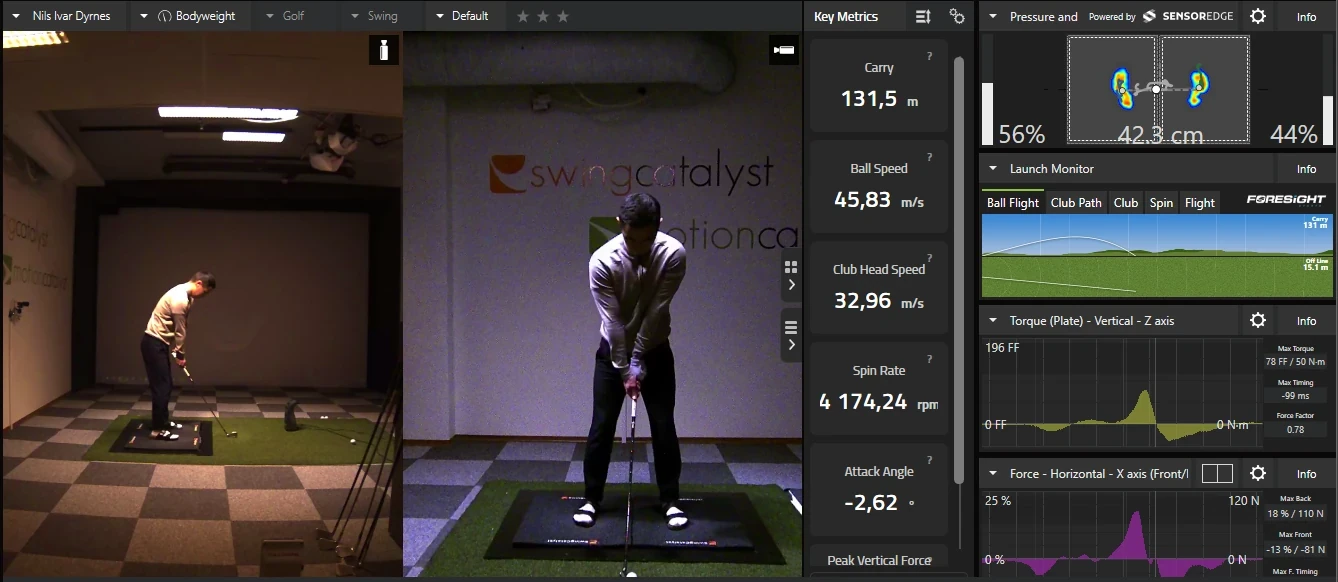
In that picture, the two camera views and each data box with the graph it is set to are part of the favorite. The metrics in the Key Metrics column (Carry, Ball Speed and the rest) are part of it only if you ticked the extra box when saving.
Favorites are stored in the software’s settings, not in the recording. They are still there after you close and reopen the software, and picking one changes the screen for every recording you open, not just the one on screen.
Saving one
Arrange the screen the way you want it first, including what each data box shows. Then:
- Click Layout.
- Click + Save Current under Favorites.
- Give it a name.
- If the Key Metrics column is showing and has a metric set chosen, a tick box appears reading Also apply metric set: followed by the set’s name. Tick it if the favorite should also bring back those metrics. Leave it clear if the metrics in the column should stay as they are when you switch.
- Click Save.
If you ticked the box and the metrics on screen differ from the saved set, a dialog called Metric Set Changed asks what to do.
- Save changes to set updates the set with the metrics on screen.
- Save as new set keeps the old set and saves the metrics on screen as a new set, named after the old one with “(edited)” added.
- Don’t include saves the favorite without any metric set.
Name it after the job rather than the arrangement. Putting and Driver, face-on tell you what to pick next time.
Switching between them
Click Layout and pick a favorite from the list. The screen changes to that arrangement, with the data boxes as you saved them. If the favorite was saved with a metric set, the Key Metrics column switches to it too.
Switching layouts changes only what is on screen. The recording, its markers and its measurements are not touched. You can move between favorites as often as you like during a session.
Changing or removing one
A favorite is a snapshot of the moment you saved it. Rearranging the screen afterwards does not update it.
To change one: pick it, rearrange the screen, then save it again as a new favorite with a clear name. To remove the old one, click the delete control on that favorite in the layout list. A dialog called Delete Layout asks you to confirm before it goes.
You can keep up to 10 favorites. When you reach that number, the + Save Current button disappears until you delete one.
If you cannot find the Layout button
It is on the analysis screen, so open a recording first. There is nothing to arrange on the home screen.