
Using Two Balance Plates on One Machine
You can connect two balance plates to one machine. How you work with them depends on whether Multi-station is switched on.
Single station: switch the plate in Settings
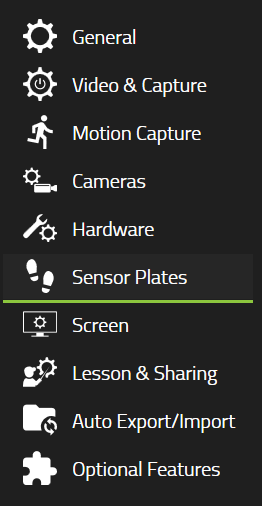
Without Multi-station, the software works with one plate at a time. To use the other plate you go to Settings, then Sensor Plates, and select it.
That is how the setup is meant to behave. The software validates against the one plate it is configured for, so changing plate means changing that configuration.
With Multi-station on, the software switches plate for you when you select a player. The next section explains how.
Multi-station: the plate follows the player
With Multi-station on, the two plates become two stations, one carrying Left handedness and one carrying Right. When you select a player, the software makes the station that matches their profile handedness active.

The two stations appear as soon as you turn Multi-station on. They start with no plate assigned, which is what the next step fixes.
You set the plates up once. After that, switching between a left-handed and a right-handed player does not mean a trip to Settings.
Setting it up
Everything here is in Settings, then Sensor Plates.
- Click the station mode pill at the top right of the panel. It reads Single station before, and Multi-station · 2 after.
- Select the first station, assign its plate, and calibrate it.
- Select the other station and do the same with the second plate.

To assign a plate, press Start Assignment and step on it. Manual Plate Assignment below does the same thing from a dropdown if you would rather pick by serial number.
A plate can only be in one station at a time. The dropdown still offers every plate it has detected, including one already assigned elsewhere. Pick a plate that belongs to the other station and it moves: that station is left with nothing assigned. So check both tabs after you assign, not just the one you are on.
Switching during a session
Turn on Capture in analysis and a station button appears in the capture toolbar, between the activity selector and Manual Trigger. The button is labeled with the active station’s name, so the toolbar tells you which plate is live.
There is no mode to pick. The software switches station when you select a player. Four things stop it: the matching station is disconnected or degraded, the player’s handedness is blank, no player is selected, or a recording is in progress. In each case the previous station stays active. Use the button, or F7, to switch by hand. Its tooltip reads Switch active station (F7).
If the active station does not match the player you have selected, a yellow warning mark appears on the station button. Its tooltip reads Player handedness does not match station. There are three causes: the handedness on the player’s profile is wrong, you switched by hand and it stayed switched, or the matching station’s plate was not connected when you selected the player. Coaching with two balance plates covers the fix for each.
Turning Multi-station on
Two things both have to be true, and the first is not something you can change yourself.
- Your license has to include Multi-station. It is not in a standard license, so most setups do not have it. Contact us to check yours, and to find out what adding it involves.
- You then turn it on with the station mode pill in Settings, then Sensor Plates.
Start with the license. Without it the pill is grayed out and its tooltip reads Multi-station requires a license upgrade. If the option is grayed out, that is usually what it is. If it is not there at all, the plates may not be switched on for this setup yet, which is a different thing. Either way, ask us before concluding the software cannot do it, because both look the same from the outside: like a product without the feature.
There is a separate setting for two pressure pads. That one is for pressure pads and does not apply to balance plates, so enabling it will not give you two-plate behavior.
Recalibration when you switch plates
With Multi-station off, switching plates in Settings can show a warning that begins Hardware configuration changed and asks you to calibrate the plate. The prompt appears for a plate whose stored zero level is out of date or was never measured on this computer.
Two things are worth knowing.
Your calibration is not lost. The software stores each plate’s calibration separately, by plate, and keeps it through plate switches, recordings and restarts until you calibrate that plate again. The prompt does not mean the plate has lost it.
Recording is not blocked. The prompt appears in Settings only. You can still turn on Capture and record.
Contact support if this is slowing you down.
This prompt is separate from the trip to Settings described at the top of this article. With Multi-station off, you still change plates there. If that is what you want to avoid, the license is the thing to ask about.
Showing both plates at once
The software cannot display two plates side by side at the same time. Multi-station changes which station is active; it does not show both.
If that is what you need, tell us.
Related
- Coaching with two balance plates , running a session once it is set up
- Dual Batter’s Box , the same feature for baseball
- What’s new in 26.1