
Coaching with Two Balance Plates
This is the day-to-day part. Your two plates are set up as stations and calibrated, and you have players to get through.
The software picks the plate for you
One station carries Left handedness and the other Right. Select a player whose profile has a handedness and the software makes the matching station active. The capture uses that station’s plate.
There is no mode to choose and no trip to Settings. The switch happens when you select a player, with four exceptions:
- The matching station is not ready. If its plate is not connected, the software leaves the previous station active and shows the mismatch warning described below. Reconnect the plate, then select the player again.
- The player’s handedness is blank. The station does not change. See Handedness that is not set .
- No player is selected. The station does not change, and no warning is shown.
- A recording is in progress when you select the player. The station does not change.
Where to look
Turn on Capture and the station button appears in the capture toolbar, between the activity selector and Manual Trigger. It is labeled with the active station’s name.
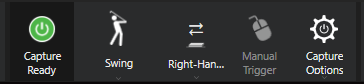
A name too long for the button is cut short, so Right-Handed reads Right-Han…. Open the menu to see the full names.
Glance at it before the first swing of each player. It is quicker than working out afterwards which plate the numbers came from.
Switching by hand
Click the station button to open the station menu. The menu lists both stations and ticks the active one. To switch without opening the menu, press F7: it moves straight to the other station. The button’s tooltip reads Switch active station (F7).
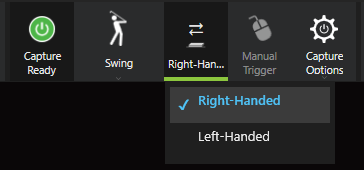
Use it when the active station is not the one you want for the next recording. A capture uses one station, so switching changes which station records. It does not record both at once.
A station whose plate is missing shows a count such as 1 plates offline under its name in the menu. You cannot switch to it. The toolbar shows Cannot switch: ‘…’ is not ready. Check the Station indicator for details., with the station’s name between the quotes.
Check the button before you record. It carries the name of the station that is active, so you can see which one you are about to use without opening Settings.
A hand switch stays in place through recordings and through a restart of the software. It ends when you select a player, because the station follows their handedness again, or when you switch again. Opening a recording made on the other station also makes that station active.
When the software warns you
A yellow warning mark appears on the station button. Point at it and the tooltip reads Player handedness does not match station. The active station and the selected player disagree.
Three causes, and they need different fixes:
- The player’s handedness is set to the wrong side on their profile. Fix the profile.
- You switched by hand earlier and left it switched. Switch back, or select the player again.
- The matching station was not ready when you selected the player. The software stayed on the previous station. In Settings, then Sensor Plates, the station’s tab shows whether its plate is connected. Reconnect it, then select the player again.
A blank handedness does not raise this warning. There is nothing to compare the station against, so the software stays quiet. The next section covers what happens instead.
Do not record through the warning unless you switched the station yourself and meant to. The plate records either way, and afterwards the data gives you no clue that the player was standing on the other one.
Handedness that is not set
If a player’s handedness is blank, the software leaves the active station alone. It picks no station for that player, and it shows no warning. Whichever plate was live stays live.
The recording is a separate matter. There, a blank handedness counts as right-handed. The capture screen says so under the handedness choices: “This athlete’s handedness is not set, so “Default” currently means right-handed. Set it in the student profile, or choose Right/Left here for this capture.”
So a blank profile can leave a player on the plate the player before them used, with the swing recorded as right-handed. Set handedness when you create a player and the station follows it from then on.
Handedness is worth getting right beyond the plates. Swing phase detection and some joint angle measurements use it too, and both fall back to right-handed when it is missing.
Recording on the other station
The Handedness control on the capture screen takes Default, Right or Left. It sets the handedness of the recording. It does not move the player to the other plate, because the active station still follows the profile.
To record a player on the station that does not match their profile, do both steps:
- Switch the station with the station button or F7.
- Set Handedness to the side they are playing from.
While the station and the profile disagree you will see Player handedness does not match station. When you switched on purpose, that is the software reporting the difference, not a fault.
Handedness goes back to Default when you select another player.
Related
- Using two balance plates on one machine , setting the stations up
- Coaching with a Dual Batter’s Box , the same thing for baseball