
Dual Batter's Box
One installation can serve two batting positions: a left-handed batter’s box and a right-handed batter’s box, each with its own force plates. This article covers setting both up and switching between them.
What a station is
A station is one batting position with its own plates. There are two, named LHB Box for the left-handed box and RHB Box for the right-handed box, and each carries its handedness.
Each station holds its own plate assignment and its own calibration. The cameras are shared: both stations see the same cameras, and only the plates change when you switch.
You can configure two stations.
Setting up both stations
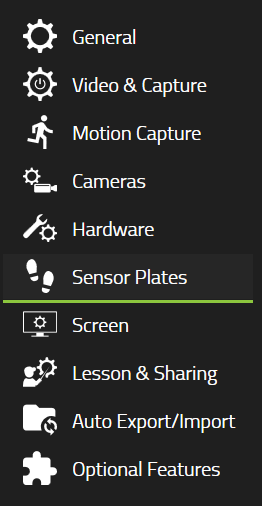
Everything here is in Settings, then Sensor Plates.
The station mode pill sits at the top right of the panel. It reads Single station until you click it, and Multi-station · 2 afterwards.

Then set up one station at a time.
- Select the station you are configuring. The two tabs are RHB Box and LHB Box, and each shows what is assigned to it.
- Assign its plates. Press Start Assignment and step on each plate in turn, and the software works out which is which. Manual Plate Assignment below does the same thing from a dropdown if you would rather pick by serial number.
- Calibrate that station.
- Select the other station and repeat.
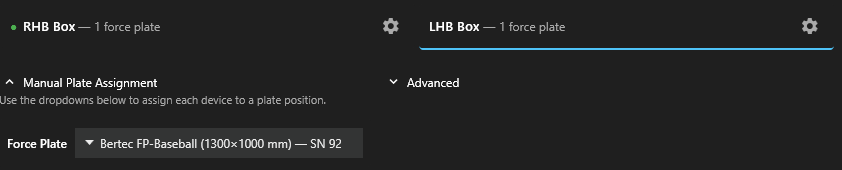
A plate can only be in one station at a time. The dropdown still offers every plate it has detected, including one already assigned elsewhere. Pick a plate that belongs to the other station and it moves: the software removes that plate from the other station’s assignment. So check both tabs after you assign, not just the one you are on.
The station keeps its own setup, so calibrating one station does not disturb the other. Each plate still keeps its own zero level, which is what it uses to know what an empty plate reads.
Switching between them
Turn on Capture in analysis and a station button appears in the capture toolbar, between the activity selector and Manual Trigger. The button is labeled with the active station’s name, so the toolbar tells you which box is live without you opening anything.
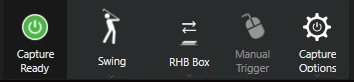
Click it, or press F7, to switch. Its tooltip reads Switch active station (F7).
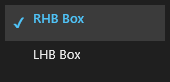
The active station decides which plates are used for the next capture. Switching does not affect the cameras or anything you have already recorded. If the new station has a player assigned, that player becomes the selected student.
What the software remembers
Plate assignments survive closing and reopening the software. You do not repeat the setup each session.
They also survive unplugging and replugging a plate. The software recognises a plate when it comes back and returns it to the station it belongs to, without you reassigning it.
Station health
Both the settings view and the capture toolbar show the health of each station: whether its plates are connected and whether it is calibrated.
A station with a problem is marked as such without you having to open its settings. Check the toolbar before a session; if the active station shows a warning, open Sensor Plates to see what it is.
If a plate version warning appears
The software detects what plate hardware is connected and compares it against what is configured. When those disagree it tells you, and offers to use the version it detected.
You can override the detected version by hand from the settings view, and dismiss the warning.
A dismissed warning stays dismissed for that version only. If the detected hardware changes later, for example because a different plate was connected, the warning comes back. That is deliberate: a dismiss applies to the situation you looked at, not to every future situation.
Related
- Coaching with a Dual Batter’s Box , running a session once it is set up
- Using two balance plates on one machine , the same feature for golf
- Force plates for baseball pitching
- What’s new in 26.1