
How to use Full Swing Golf with Swing Catalyst
Introduction
This support article will describe how to setup Full Swing Golf with Swing Catalyst.
Requirements
Full Swing Golf simulator with E6
Swing Catalyst 4.5 or later, preferably 7.1 or newer.
Installation
Make sure E6 is installed and configured by your Full Swing Golf support representative.
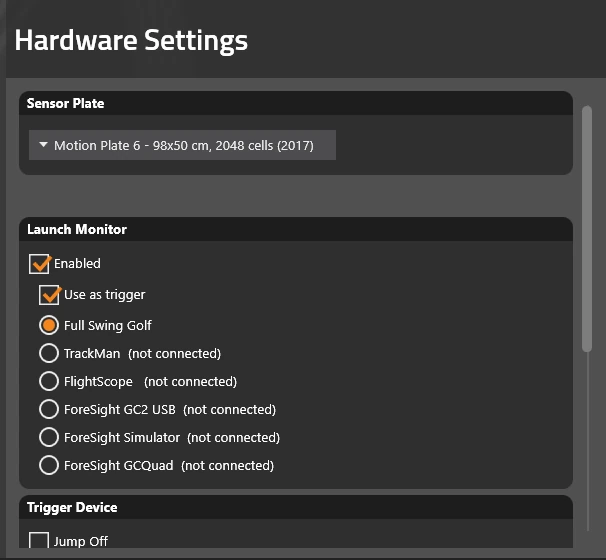
Open Swing Catalyst and go to Settings -> Hardware. In the launch monitor section, turn on Enable and select the device named Full Swing E6 (followed by its network address).
Close Swing Catalyst and go to C:\ProgramData\Swing Catalyst\settings
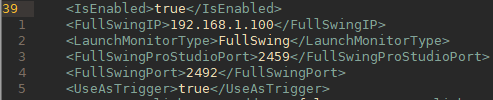
Open HardwareSettings.xml and navigate to where it says
Enter the IP address of the network interface that has internet connectivity (or is directly connected to the Swing Catalyst computer). Make sure this is not the network adapter used for the DSP.
Alternatively, if using E6 on the same machine as Swing Catalyst use the IP: 127.0.0.1
With E6 closed, open defaults.stg in Notepad, located at C:\TruGolf\ E6 Golf 1.6\defaults.stg and change <TrueAccessSettings Enabled=“False” to Enable=“True” as per screenshot below.

Start up Full Swing Golf E6 and then start Swing Catalyst, make sure Enable is turned on and Use as trigger is checked.
Troubleshooting
Full Swing Golf is not showing as connected
Make sure E6 is running on the Full Swing computer.
Check network connectivity, can you ping the Full Swing computer from the Swing Catalyst computer?
Make sure defaults.stg file’s TruAccessSettings is enabled.
Have additional network cards or interfaces? Try disabling them. E6 is picky on what interface it chooses on startup and if it chooses the wrong interface or NIC the connection won’t work.
Test integration with E6 Shot Data Test.bat & E6 shunt shot, press Ctrl S in practice mode (contact Full Swing Support) for further help here.
Restart E6 (start E6 first then SC).
Restart the computer(s).
If you tried all these steps and it still shows as not connected in Swing Catalyst, please contact [email protected] .