How to setup NVIDIA GPU Encoder
This support article covers how to fix NVIDIA GPU Encoder errors.
Not all NVIDIA GPUs are supported. AMD/ATI GPUs are not supported at all.
1st make sure GPU NVIDIA is selected in Swing Catalyst’s Video & Capture settings.
If you have more than 2 cameras, make sure to enable the patch under “Advanced Settings” under Video Encoding.
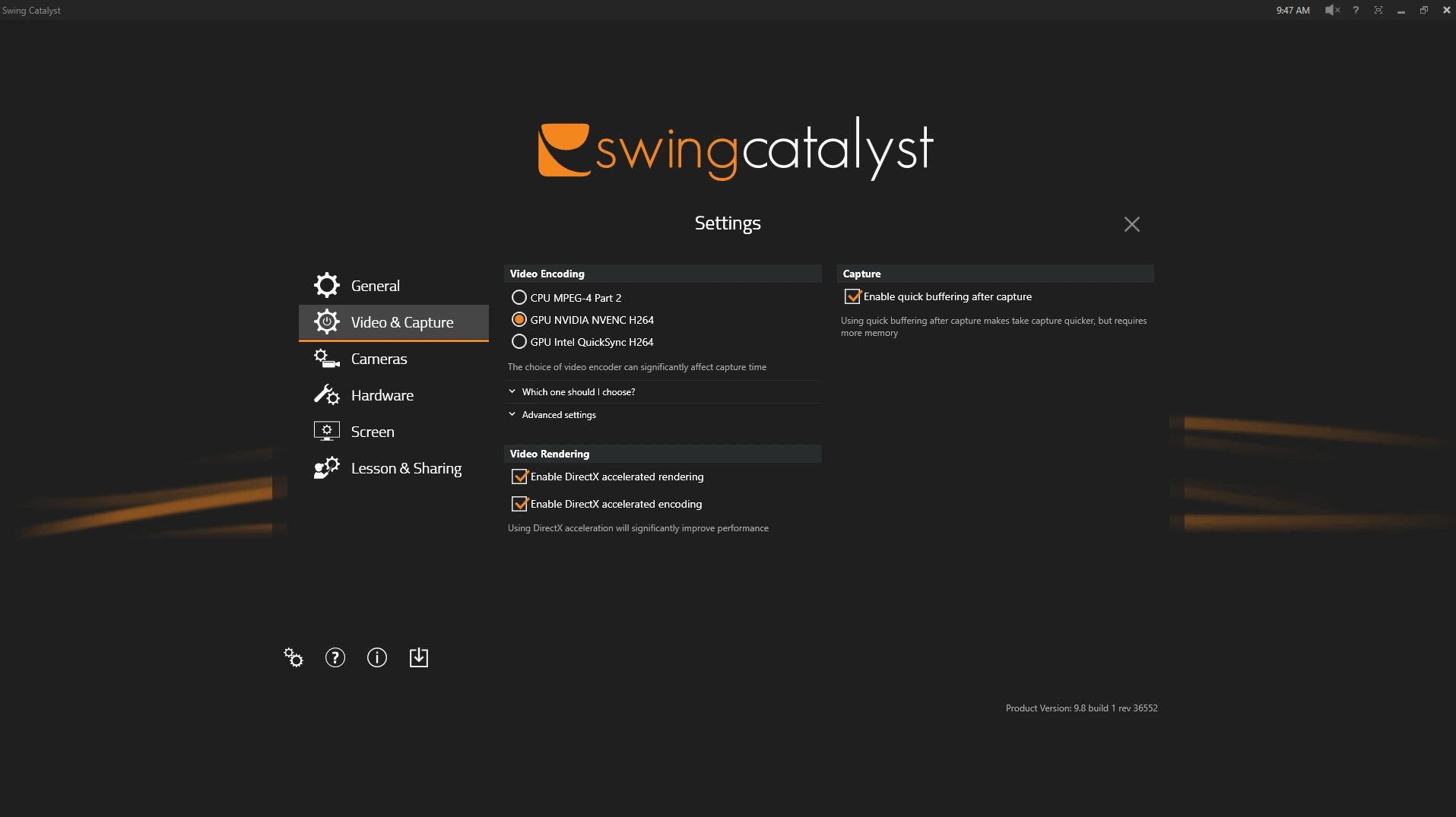
Go into capture mode and record a swing, if the swing triggers but does not complete see instructions below.
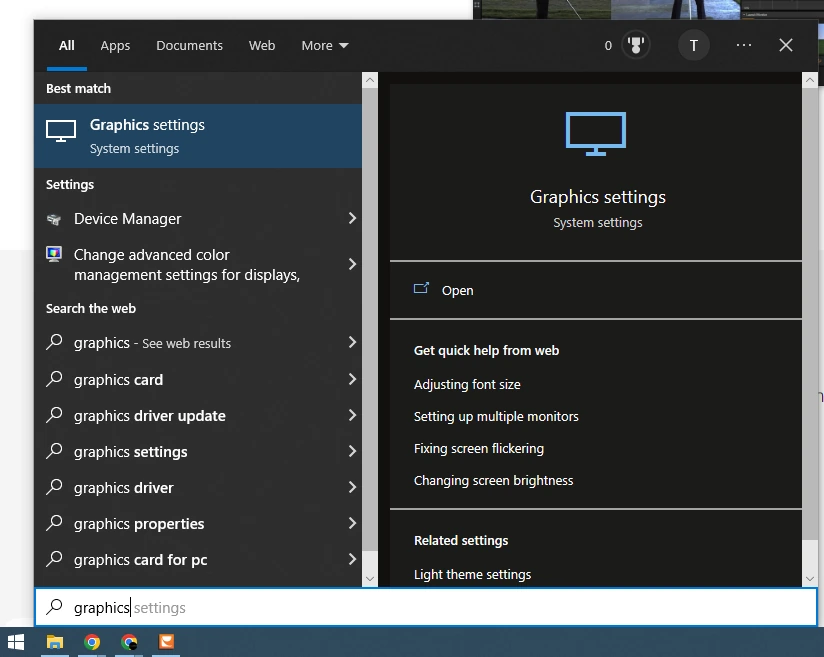
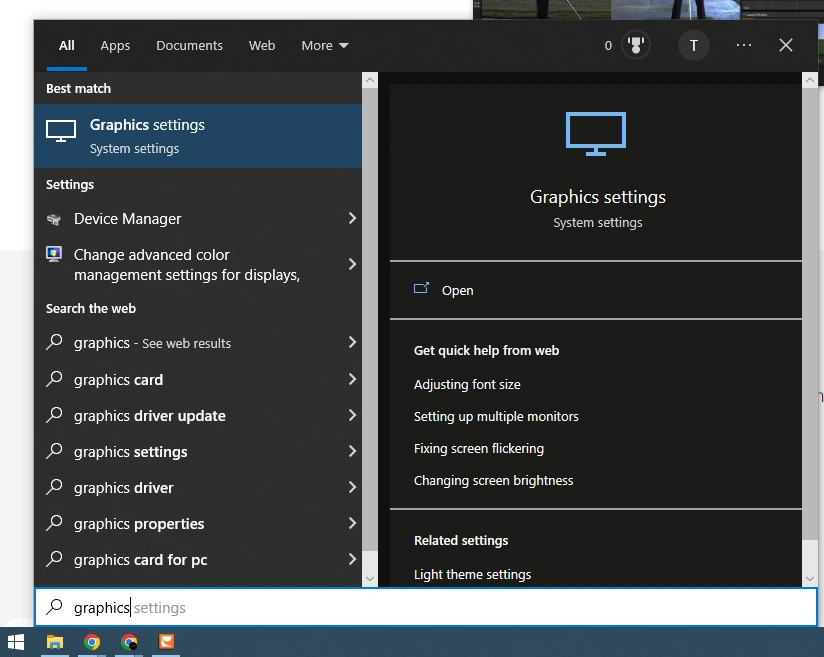
Step 1: Click your start button and search Windows for “Graphics setting”
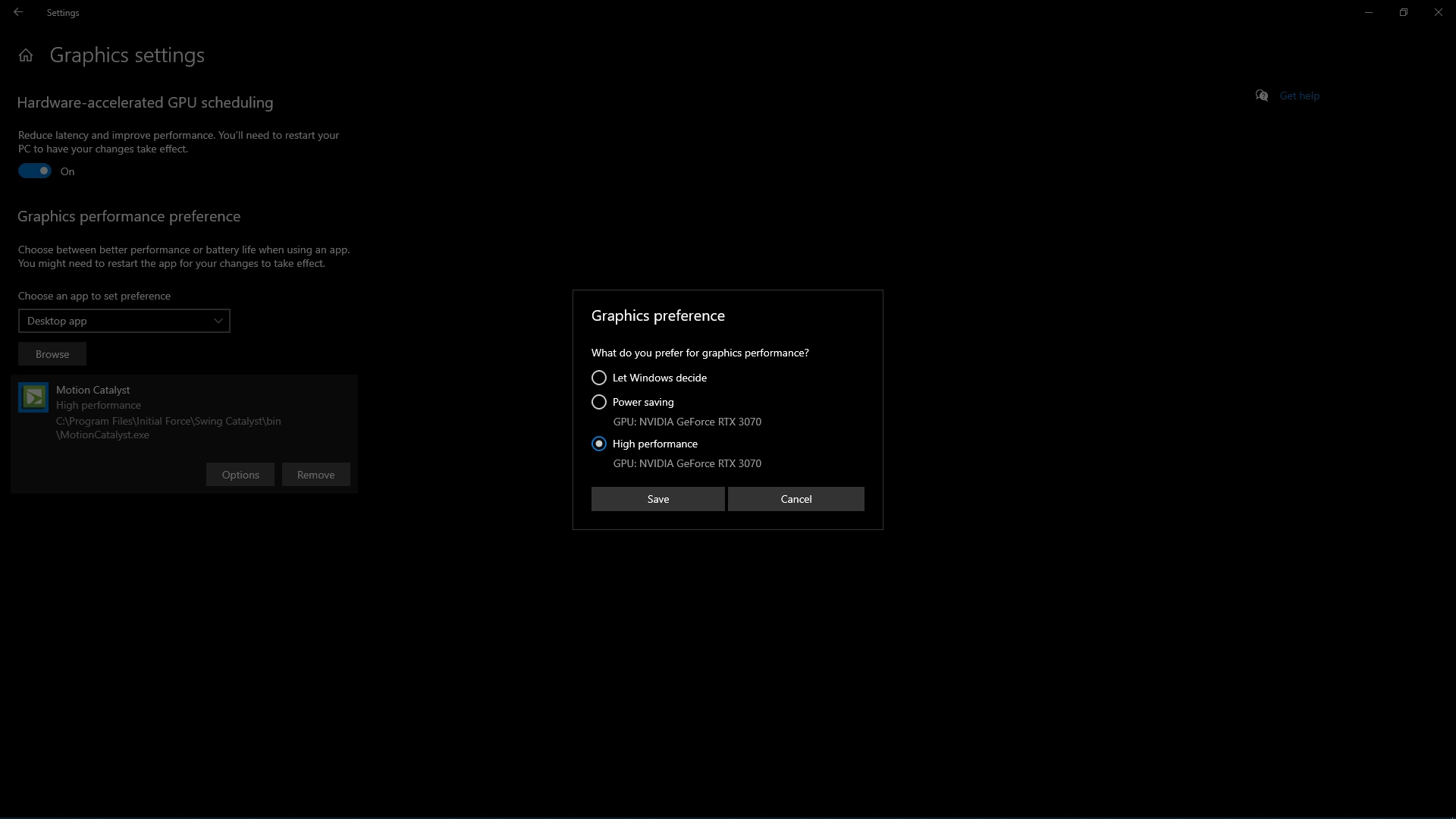
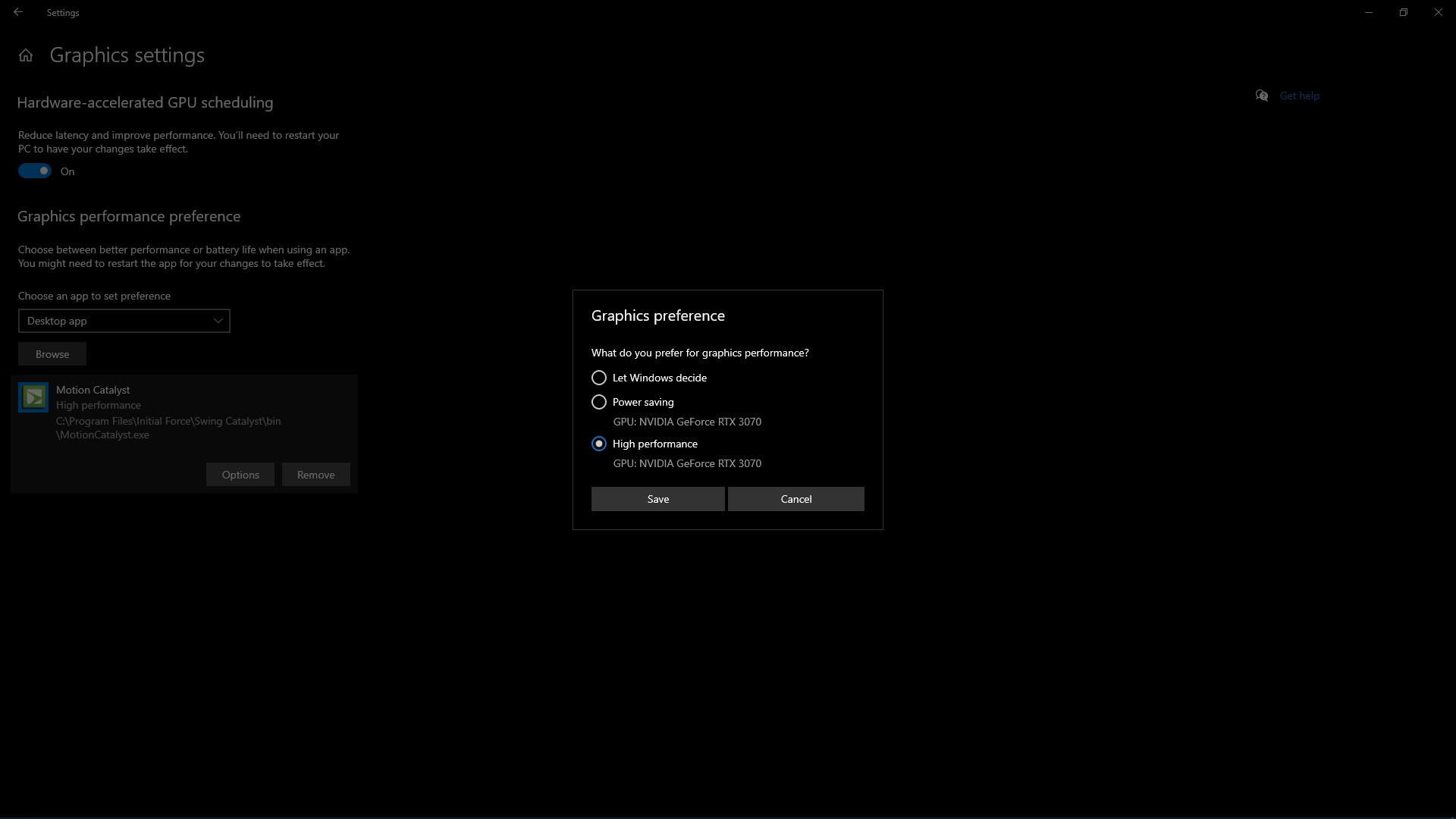
Step 2: Turn on “Reduce latency and improve performance”
Step 3: Under the Choose an app to set preference section make sure it’s set to desktop app and click browse.
Step 4: Navigate to C:\Program Files\Initial Force\Swing Catalyst\bin and highlight the MotionCatalyst.exe then click add.
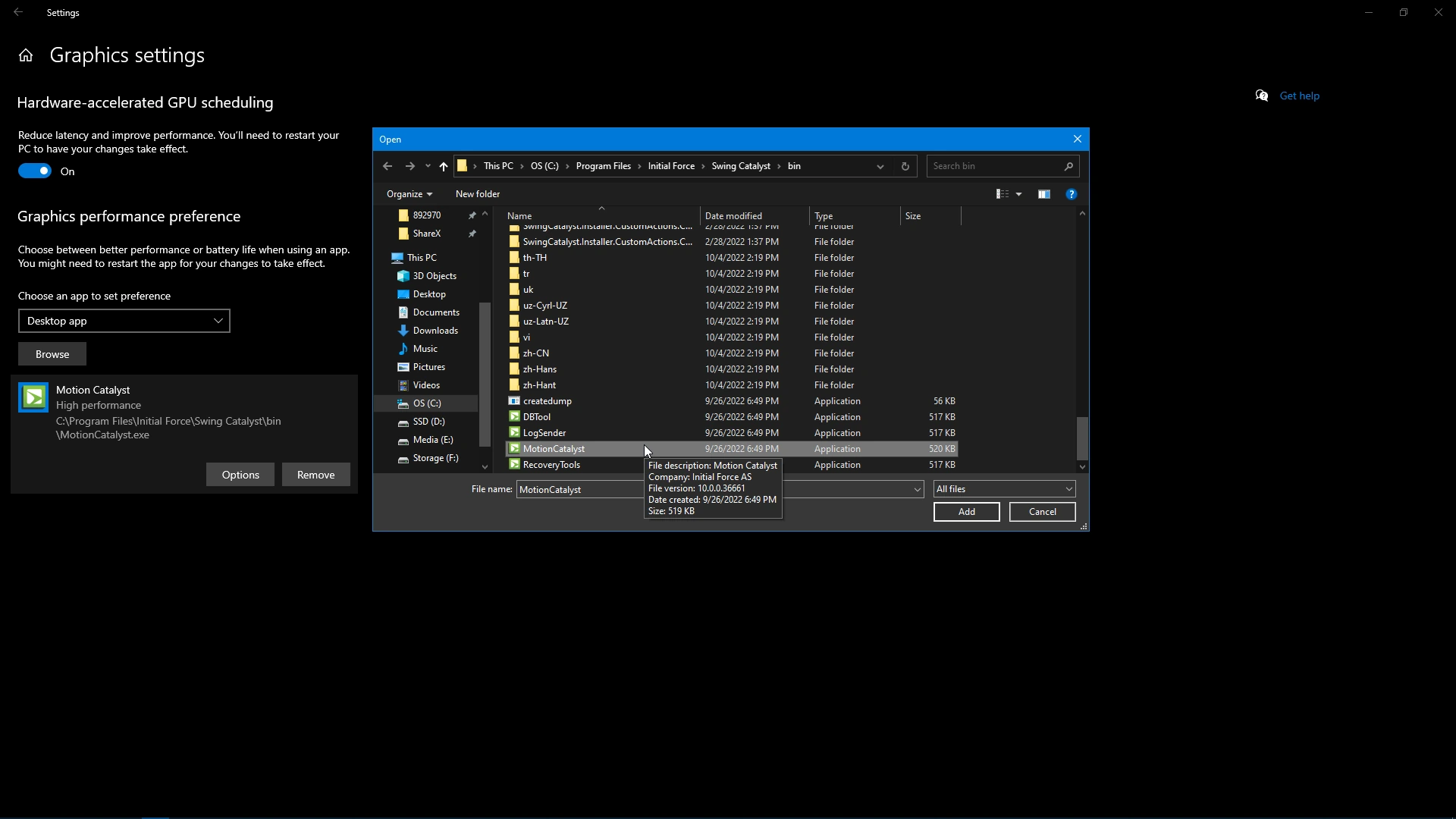
Step 5: Highlight the newly added Motion Catalyst and click “options” then select “High performance GPU: NVIDIA XXXX”
Possible backup solution for some laptops
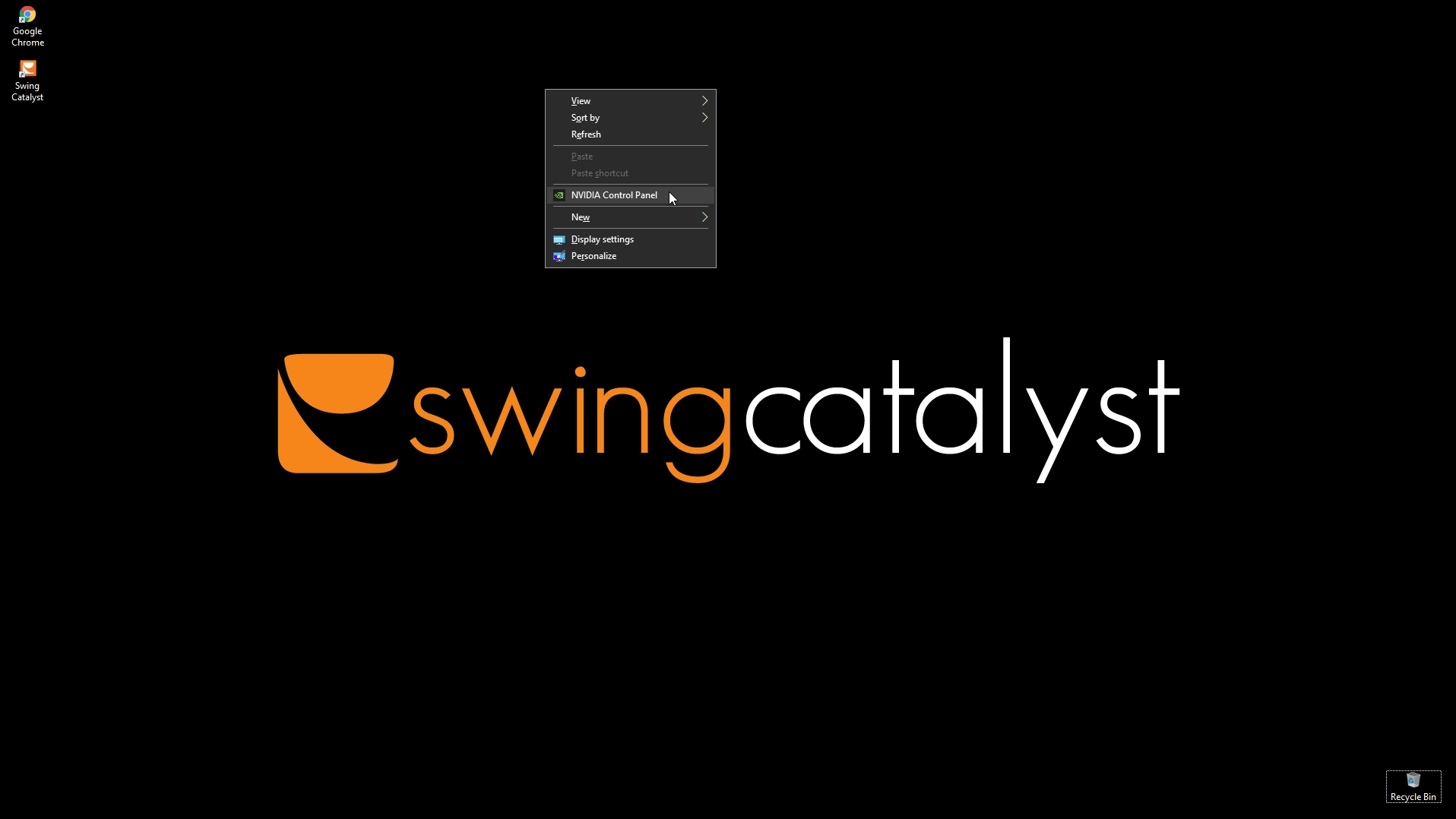
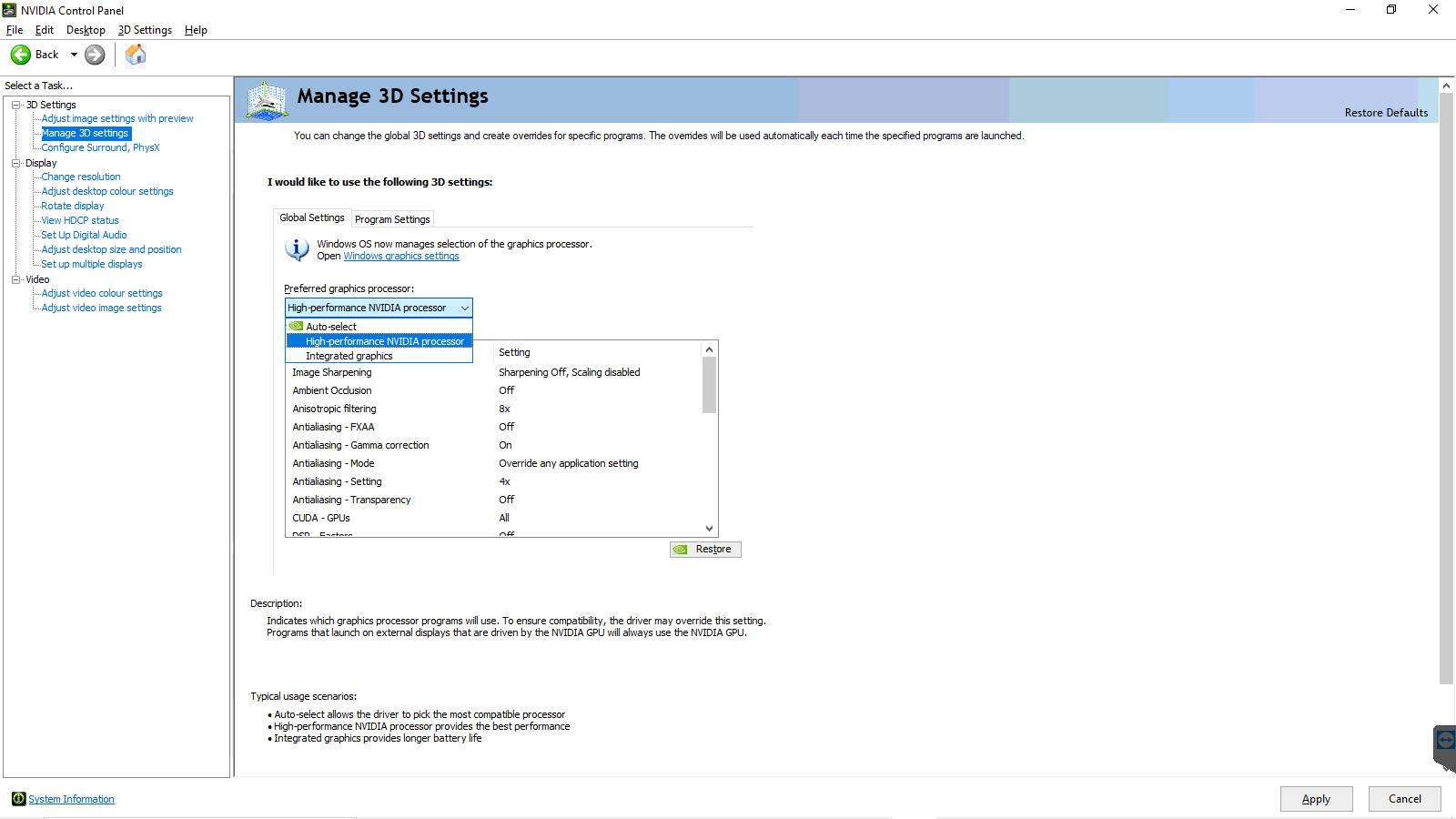
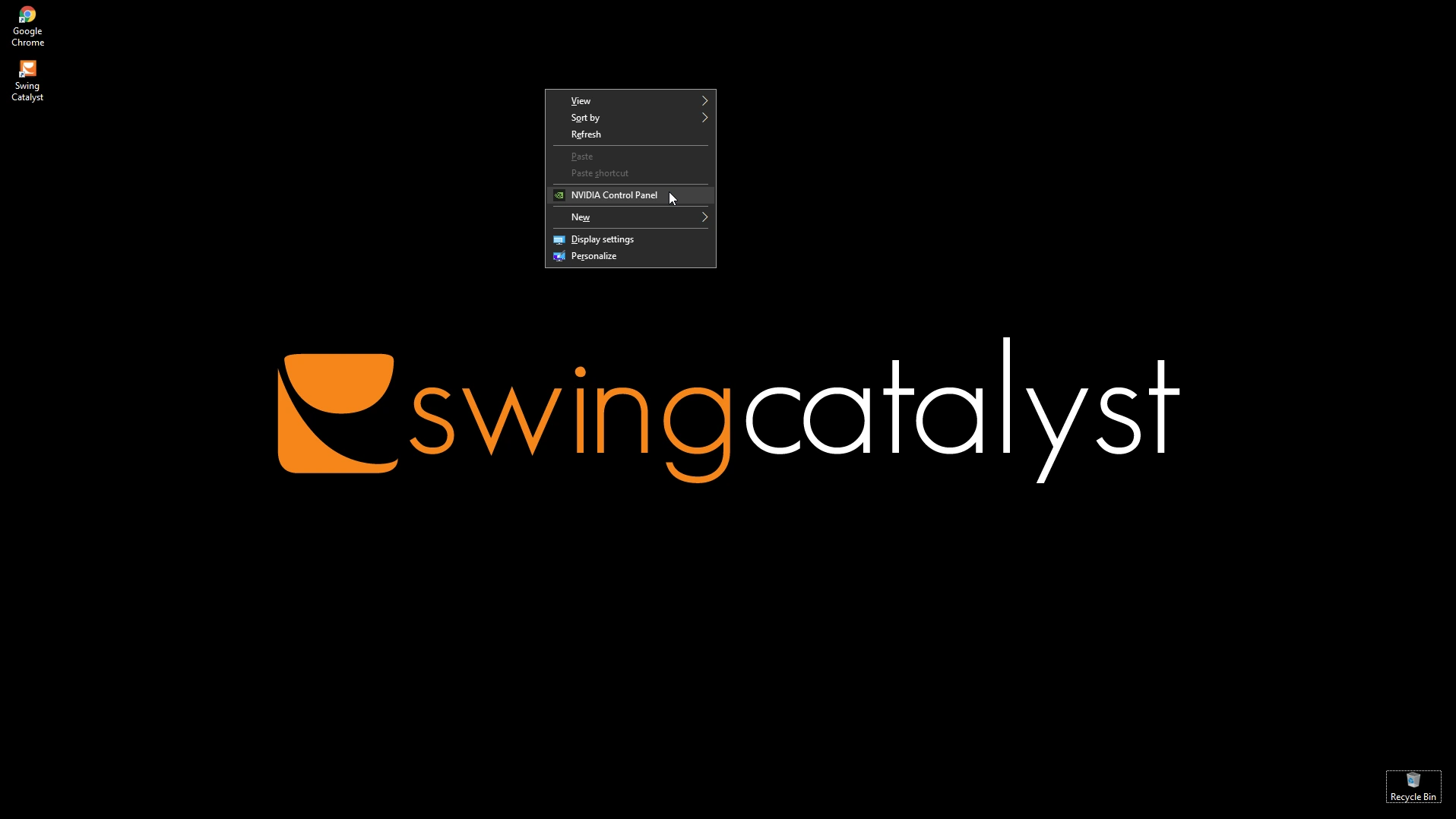
Step 1: Right click on your desktop and go to “NVIDIA Control Panel”. If it’s not present then please download and install the most recent drivers and control panel here: https://www.nvidia.com/en-us/geforce/drivers/
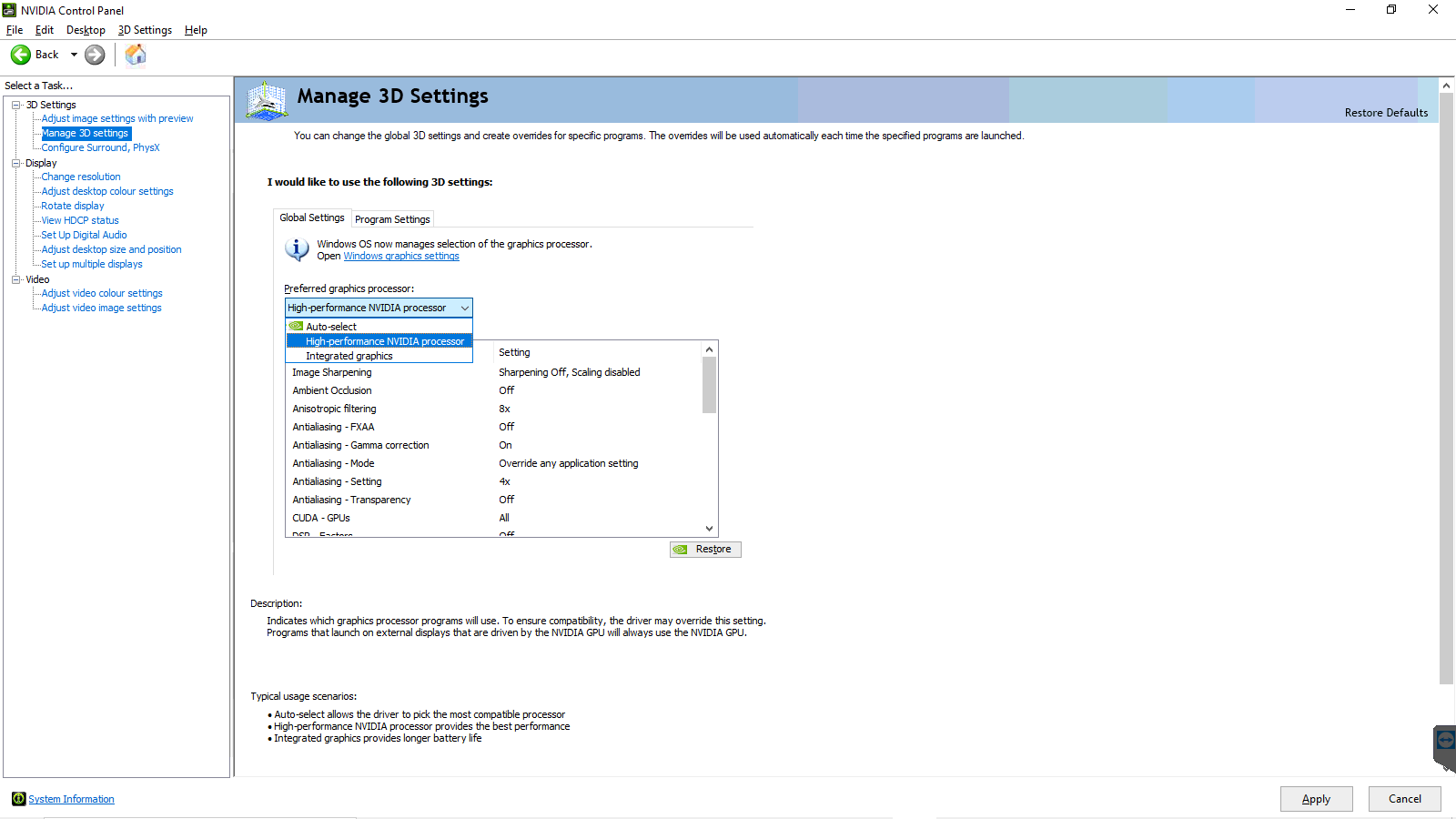
Step 2: In the control panel go to “Manage 3D settings” should be 2nd option from the top on the left hand side.
Step 3: Click the “Preferred graphics processor” drop down and change it from “Integrated graphics” to “High-performance NVIDIA processor”
Step 4: Click apply and close the control panel, open Swing Catalyst and capture another recording to see if its fixed. If not please email [email protected]
*click to enlarge