Bluescreen When Connecting Halcon USB License Dongle
There is an issue with the USB driver for the licensing dongles used for Halcon customers. This dongle is a green USB “Flexera” dongle.
The drivers bundled with Halcon 12 causes Windows to crash and bluescreen.
To avoid the bluescreen we recommend removing the old drivers if installed either by uninstalling Halcon or removing the drivers manually.
Affects:
Windows 10 Version 2004 Build >= 19041.423, 20H2, 21H1, or 21H2
Windows 11.
We recommend to uninstall Halcon and then follow the instructions on how to install the new driver in this support article.
Uninstalling Halcon
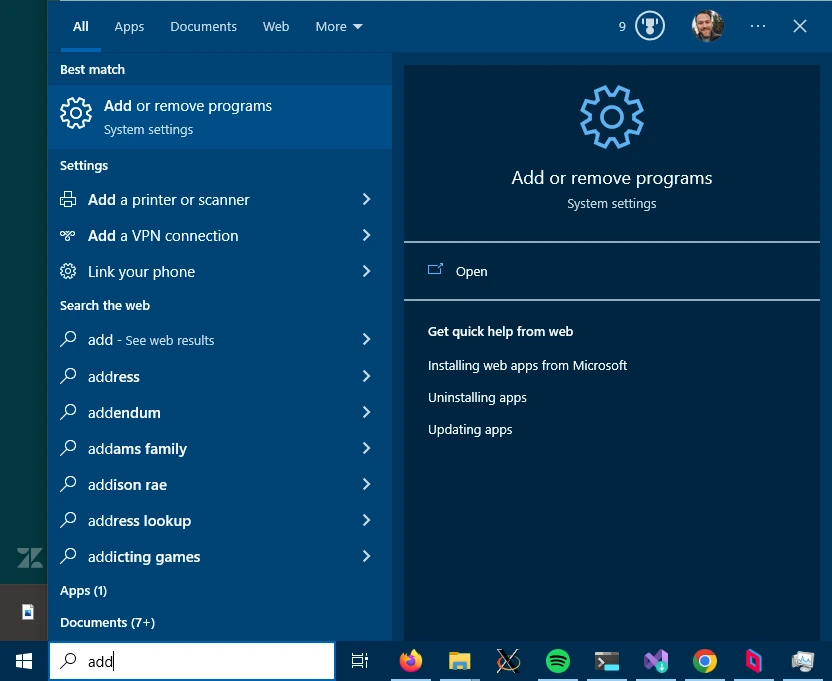
Open Add or Remove programs.
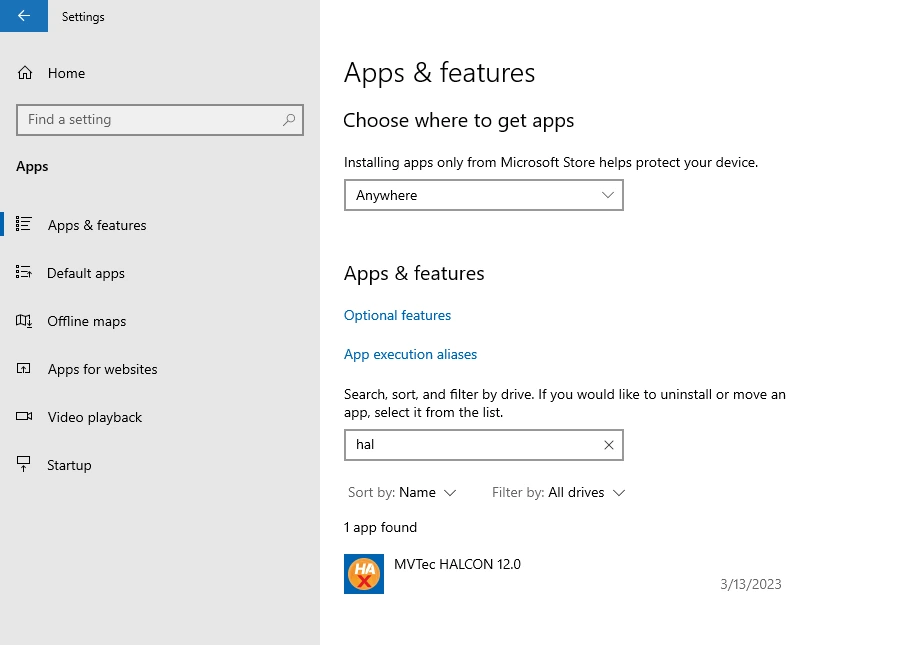
Under Apps & features, search for “halcon”.
Click the resulting entry in the list and click “Uninstall” and “Uninstall”
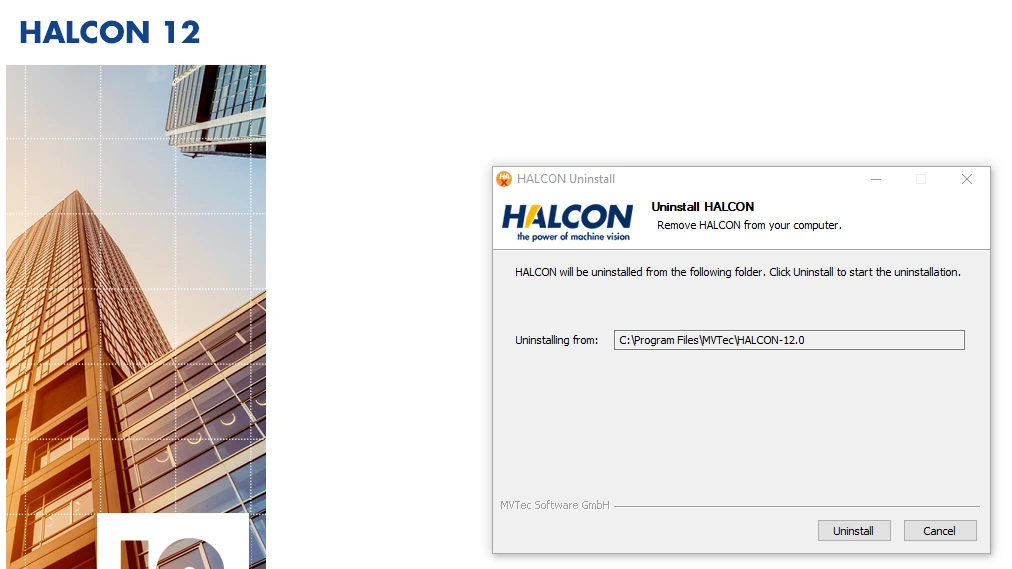
Click “Yes” to proceed to uninstall Halcon, wait for the Halcon uninstaller to start and then click “Uninstall” to remove Halcon.
Alternative Option: Removing the Halcon USB dongle drivers manually
This option can be used if you don’t want to reboot the computer or for some reason don’t want to reinstall Halcon. For most purposes it’s best to follow the “Uninstallign Halcon” option instead.
When a driver is installed it is stored in the Windows DriverStore file repository, located in:
C:\Windows\System32\DriverStore\FileRepositoryNormally to remove the driver you would go to Device Manager and uninstall the device & select to delete the driver, but since plugging in the USB dongle crashes Windows we need to remove it manually. Windows will find the appropriate (new) driver once we install the new driver.
How to remove a device driver using pnputil
The instructions below uses “quotes” around text that should be typed into the command line without quotes.
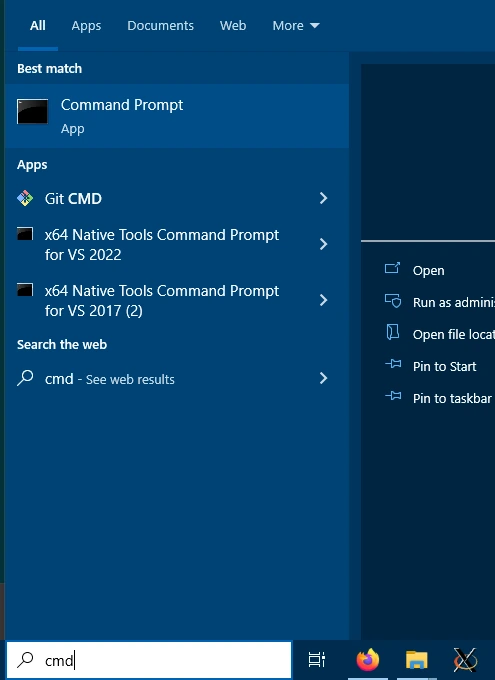
Open Command Prompt.
In Command Prompt, type “pnputil -e” to list all installed drivers.
Look for drivers at the beginning of the output that has the package name containing Sentinel HASP or SafeNet.
Remove each of them by running “pnputil /delete-driver drivername.inf /uninstall”
Example to remove the driver with the publisher name oem53.inf type: “pnputil /delete-driver oem53.inf /uninstall” and hit enter.
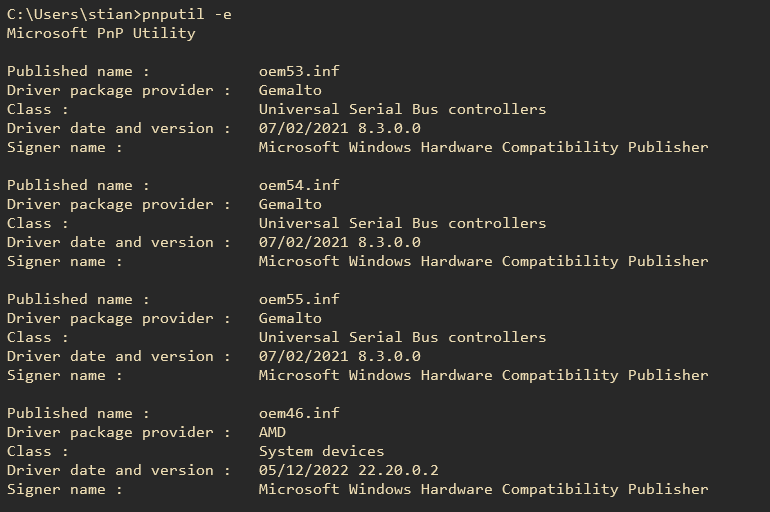
Please note that the output from pnputil in this case is from a working system that has the updated driver (missing screenshot of old drivers).
For a non working system it would should list similar drivers but with a different driver package provider

Installing new Halcon USB license dongle drivers
The instructions below uses “quotes” around text that should be typed into the command line without quotes.
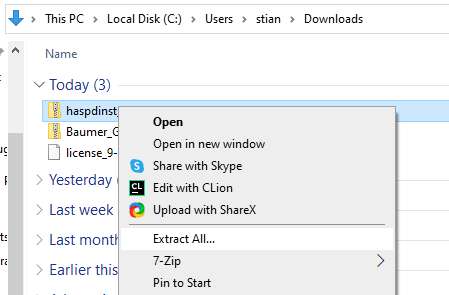
Download and extract the new driver, right click on the downloaded zip file and click “Extract All” & “Extract”.
Open Command Prompt (if you closed it from earlier)
Copy the location of the extracted driver folder, e.g. C:\Users\stian\Downloads\haspdinst_8.53
In Command Prompt, type “cd” and paste the location of the extracted driver, e.g. “cd C:\Users\stian\Downloads\haspdinst_8.53”
Type “haspdinst.exe /install” into the Command Prompt then hit enter.
Install should proceed.