
Playback and Buffering Settings
Three settings decide how smoothly video plays and scrubs. All three are in Settings, under Video & Capture, and all three trade memory for speed.
Start here when playback stutters, when scrubbing feels heavy, or when the software is using more memory than you want.
Quick buffering after capture
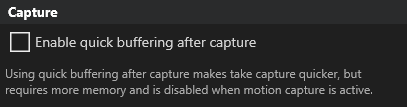
This one is about the wait straight after you record. With it on, a take is ready to review sooner.
It costs memory, and it switches itself off while motion capture is running, because motion capture wants that memory more.
Turn it on if you record and review in quick succession and the wait between them annoys you.
Buffered playback

This one is about scrubbing. Moving back and forth through a swing means decoding frames on demand, and decoding takes time.
With buffered playback on, the software decodes frames around your current position in advance. Moving within that range is then immediate rather than a decode each time.
It is off by default. Turn it on if scrubbing stutters.
The settings screen notes that it needs extra memory and recommends it for machines with 16 GB or more.
It helps most with footage that is expensive to decode: high frame rates, large frames, and interlaced recordings from older cameras.
Memory limits
Buffered playback frames have to live in memory, so there are two ceilings on how much buffered playback may use. These limits apply to buffered playback only. They are not a cap on how much memory the software uses overall, and they do not govern quick buffering after capture, which has its own setting.
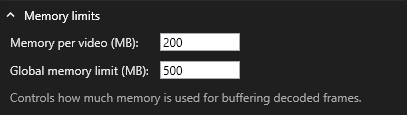
Memory per video (MB): is the cap for one video. Global memory limit (MB): is the cap for all of them together, which is what matters when several cameras are open at once.
The defaults are 200 MB per video and 500 MB overall. Leave them alone unless you have a reason.
Raise them if you have plenty of memory and want a longer smooth range while scrubbing. Lower them on a machine that is short of memory, or when something else on the machine needs it more.
If playback is still not smooth
These settings only affect decoding. If they do not help, the bottleneck is elsewhere:
- Check DirectX acceleration is on. In the same Settings page, under Video Rendering, both DirectX options should be ticked. See Camera color and video rendering settings .
- Check the source. Some formats cost far more to decode than others. See Video files you can import and play .
- Check the machine. Playing several high frame rate cameras at once is demanding regardless of settings.