
Using a Phone as a Camera
This article covers connecting an iPhone to Swing Catalyst as a camera, over WiFi or a USB cable.
Applicable to: any license that includes Mobile Camera. If yours does not, the Mobile Camera card is not shown in camera settings at all.
Required hardware: an iPhone running iOS 17 or later, with the Swing Catalyst Cam app from the App Store. For a cable connection you also need a USB data cable and the Apple Devices app on the PC. See Connecting with a cable below.
Which version of the software am I using?
What the phone camera is
Your phone becomes one of the cameras in the software. It appears in the camera list next to your other cameras, it records into the same take, and its video plays back beside the rest.
You set it up in Settings > Cameras. The Mobile Camera card at the bottom of that page is where phones connect. Above it is the normal camera list, and a connected phone appears there as a camera you can switch on and off.
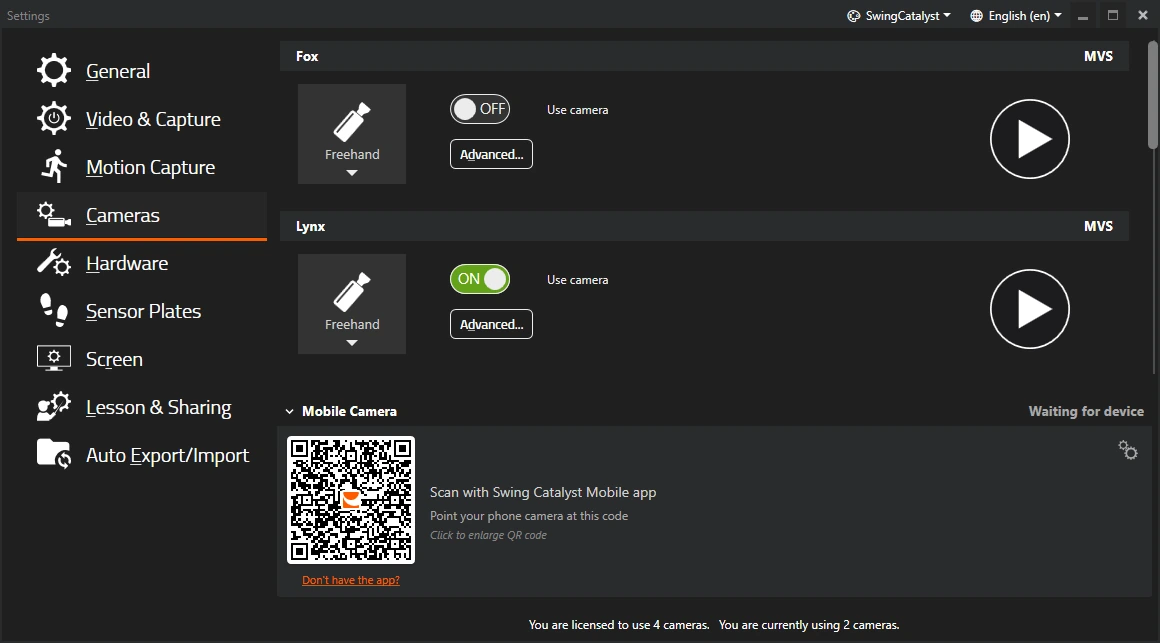
The card header on the right tells you the current state: Waiting for device, Pairing…, Connected, Reconnecting…, or a warning if something needs your attention.
Two ways to connect
The phone can reach the PC over WiFi or through a USB cable. Both carry the same video and both use the same pairing. They differ in what they need and in how accurately the phone’s clock lines up with the rest of your equipment.
| WiFi | Cable | |
|---|---|---|
| What it needs on the PC | Nothing extra | The Apple Devices app, installed and opened once |
| Phone requirement | On the same WiFi network as the PC | Any iPhone, with a USB data cable |
| How you connect | Scan the QR code in the Mobile Camera card | Plug the cable in |
| Timing accuracy | Good | Best |
| Best for | Getting started, phone away from the PC | Anything needing the best synchronization with plates and other cameras |
If your license includes it, you can use both at once with different phones.
Connecting over WiFi
- Put the phone on the same local network as the PC. The PC itself can be on WiFi or on a wired connection, as long as the two can reach each other.
- Open Settings > Cameras on the PC and find the Mobile Camera card.
- Install Swing Catalyst Cam on the phone. The Don’t have the app? link under the QR code shows a download code you can scan.
- Open the app on the phone and scan the QR code in the card. Allow camera and local network access when the phone asks for them. Click the code to enlarge it if the phone is not picking it up.
The code tells the phone which PC to connect to.
Once the phone is accepted, the card turns green and shows the phone’s name.
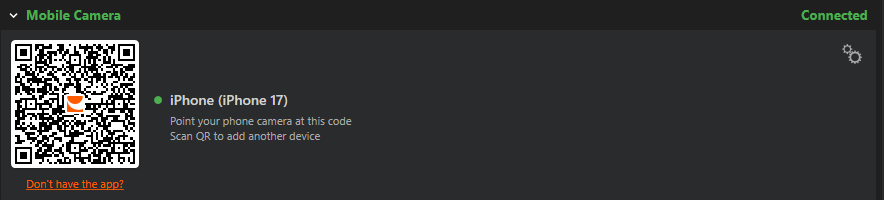
The phone now also appears in the camera list, with a Use camera switch and an Advanced… button, the same as any other camera.

If the card says WiFi connections are not available on this system, this PC cannot run the wireless transport as it is currently set up. The software checks for it when it starts, so this is about the machine’s configuration, not about which version of Windows you run. Use the cable in the meantime and contact us to sort the wireless side out.
Connecting with a cable
The cable gives much better synchronization, and it does not depend on the WiFi in the room. It needs one thing set up on the PC first.
Cable requirements
A USB data cable. Lightning or USB-C, whichever your phone takes. A charge-only cable will not work, because no data passes through it.
The Apple Devices app on the PC. Windows cannot talk to an iPhone over a cable on its own. Apple’s software provides that, and Swing Catalyst uses it to reach the phone. Install Apple Devices from the Microsoft Store, or install iTunes, which includes the same service.
Open Apple Devices once and accept the license. This step is easy to miss and it is not optional. The Microsoft Store version does not register its service until you have opened the app and accepted its terms. Until you do, the cable connection will not work, even though the app is installed.
With those three in place, plug the cable in and unlock the phone. Tap Trust if iOS asks whether to trust the computer, and enter the passcode; this happens the first time a phone is plugged into a new PC. Then open Swing Catalyst Cam, because the phone is the one listening for the connection over the cable.
The PC notices the phone and connects on its own. The first time, the phone pairs the same way it would over WiFi.
If the card says USB Setup Required
This means the software cannot reach the Apple service it needs to talk to the phone, which usually means step 2 or step 3 above is missing. The card gives you two links:
- Install from Microsoft Store opens the Apple Devices store page.
- Check again re-tests the connection. Use it after you have installed the app and opened it once, instead of restarting Swing Catalyst.
WiFi keeps working while this warning is showing, so you can carry on wirelessly and sort the cable out later.
Pairing
Pairing is what tells the software that a phone is allowed to connect. It happens once per phone. After that the phone is remembered and reconnects on its own.
Open the pairing settings from the small gear icon in the top right of the Mobile Camera card.
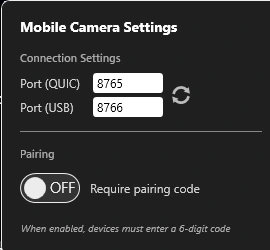
Require pairing code is off by default, which means a phone that scans the code is accepted straight away. That is the right setting for a bay you control.
Turn it on where other people can reach your network. A phone then has to enter a six-digit code before it is let in. The code appears in the card with a countdown next to it, and it is valid for five minutes. Read it off the screen and type it into the phone. The code sits on the same screen as the QR code, so it guards against someone else on your network rather than someone standing behind you.
Ports
The same settings panel holds two port numbers: Port (QUIC) for WiFi and Port (USB) for the cable. The defaults are 8765 and 8766.
Leave them alone unless a phone cannot connect and you suspect something else on the machine is using the same number. The two must be different from each other, and the software will not apply them otherwise.
Port (USB) is the port on the phone that the PC dials, not a port on the PC. Changing it only works if the app on the phone is listening on the new number, so leave it alone unless we ask you to change it. After changing either port, press the refresh button beside them to restart the connection service.
Synchronization accuracy
Every camera in a take has to agree on when each frame happened. The phone has its own clock, so the software measures the difference between the phone’s clock and the PC’s, continuously, and corrects for it.
How well that works depends on how the phone is connected. A cable is considerably more accurate than WiFi.
The difference comes from how steady the link is, not from the video. A cable delivers a message in a predictable time. WiFi does not, because a message can be delayed while the network is busy, and the software cannot always tell how much of that delay fell on each direction.
This matters most at high frame rates, where frames are close together and a small timing error covers a larger part of one. The software tells you when it is not accurate enough, so you do not have to judge it yourself.
Use the cable when the phone’s video has to line up accurately with plates or other cameras. Use WiFi when convenience matters more, or when the phone has to sit somewhere a cable will not reach.
When timing is not good enough
Two things can happen, and they mean different things.
A warning on the camera tells you the measured accuracy is worse than the target. The camera keeps working and you can keep recording. It reads: “Clock sync accuracy is ±0.00ms, above the target for reliable multi-camera timing.”, with the real figure in place of the zeros.
On some setups a Cannot start recording message blocks the recording instead, rather than only warning. Every version of the message begins “Recording can’t start” and then names the case, followed by what to do about it. The table gives the words that identify each case; read the full message on screen for the instruction.
| The message says | What it means |
|---|---|
| “clock synchronization is still starting up” | Normal right after a device connects. It usually clears within a few seconds. |
| “clock synchronization is re-establishing after a gap” | The link dropped a beat. A device that keeps doing this is usually on a busy link, so try the cable. |
| “the synchronization signal was lost” | Recording is allowed again on its own when the signal returns. Check the cable or the network link. |
| “clock synchronization has failed” | Reconnect the device. If the message stays, contact us before recording, because the timing would not be trustworthy. |
| “clock synchronization has not initialized” | Give the devices a few seconds after they open, then reconnect the device if it stays. |
The sync record for each take
Each take recorded from a phone gets a small companion file next to the video, ending in .clocksync.json. It records how well the clocks were agreed at the moment the take was triggered, including a plain syncReliable yes or no.
The measurement is taken at the trigger, not afterwards, because a link that recovers a second later would otherwise hide a badly timed take. It records that one moment rather than checking the whole take. You do not need to read this file, but keep it with the recording: it is what our support team will ask for if you ever question a take’s timing.
Using more than one phone
You can connect several phones to one PC. Each is a separate camera.
Adding the second phone works like the first. The card keeps its QR code on screen after a phone connects, with the hint “Scan QR to add another device”. Scan the same code with the next phone.
Each phone counts as one of your licensed cameras. The line at the bottom of the camera settings page tells you where you stand. It reads “You are licensed to use 4 cameras. You are currently using 2 cameras.”, with your own numbers in place of the 4 and the 2. A phone with Use camera switched on takes one of those slots, the same as any camera you own.
One phone serves one PC at a time. A phone accepts a single connection, so it cannot feed two machines at once. Several phones can feed one PC, but a single phone cannot be shared between two.
WiFi is shared, cables are not. Every phone streaming over WiFi is sending video across the same air. Adding phones eats into what each one gets, and a busy network makes the measured synchronization worse, even though the target itself does not change. Cables avoid that contention, so a multi-phone setup is a good reason to reach for cables.
Keep the phones charged. Filming and streaming drain a battery quickly, and a phone that dies takes its camera out of the session with it. The software watches the battery and warns you before that happens, but a cable is still the safer option for a long session. Heavy filming can drain a phone faster than USB charges it.
What the software watches on the phone
A phone is a camera that can run out of battery, run out of space, or get too hot. The software watches all three, plus the quality of the connection, and warns you as each gets low. Each warning has two levels: a first warning as the phone gets low, and a more serious one as it gets worse. Two of them change what the phone does, as described below: critically low storage switches off the recording buffer, and a hot phone lowers its recording frame rate. A low battery or a slow connection is reported, but recording carries on until the phone itself gives out.
| What it watches | What the warning shows |
|---|---|
| Battery level | The phone’s approximate charge |
| Free storage | The space left on the phone |
| Connection quality | Whether the link is poor or very poor |
Why storage matters at all. The phone is not only streaming video to the PC. It records to its own storage, for two reasons.
It is always recording into a buffer on the phone, so that when you trigger a capture the swing that just happened is already there. That is what lets you capture a swing you did not know was coming. When free space gets critically low there is no room for that buffer, so it is switched off and you lose the footage from before the trigger. The low-storage capture warning says when that has happened.
The captured clip is then written as a file on the phone and sent to the PC afterwards. Until that transfer finishes, the only copy is on the phone.
So a phone that is full cannot record for you, no matter how good the connection is. Freeing space means deleting apps or photos, or letting the software finish moving captured videos off the phone.
Temperature. A phone filming at a high frame rate in the sun gets hot, and iOS slows it down to cool off. That shows up as dropped frames rather than an error, so the software reports the phone’s thermal state and tells you when it is being throttled. Move it out of direct sun and take the case off.
Connection quality. A poor or very poor connection shows up as a capture warning. A poor connection means the network is struggling, and timing accuracy suffers before the video does. A cable removes the problem rather than improving it.
Battery, storage and temperature come from the phone, and the PC measures connection quality. All of them need the Swing Catalyst Cam app running and connected.
If the connection drops
A phone that loses its connection reconnects on its own, and the card shows Reconnecting… while it tries. You do not need to pair again.
Pairing is remembered between sessions, so a phone you have used before connects when you open the software with the app running.
Troubleshooting
| What you see | What it usually is |
|---|---|
| Card says USB Setup Required | Apple Devices is missing, or installed but never opened. Open it once and accept the license, then use Check again. |
| Nothing happens when the cable is plugged in | A charge-only cable, or the app is not open on the phone. Both are needed. |
| The QR code does not appear | Read the message in the card. If it reports a port problem, another copy of the software has the connection port: close it, or change the port in the Mobile Camera settings. Contact us with the message if it says anything else. |
| Card says WiFi connections are not available | This PC cannot run the wireless transport as it is set up. Use the cable, and contact us about the wireless side. |
| Card shows an error with a retry link | The connection service did not start. Use the retry link in the card. |
| The phone is connected but recording will not start | Clock synchronization has not settled yet. Wait a few seconds and read the message, which says which case it is. |
| No Mobile Camera card at all in camera settings | Check you are on version 26.1 or later. If the card is still missing, your license does not include the feature. Contact us and we will tell you what your license covers. |
Quick reference
| You want to | Go to |
|---|---|
| Connect a phone | Settings > Cameras, scan the QR code in the Mobile Camera card |
| Get the phone app | Swing Catalyst Cam in the App Store, or the Don’t have the app? link under the QR code |
| Connect over a cable | Install Apple Devices , open it once, plug the cable in |
| Require a code before a phone is let in | The gear icon in the card, Require pairing code |
| Change a port | The gear icon in the card, then the refresh button to apply |
| Add another phone | Scan the same QR code with the next phone |
| Check how many camera slots you have left | The line at the bottom of the camera settings page |
| Turn the phone camera off without unpairing | The Use camera switch on its row in the camera list |
| See low battery or low storage | The Mobile Camera card, while a phone is connected |
| See overheating or a poor connection | The capture warnings |