
Camera Color and Video Rendering Settings
This article covers what the software corrects in a camera picture on its own, the settings that control it, and what to check first if colors look wrong.
Most of it runs on its own. Since version 26.1, colors are closer to the real thing, and brightness closer to what your eye saw in the room.
For adjusting brightness, contrast and sharpness on a camera by hand, see Improving camera image quality .
If colors look wrong, check this first
The color work runs on your graphics card. With DirectX acceleration switched off, the software falls back to a simpler path that skips the color correction. For most cameras you still get a picture and it still records, but a plainer one. Some cameras need DirectX (GPU processing) and will not show a picture with it turned off.
Enable DirectX accelerated rendering and Enable DirectX accelerated encoding are in Settings, under Video & Capture, in the Video Rendering group. Both are on by default and both should stay on. They are not performance-only settings, whatever the names suggest.
Turn one off only if support asks you to while diagnosing a graphics problem, and expect colors to change when you do.
The software can also fall back on its own if your graphics hardware or driver cannot run the processing. If the settings are on and colors still look plainer than you expected, tell us which graphics card and driver you have.
What the software handles on its own
For supported camera models, color is corrected automatically, so skin looks like skin and a red shirt is the red it was in the room. Noise reduction and sharpening run automatically, and bright areas keep their detail instead of washing out to white.
You do not have to set any of this up. White Balance, Color Correction Matrix, Tone Mapping and Noise Reduction each have their own controls, in a camera’s Advanced settings, on the Filters tab.
Adjust white balance if colors pick up a cast under a particular light. Adjust the color correction matrix if colors still look wrong after checking DirectX rendering above. Adjust tone mapping if bright or dark areas still lose detail. Adjust noise reduction if the picture looks grainier than you want.
Color correction on older recordings
Older recordings were made before the color calibration existed. Opening one can apply a correction so it looks closer to what you would get today.
Not every old file gets it. It depends on what was stored with the recording, and on the camera that made it. This is not a clean cut-off by version, so two recordings from the same year can differ.
The setting is in Settings, under Video & Capture, in the Video Rendering group.
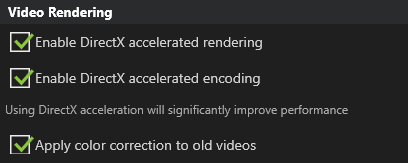
Apply color correction to old videos is on by default. Leave it on unless you are comparing an old recording against how it looked at the time.
Turning it off changes only how older recordings are displayed. It does not alter the stored file, and it has no effect on recordings made since the calibration arrived.
Choosing an encoder
Processing decides what the picture looks like. The encoder decides how it is stored, and that is a separate choice on the same settings page.
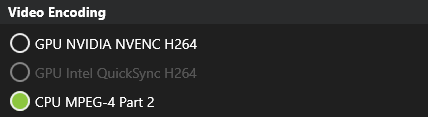
The list shows what your machine can do. An option grayed out, as Intel QuickSync is here, is not available on this machine as it is set up. That can mean the hardware is absent, but it can also mean a graphics driver that will not support it. Hover the option to see a short reason. If your NVIDIA driver is too old, the tooltip says so; otherwise it says the encoder is incompatible with your hardware, even when a driver is the cause.
The two GPU options hand the work to the graphics card. The CPU option does the work on the processor instead.
The choice affects how long a capture takes as well as what the file looks like. If you are unsure, Which one should I choose? runs a benchmark on your machine and recommends one. That is a better answer than any general advice, because it measures your hardware rather than guessing at it.
Changing the encoder does not alter recordings you already made.
When a color difference is a fault
Report it if:
- A recorded take is wildly wrong, not slightly different: green skin, a magenta cast, or an inverted-looking picture.
- The live view is correct and the recording is not, on every take rather than one.
- The picture changed after an update and nothing else about your setup did.
Say which camera model you use, whether the live view or the recording is wrong, and what version you are on. A screenshot of both side by side is the most useful thing you can send.