
Upgrading the firmware on the FLIR Blackfly S
This article covers how to upgrade the firmware on the FLIR Blackfly S GigE BFS-PGE-04S2C-CS.
Warning: Do not proceed to upgrade the firmware if the camera product model does not match: BFS-PGE-04S2C-CS
Requirements:
Spinaker SpinView software (see Setting up FLIR BlackFly S GigE in Swing Catalyst ) for details.
FLIR Blackfly S BFS-PGE-04S2C-CS camera.
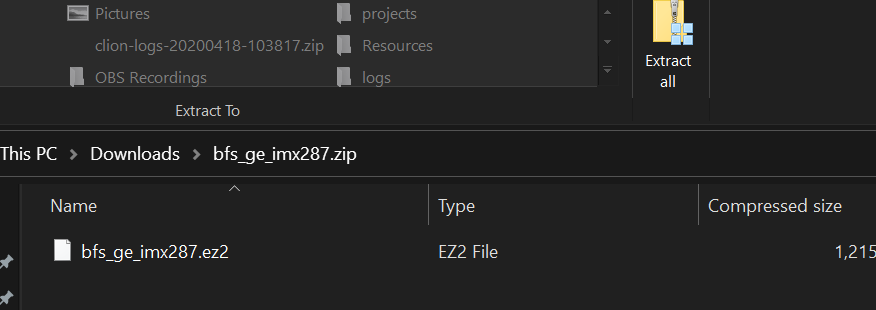
Download the firmware update , double click on the zip file and extract the ez2 file by clicking Extract all.
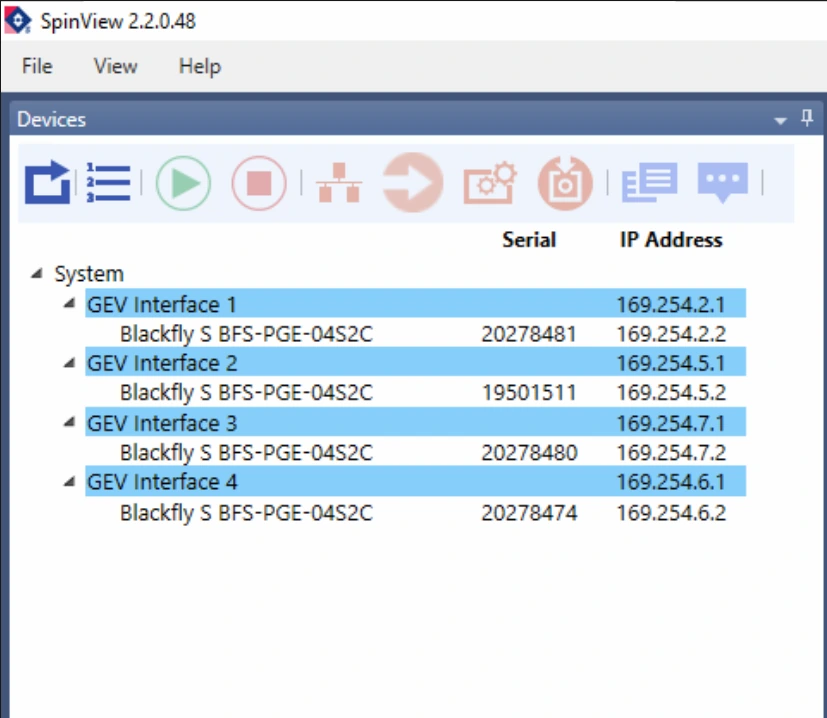
Start SpinView (Windows Start Menu, type SpinView), click Spinview icon.
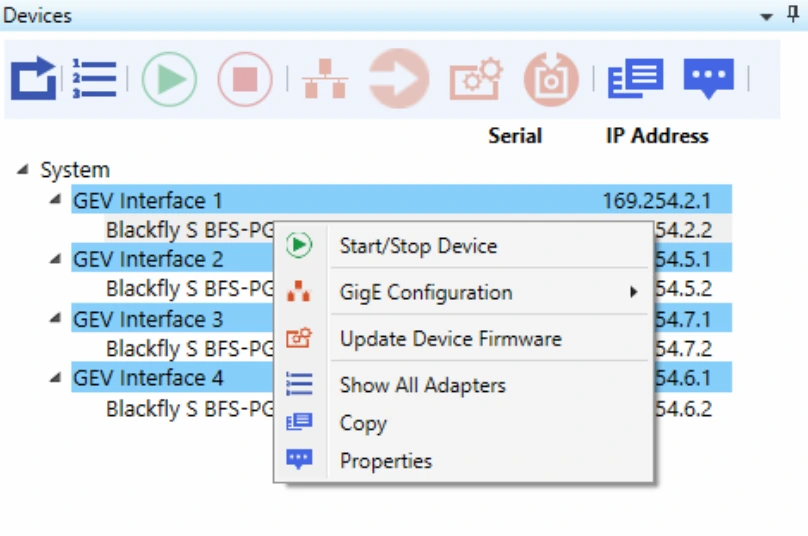
Right click the camera you wish to update and click: Update Device Firmware.
Download the firmware file if you haven’t already:
https://cloudfront.swingcatalyst.com/files/bfs_ge_imx287_2005.0000.066.000.zip & extract the zip file.
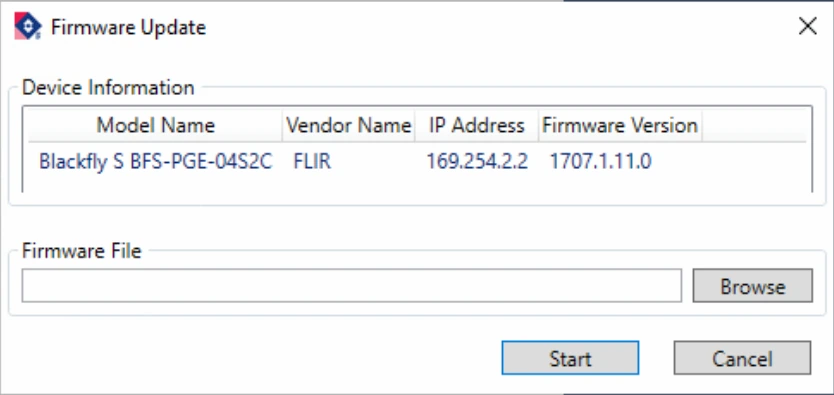
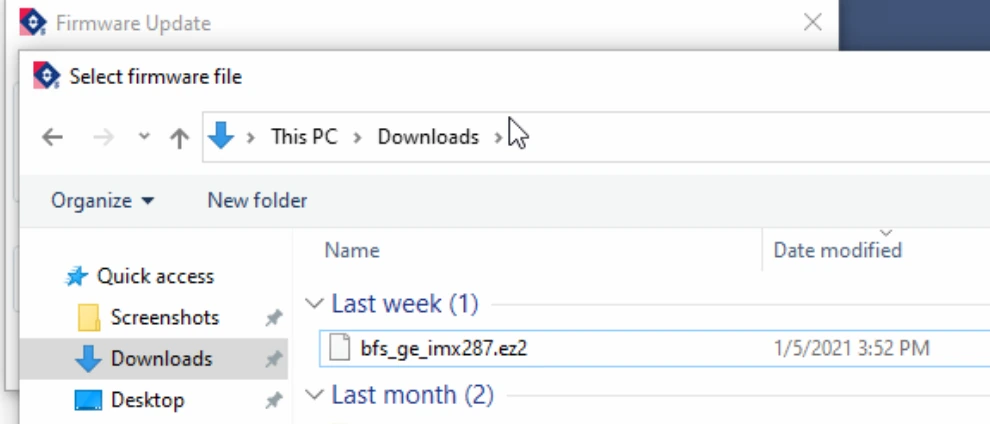
Select the firmware file that you have downloaded.
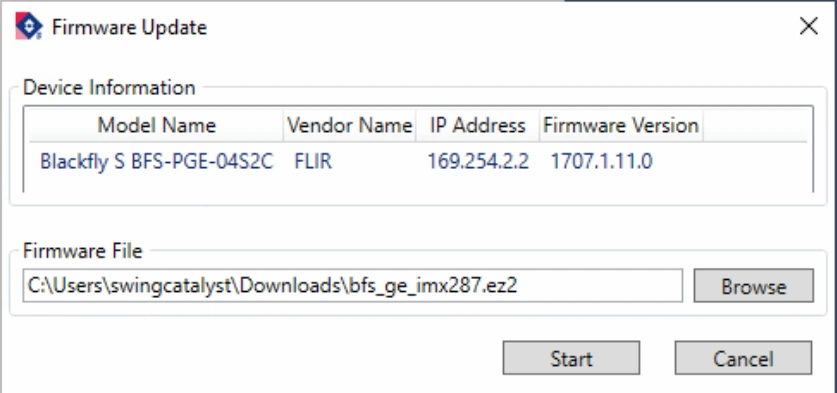
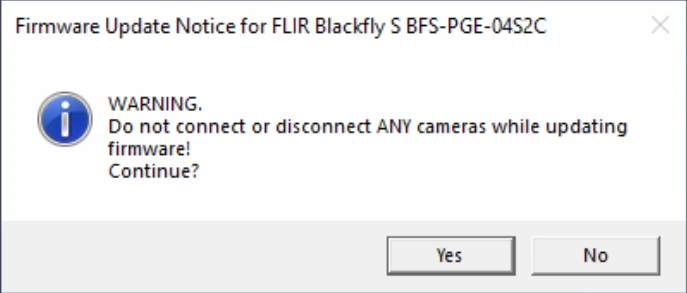
Click Start and then click Yes
Link to old firmware: https://cloudfront.swingcatalyst.com/files/bfs_ge_imx287.zip