How to manage your subscriptions & orders
This support article covers how to manage and cancel your subscription through the Swing Catalyst web shop.
Preface
A Swing Catalyst subscription is required. If you have a subscription through a third party please contact your sales person to cancel your subscription.
The web shop
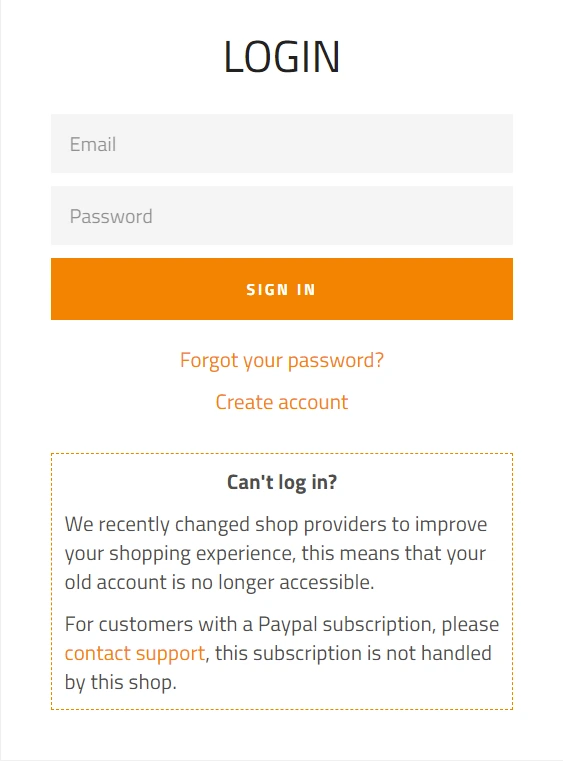
To manage your subscription, go to swingcatalyst.com , click Sign In at the top of the page, sign in, then open Account.
Login with the email address and password used when purchasing the subscription.
If you don’t remember your password details you can recover your password, by clicking forgot your password
Your account
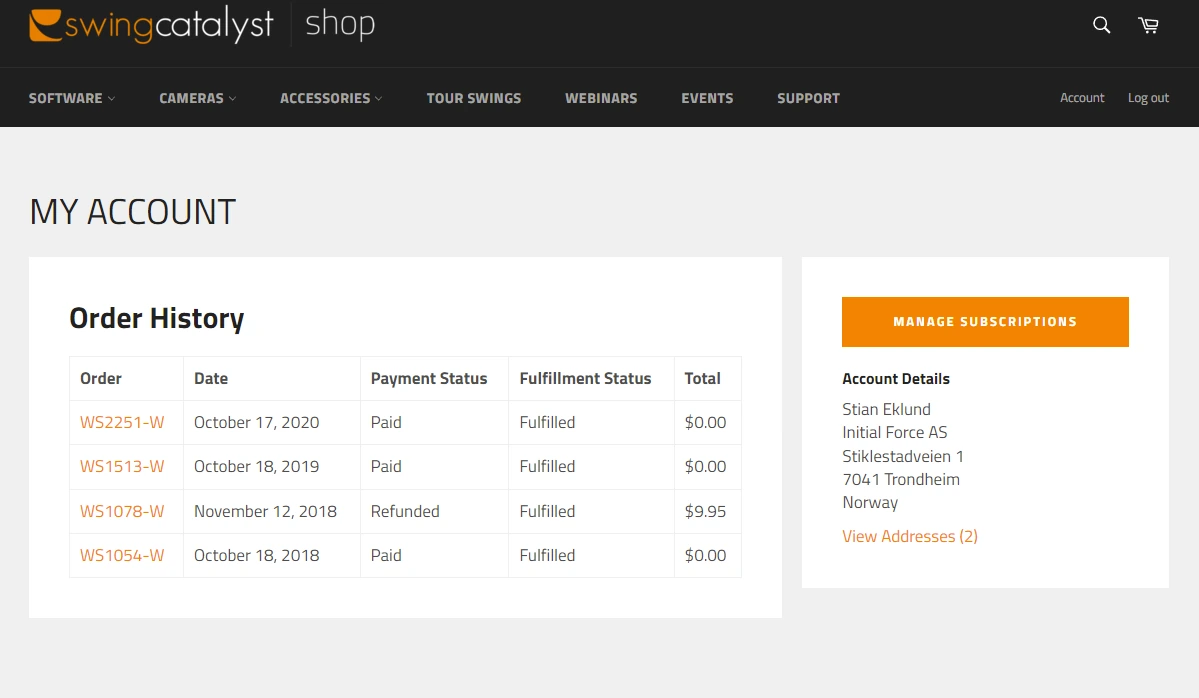
This is the overview page over your account and order history.
Order history
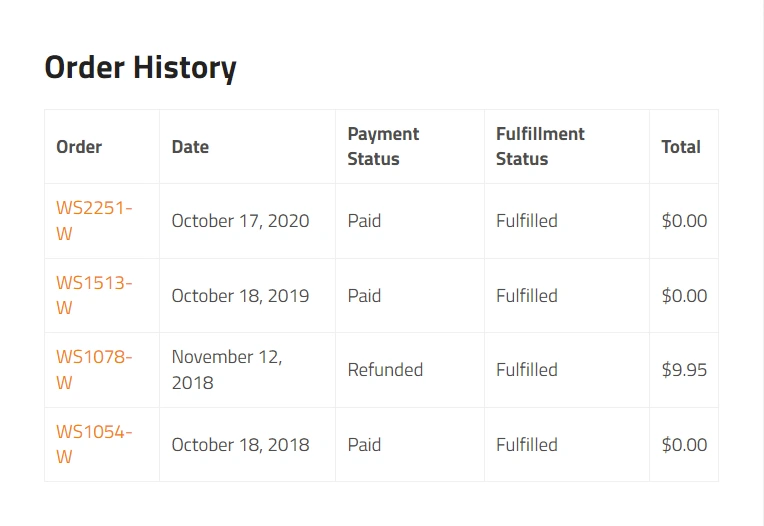
Your purchase history of both software and hardware products are listed here:
Managing subscriptions
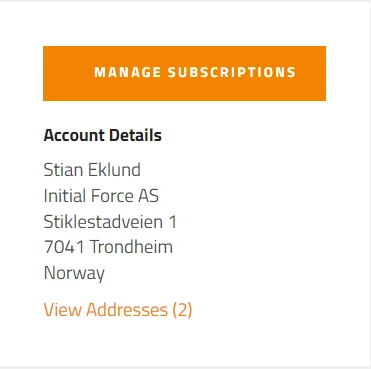
To manage your subscription click Manage Subscriptions (on the right hand side of the web page):
To cancel you subscription click here.
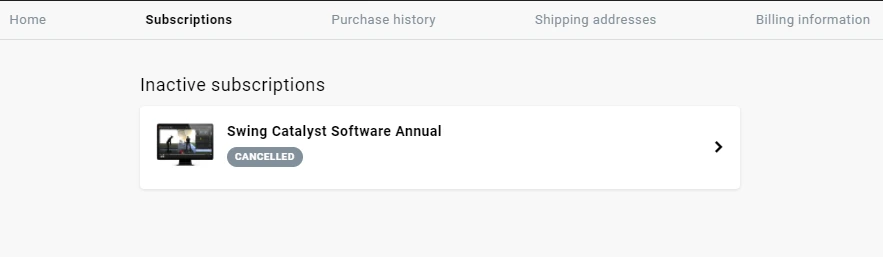
Once the subscription is canceled you can verify your subscription history after clicking manage subscriptions: