
Canceling Software Subscription (PayPal)
This article covers canceling an active software subscription via PayPal
Log in to the PayPal account used for your subscription payments.
Go to Settings, then click Payments.
Select Subscriptions and saved businesses or Automatic Payments, whichever your account shows.
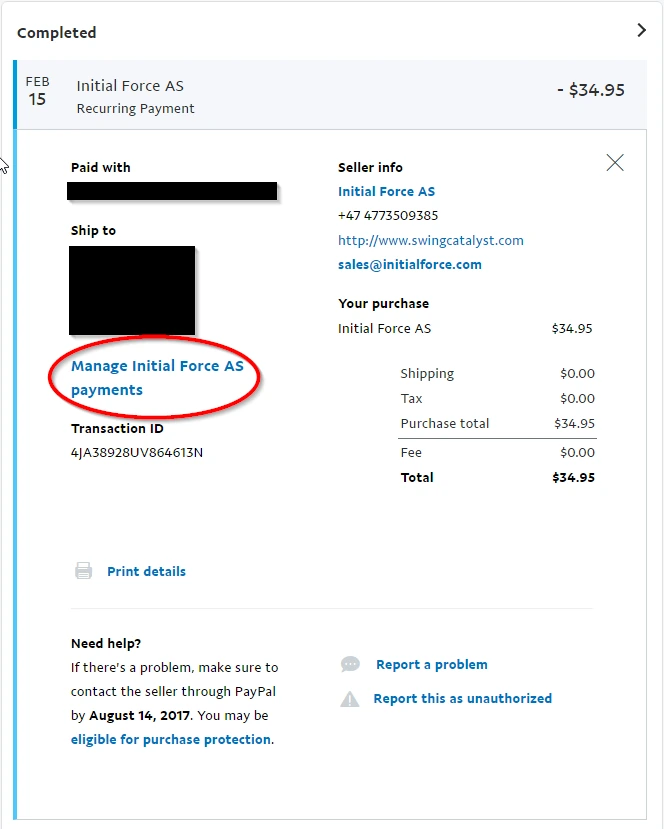
Select “Initial Force AS”.
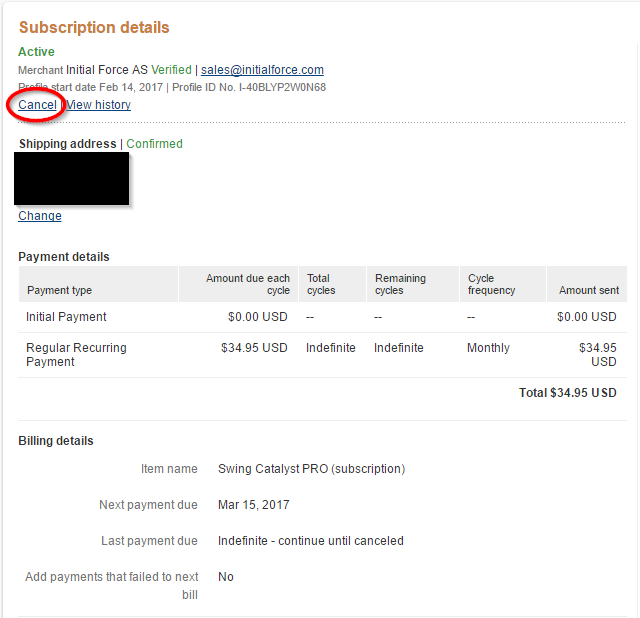
Cancel the automatic payment, and confirm when prompted.
The screenshots below are from an older PayPal layout, so your screens will look different:
You subscription and software will continue to work for the remainder of the monthly billing cycle.
Thank you for choosing Swing Catalyst!
Last updated on