
How to copy database for Swing Catalyst 6.1 & older
For Swing Catalyst 6.1 and older:
Download and install SQLite Expert Personal:
http://www.sqliteexpert.com/download.html
After installing SQLite Expert Personal, open the Swing Catalyst database, select any file, and then select SwingCatalystDB.
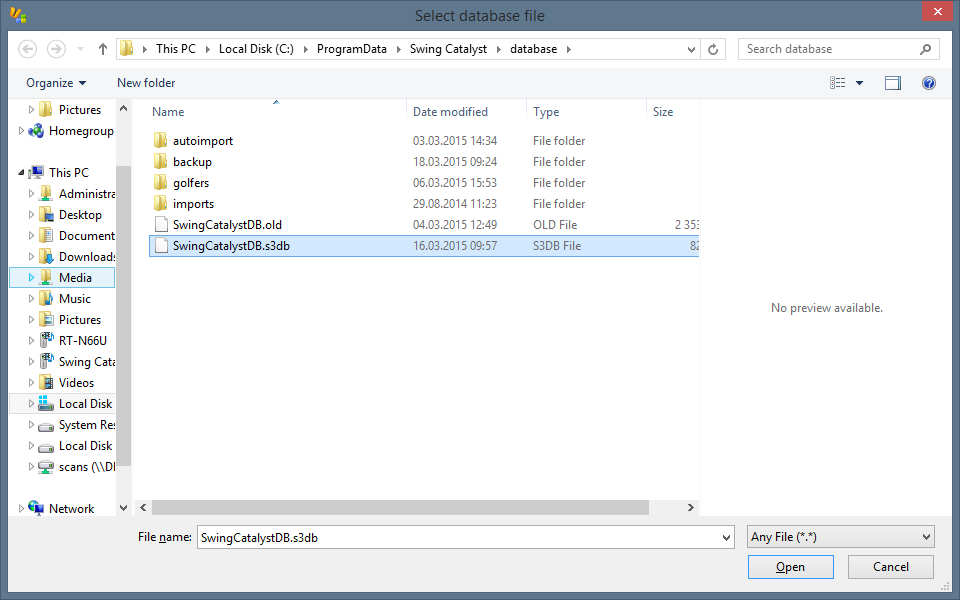
Navigate to the SQL tab, then paste the text below into the empty text field.
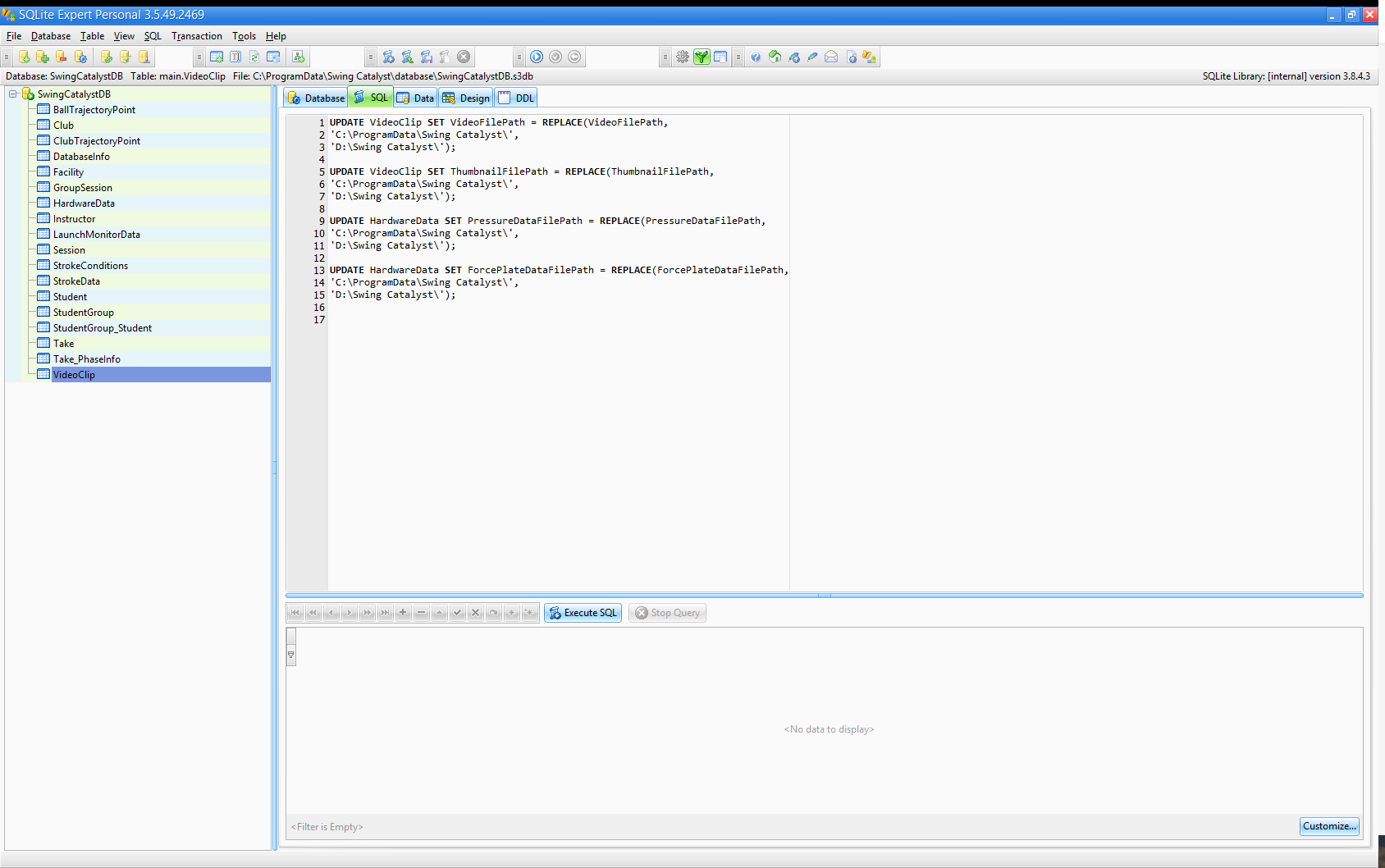
Make sure you change the third line of each statement ('D:\Swing Catalyst\') to the new database location!
Copy and paste this in the SQL tab:
UPDATE VideoClip SET VideoFilePath = REPLACE(VideoFilePath,
'C:\ProgramData\Swing Catalyst\',
'D:\Swing Catalyst\');

UPDATE VideoClip SET ThumbnailFilePath = REPLACE(ThumbnailFilePath,
'C:\ProgramData\Swing Catalyst\',
'D:\Swing Catalyst\');

UPDATE HardwareData SET PressureDataFilePath = REPLACE(PressureDataFilePath,
'C:\ProgramData\Swing Catalyst\',
'D:\Swing Catalyst\');

UPDATE HardwareData SET ForcePlateDataFilePath = REPLACE(ForcePlateDataFilePath,
'C:\ProgramData\Swing Catalyst\',
'D:\Swing Catalyst\');
Once you have confirmed that you’ve got the correct path, hit Execute SQL, and it should update all of the entries with the new file path.
Last updated on